


- Drone strikes knocked out three AWS data centers in the UAE and Bahrain, disrupting cloud services that power platforms like Adobe Creative Cloud and SmugMug.
- Your cloud-stored photos likely sit on AWS servers — even if your provider doesn’t advertise it. The 3-2-1 backup rule is your best defense.
- A solid photographer backup strategy combines local SSDs, a second copy, and offsite cloud storage so no single event can wipe out your work.
Last week, drone strikes hit three Amazon Web Services (AWS) facilities in the UAE and Bahrain. Fires, power outages, and water damage followed. For most people, the story was about geopolitics. For photographers who store their life’s work in the cloud, it should be a wake-up call.
AWS powers roughly a third of the internet. Netflix, Reddit, LinkedIn — and more relevantly, platforms like Adobe Creative Cloud, SmugMug, and parts of Apple’s iCloud and Dropbox all run on AWS infrastructure. If your photos live in “the cloud,” there’s a good chance they’re sitting on Amazon servers somewhere.
What Happened to the AWS Data Centers
The strikes were part of the US/Israel-led military action against Iran. One AWS data center took a direct hit, causing sparks and fire. Facilities in Bahrain suffered indirect damage from power outages. According to the BBC, fire suppression activities caused additional water damage — potentially worse for server hardware than the initial impact.
AWS operates around 900 data centers worldwide. Each piece of data is automatically replicated across at least three separate “availability zones” within a region. The system is designed to survive individual server failures, even entire building outages. AWS quotes “eleven nines” of durability — 99.999999999% — meaning the odds of losing data are astronomically low under normal circumstances.
But a military strike isn’t normal circumstances. When multiple facilities in the same region go down simultaneously, the self-healing process takes minutes to hours as data is redistributed to surviving centers. During that window, some services experienced slowdowns and partial outages.
Which Photo Services Use AWS
Many photo storage and editing platforms depend on AWS, either directly or as overflow capacity:
- Adobe Creative Cloud — Uses AWS for cloud storage and processing
- SmugMug — Relies on AWS for image hosting and delivery
- Apple iCloud — Uses AWS alongside Apple’s own data centers
- Dropbox — Historically AWS-dependent, now mostly on its own infrastructure
- NordLocker — Cloud encryption service running on AWS
Even Google Cloud Platform and Microsoft Azure — the other major cloud providers — would face similar vulnerabilities if targeted. The point isn’t that AWS is uniquely risky. It’s that any centralized cloud infrastructure is a single point of failure if you treat it as your only backup.
The 3-2-1 Backup Rule Every Photographer Should Follow
The 3-2-1 rule has been the gold standard for data protection for decades, and events like this are exactly why it exists:
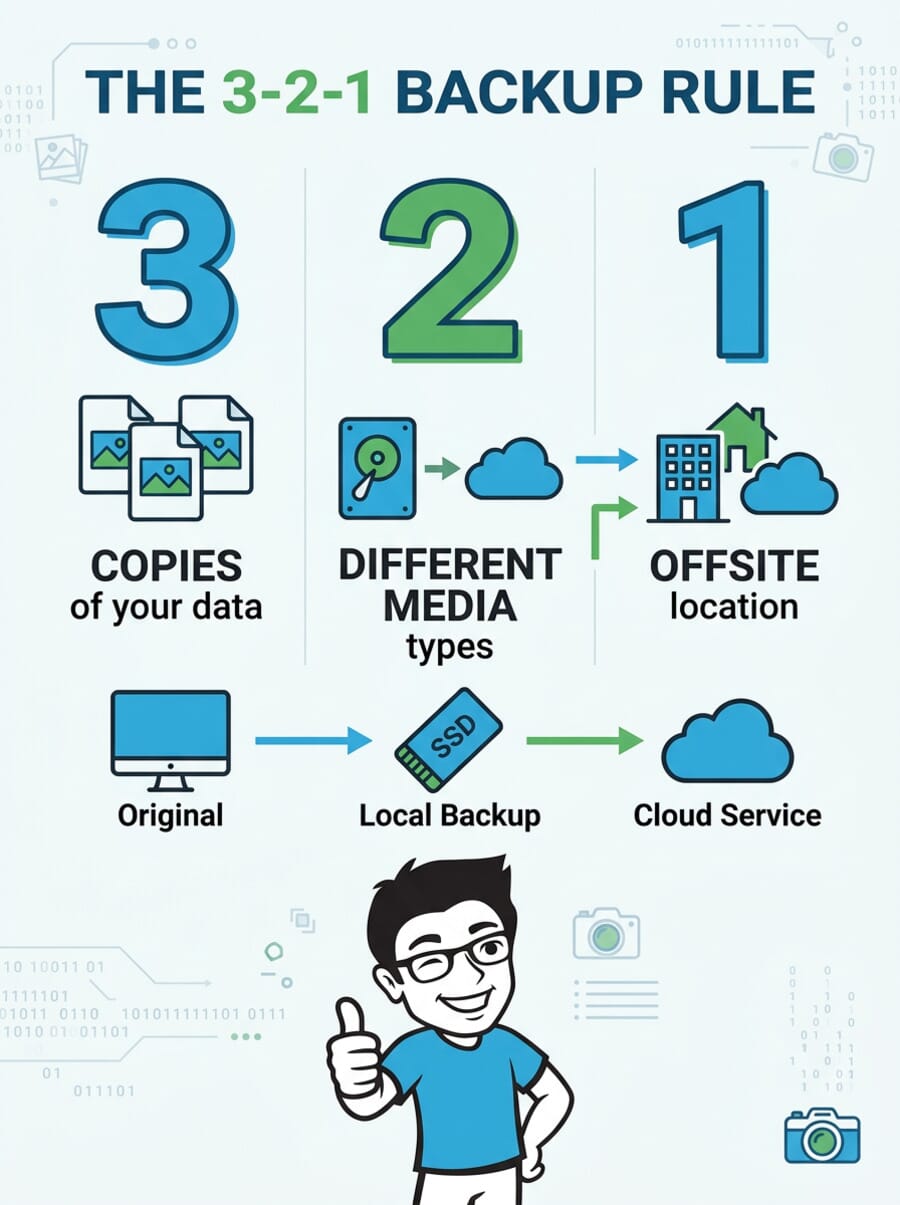
- 3 copies of your data — your working files plus two backups
- 2 different media types — e.g., internal SSD plus an external hard drive
- 1 offsite copy — cloud storage or a drive kept at a different physical location
The key insight is that no single event — fire, theft, hardware failure, or even a military strike — should be able to destroy all three copies simultaneously. If your only backup is iCloud and iCloud’s servers go down, you have zero copies.
A Practical Backup Strategy for Photographers
Here’s a realistic backup workflow that balances protection with convenience:
Copy 1: Working Drive (Local SSD)
Your current projects live on your computer’s internal drive or a fast external SSD. This is your primary working copy. Speed matters here — you need fast read/write for editing in Lightroom or Capture One.
Copy 2: Local Backup (External Drive)
A dedicated external hard drive or SSD that stays at your desk. Set up automated backups — Time Machine on Mac, File History on Windows, or a dedicated tool like FreeFileSync. This protects against hardware failure on your primary drive.
Copy 3: Offsite (Cloud or Physical)
This is your disaster recovery copy. Options include cloud backup services (Backblaze at $99/year for unlimited storage is hard to beat), or physically rotating a hard drive to a different location — a friend’s house, a safety deposit box, or your studio if you edit at home.
Cloud vs. Local: It’s Not Either/Or
The lesson from the AWS strikes isn’t “don’t use the cloud.” It’s “don’t use only the cloud.” Cloud storage offers genuine advantages for photographers:
- Access your catalog from anywhere
- Automatic offsite redundancy
- Protection against local disasters (fire, flood, theft)
But cloud storage also has risks that local storage doesn’t:
- Service outages (as we just saw)
- Account lockouts or subscription lapses
- Slow upload/download for large RAW files
- Privacy concerns (third-party access to your files)
- Physical vulnerability of data centers to attacks or natural disasters
The photographers who lost sleep last week were the ones with everything in the cloud and nothing local. Don’t be that person. If you haven’t already, read our guide to backing up your Lightroom library for a step-by-step walkthrough.
What You Should Do This Week
- Audit your current backup situation. How many copies of your photo library exist right now? Where are they? If the answer is “just my computer” or “just iCloud,” you’re one incident away from losing everything.
- Buy an external drive. A 4TB portable SSD costs around $200-300. That’s cheap insurance for years of irreplaceable photos.
- Set up automated backups. Manual backups don’t happen. Use software that runs automatically — daily for active projects, weekly for your full archive.
- Add an offsite copy. Whether it’s Backblaze, Google One, or a drive at a friend’s house, get at least one copy physically separated from your home.
- Test your recovery. A backup you’ve never tested isn’t a backup. Pick a random folder and try restoring it from each backup location.
Were any photos permanently lost in the AWS attacks?
AWS has not reported permanent data loss. Their systems replicate data across multiple availability zones, and the affected facilities’ data was redistributed to surviving centers. However, some services experienced temporary slowdowns and partial outages during recovery.
Is cloud storage safe for photographers?
Cloud storage is safe as one part of a multi-layered backup strategy. It should not be your only copy. The 3-2-1 rule recommends three copies on two different media types with one offsite — cloud serves well as the offsite component.
What’s the cheapest way to back up a large photo library?
Backblaze offers unlimited cloud backup for $99/year. For local backups, a 4TB portable SSD runs $200-300. Combined, you’re fully protected for under $400/year — far cheaper than losing years of work.
Does Adobe Creative Cloud back up my photos?
Adobe Creative Cloud syncs your Lightroom library to the cloud (with paid storage), but this is synchronization, not true backup. If you accidentally delete a file, the deletion syncs too. You still need a separate, independent backup.
Sources used for this article:
Featured image: Photo by Albert Stoynov on Unsplash.
Related Posts
Get the Weekly Photography News Digest
Join photographers who get our top stories delivered every Monday morning. No spam, unsubscribe anytime.