


- Adobe is bringing its conversational AI Assistant to Photoshop on desktop (in beta) — you describe the edit you want in plain English and it performs it, or guides you to the right tool.
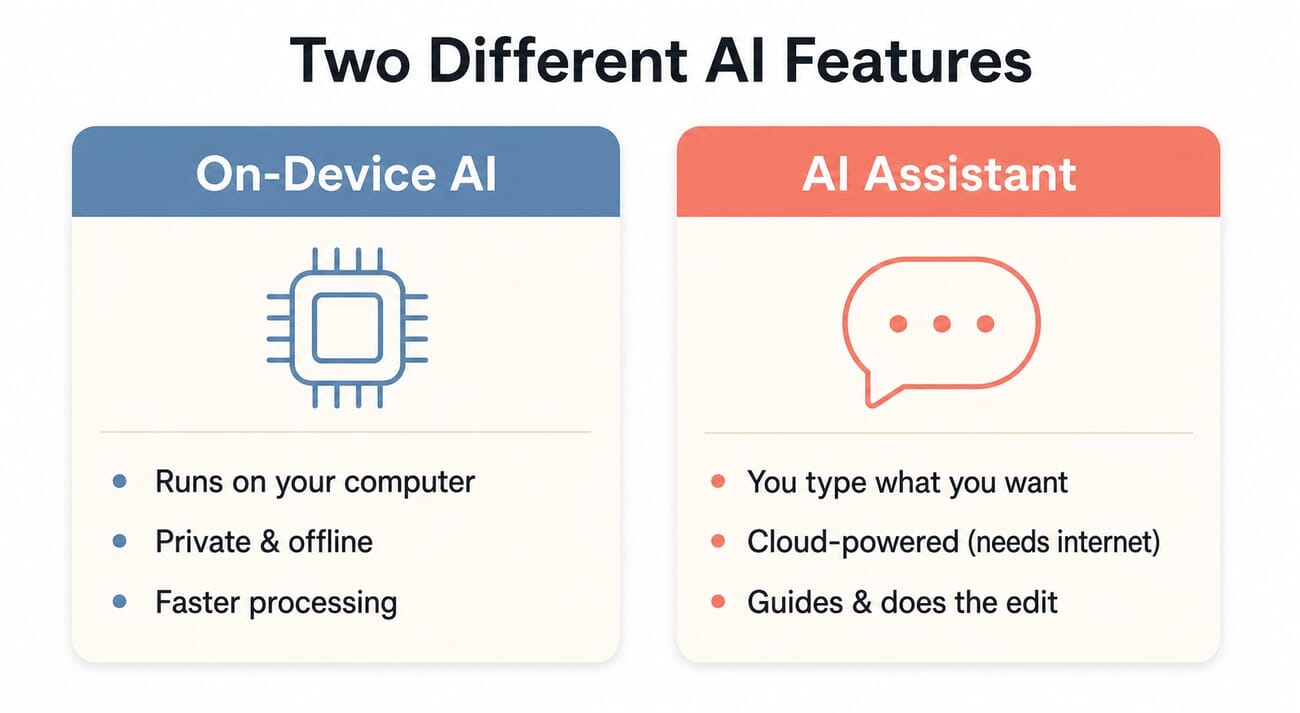
- It’s a different feature from the on-device AI we covered in June: the Assistant is a cloud-powered (Firefly) chat interface about how you interact with Photoshop; on-device AI is about where the processing runs (locally).
- It mainly helps two groups: beginners who don’t know where Photoshop’s tools live, and pros who want to skip menu-hunting and chain edits faster.
- Caveats: it’s an English-only beta, needs an internet connection, and its generative steps draw on Adobe’s Firefly (which uses generative credits).
- To try it, install Photoshop (beta) from the Creative Cloud app’s Beta apps section — it ships in the desktop beta build, not the standard release yet.
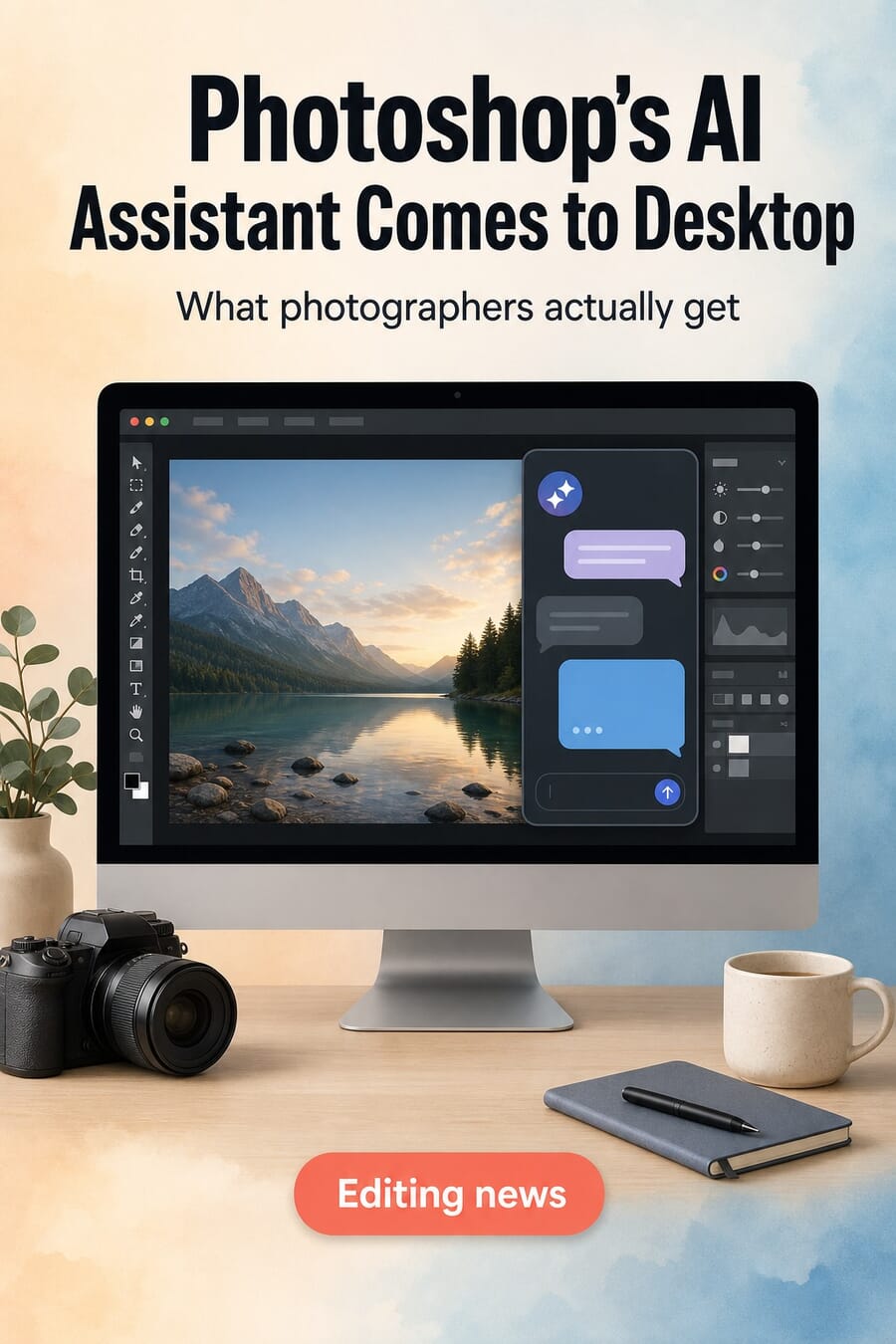
Adobe is putting a chatbot inside Photoshop — and this time it’s coming to the desktop app most photographers actually edit on. The conversational AI Assistant, which Adobe first showed in Express and rolled out to Photoshop on the web and mobile, is now arriving in the Photoshop desktop beta. Instead of hunting through menus and panels, you tell it what you want — “remove the power lines,” “warm up the sky,” “select the subject and blur the background” — and it does the work or walks you to the tool that will.
If that sounds familiar, it shouldn’t be confused with the on-device AI Adobe pushed in June. They’re two different things, and the difference matters for how (and whether) you’ll use this. Here’s what the AI Assistant actually does for photographers, who it helps, the catches, and how to get into the beta.
What the AI Assistant Actually Does
The Assistant is a conversational layer over Photoshop’s existing tools. You type (or, in some versions, speak) a request in plain language, and it interprets it into real edits — selecting subjects, masking, removing objects, adjusting tone and color, running generative fill, even chaining several steps in one go. Crucially, it’s not just a button that does one thing: it’s interactive. You can refine (“a little warmer,” “now make it black and white”), ask it how to do something, and have it point you to the right panel so you actually learn the app. Think of it less as a one-click filter and more as an editor sitting next to you who knows where everything is.
How It’s Different From the On-Device AI
This is the part worth getting straight. The on-device AI Adobe shipped in June is about where the work happens — certain AI tasks now run locally on your machine, which means more privacy, the ability to work offline, and faster results without a round-trip to the cloud. The AI Assistant is about how you interact with the app — a cloud-powered, Firefly-backed conversational interface. One changed the plumbing; the other changes the control panel. They can coexist, but the Assistant specifically needs an internet connection because the language understanding and its generative steps run in Adobe’s cloud.
Who It Actually Helps
Two groups get the most from it. Beginners benefit most: Photoshop’s biggest barrier has always been knowing that the tool you need even exists and where it’s buried. Being able to ask for an outcome in normal words — and have the app either do it or show you how — flattens that learning curve dramatically. Experienced editors get something different: speed. If you already know what you want, describing it can be faster than navigating to three different panels, and chaining routine steps (“select sky, replace, match color”) into one request saves clicks. It’s also a genuine accessibility win for anyone who finds dense toolbars hard to navigate.
Who it won’t replace: retouchers and compositors doing precise, pixel-level work. Conversational editing is great for getting 80% of the way fast, but the last 20% — exact masks, dodge-and-burn, frequency separation — still wants your hands on the tools.
The Catches to Know
It’s a beta, with the usual asterisks. As of launch it’s English-only, it requires an internet connection, and its generative actions lean on Adobe Firefly — which means they consume generative credits, so heavy use can hit plan limits. Because the processing is cloud-based, it’s also worth a thought for sensitive or client-confidential images: this isn’t the local, offline path. And as with any AI editing, treat the output as a strong starting point to check, not a finished result to trust blindly — especially given the broader authenticity scrutiny AI-edited images now face.
How to Try It
The Assistant ships in the Photoshop (beta) desktop build, not the standard release. Open the Creative Cloud desktop app, go to the Beta apps section in the sidebar, and install Photoshop (beta) — it runs alongside your normal Photoshop without replacing it, so you can experiment safely. Make sure you’re on the current beta version, then look for the Assistant panel. If you don’t see it yet, Adobe is rolling features into the beta gradually, so give it a few days. A Creative Cloud subscription is required.
Frequently Asked Questions
Is the AI Assistant the same as Photoshop’s on-device AI?
No. On-device AI runs certain tasks locally for privacy, offline use and speed. The AI Assistant is a cloud-powered conversational interface — you describe edits and it performs or guides them. Different features that can work together.
Do I need to pay extra or use credits?
You need a Creative Cloud subscription, and the Assistant’s generative steps use Adobe Firefly generative credits, which your plan allots. Heavy generative use can hit those limits.
Can I use it offline?
No — it requires an internet connection, because the language understanding and generative work happen in Adobe’s cloud. That’s the trade-off versus the on-device AI path.
Where do I find it?
Install Photoshop (beta) from the Creative Cloud app’s Beta apps section. It runs alongside the standard Photoshop, and the Assistant appears in the current beta build (English-only for now).
The Bottom Line
Photoshop’s AI Assistant coming to desktop is a bigger deal than it sounds: it makes the most powerful (and most intimidating) editor approachable by letting you just say what you want. For beginners it’s a genuine on-ramp; for pros it’s a speed tool for the routine 80%. Just go in knowing it’s a cloud, English-only beta that uses Firefly credits — and that it complements, rather than replaces, the on-device AI and your own hands on the precise work. Install the beta, try a few prompts, and see whether talking to Photoshop fits how you actually edit.
Details drawn from Adobe's official documentation and the reporting below.
Image Sources



