


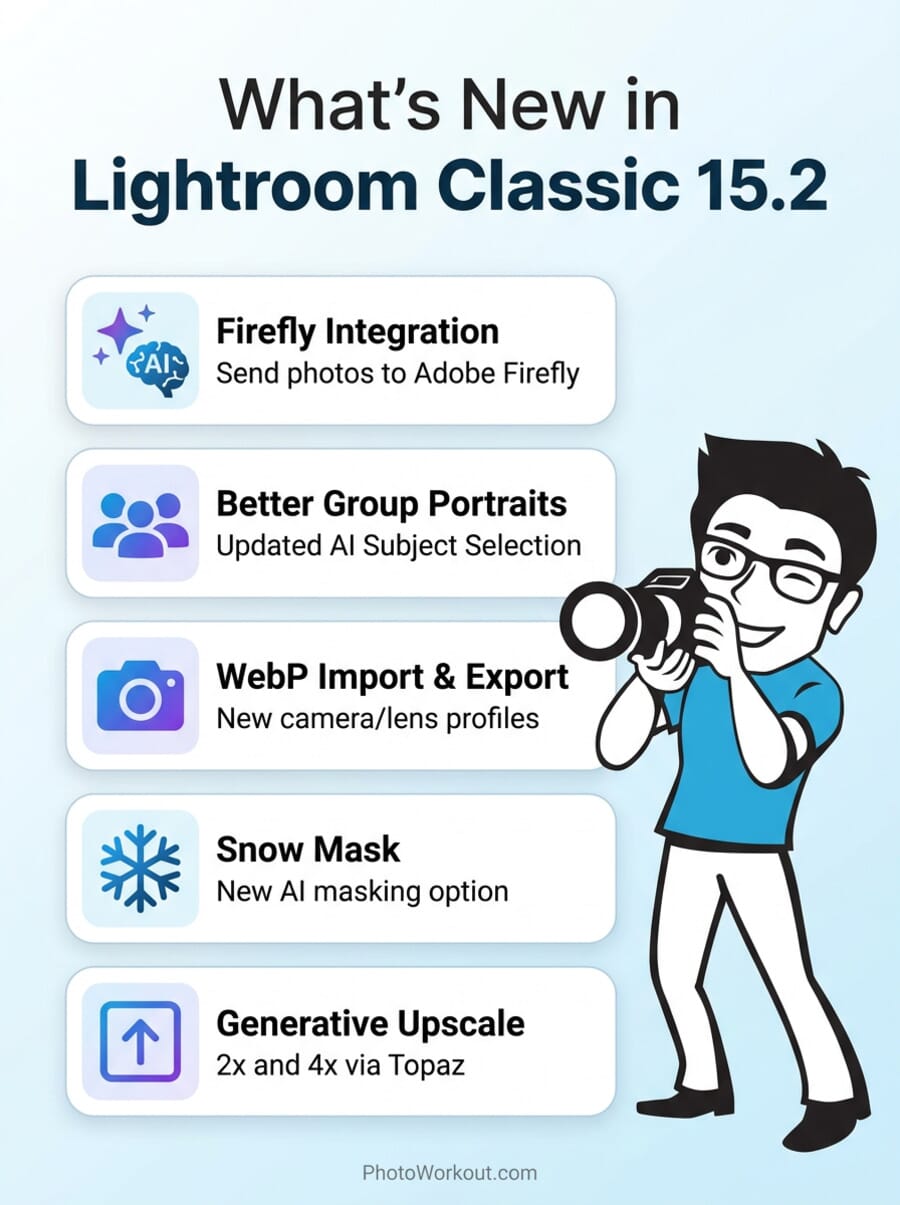
- Lightroom Classic 15.2 adds Adobe Firefly integration, letting you send photos directly to Firefly for generative AI editing and video creation — a first for Classic.
- The AI Subject Selection and Eye Focus models have been retrained for better accuracy in group portraits, and a new Snow mask joins the AI masking toolkit.
- WebP support arrives for import and editing, Camera Raw 18.2 adds new camera/lens profiles, and Lightroom Desktop 9.2 gains Generative Upscale powered by Topaz Gigapixel.
- The update is free for all Creative Cloud Photography plan subscribers. Worth updating? Yes — with one caveat.
Adobe released Lightroom Classic 15.2, Lightroom Desktop 9.2, and Camera Raw 18.2 on February 20, 2026. The headline feature: generative AI capabilities that were previously limited to Lightroom Desktop now arrive in Classic for the first time.
Beyond the Firefly integration, this update delivers practical improvements to AI-powered culling, new masking options, WebP file support, and fresh camera profiles. Here’s what changed and whether it matters for your workflow.
Generative AI Comes to Lightroom Classic
The biggest change in Lightroom Classic 15.2 is the new Generate using Firefly command, available under File > Generate using Firefly. This sends your selected photo directly to Adobe Firefly in your web browser, where you can use AI models to edit the image or even generate a short video clip from a still.
Two options are available: Edit with Firefly (apply generative edits using a text prompt) and Generate Video from Image (create a brief motion clip based on your photo). In Lightroom Desktop 9.2, the same features appear under the Share menu.
There are important limitations. Firefly opens in your browser, not inside Lightroom itself. Generated images are currently capped at 2K resolution. And each generation costs Generative Credits — 10 credits per image edit, 80 per video. Your Creative Cloud subscription includes a monthly credit allotment, but heavy use will burn through them fast.
The practical value here is for photographers who want quick creative experiments — composite backgrounds, stylistic transformations, or social media video content — without switching to Photoshop. It won’t replace a proper Photoshop editing workflow, but it lowers the barrier for casual generative edits.

Improved AI Subject Selection and Eye Focus
Adobe retrained the AI models behind Assisted Culling in both Lightroom Classic and Desktop. The Subject Selection and Eye Focus algorithms now handle group portraits significantly better — a weak spot in previous versions where the AI would often lock onto one person and ignore others.
For portrait and event photographers who shoot group photos regularly, this is a meaningful improvement. The updated model re-evaluates focus quality across all faces in the frame, making it faster to cull through hundreds of group shots and identify the keepers where everyone’s eyes are sharp.
One caveat: existing images in your catalog will have their Assisted Culling scores recalculated after the update. If you’ve already culled a large shoot using the old model, your ratings may shift slightly.
Generative Upscale in Lightroom Desktop
Lightroom Desktop 9.2 introduces Generative Upscale, powered by Topaz Gigapixel’s AI engine. You can upscale any photo to 2x or 4x its original resolution via Photo > Generative Upscale, with the option to stack the result alongside the original.
The feature is simple — there are no adjustable parameters for noise reduction or sharpening, unlike the standalone Topaz application. In practice, results are mixed. Independent reviewers note that Adobe’s existing Super Resolution combined with manual noise reduction in Lightroom often produces cleaner 2x upscales with more natural texture. Generative Upscale tends to smooth some areas while oversharpening others.
Each upscale costs Generative Credits — and there’s no refund if you’re unhappy with the result. For critical work, standalone AI-powered editors with more control remain the better choice. But for quick social media enlargements, it’s a convenient one-click option.
WebP Import and Export
Lightroom Classic can now import, edit, and sync WebP files — a long-requested feature as WebP has become the dominant format for web images. You can also export WebP files to other formats (JPEG, TIFF, etc.), though exporting back to WebP is not yet supported.
WebP files are filterable via metadata filters and smart collections in Classic. One limitation: WebP files cannot be synced from Classic to the cloud ecosystem.
Snow Mask and Adaptive Presets
The AI masking system adds a new Snow mask to its toolkit. This joins the existing Sky, Subject, Background, People, and Objects masks, giving you one-click selection of snow-covered areas in your photos.
For landscape and travel photographers who shoot winter scenes, this makes targeted adjustments much faster. Want to boost the blue shadows in snow without affecting the sky? The Snow mask handles it in seconds rather than minutes of manual brushing.
Combined with Adaptive Presets — presets that automatically apply different settings to different masked regions — you can build complete winter editing workflows that apply with a single click. This concept works across all AI masks, not just snow, and significantly speeds up batch editing for photographers with consistent editing styles.
Camera Raw 18.2: New Camera and Lens Profiles
Camera Raw 18.2 expands support with profiles for several new cameras and lenses. Notable additions include:
- Cameras: OM Digital Solutions OM-3 Astro, RICOH GR IV Monochrome, and multiple OPPO Find X8 series cameras
- Lenses: Canon RF 7-14mm F2.8-3.5 L FISHEYE STM, Canon RF 14mm F1.4 L VCM, Leica NOCTILUX-M 35mm f/1.2 ASPH., Sony FE 28-70mm F3.5-5.6 OSS II, Sigma 14mm F1.4 DG, and several Viltrox AF primes
- Mobile lenses: Full profiles for the Xiaomi 17 Ultra and OPPO Find X8 Pro lineup
Camera Raw also inherits the Snow mask and other AI masking improvements from Lightroom. The Dust Removal tool has graduated from “early access” to full release, and Reflection Removal sees refinements for glass and water surfaces.
If you shoot with any of the newly supported cameras, updating is essential to get proper raw processing. The full list of supported cameras and lenses is available on Adobe’s support page.
Related: Photoshop 2026 Hidden Updates
Alongside the Lightroom updates, Photoshop 2026 received several under-the-radar improvements worth knowing about. The Harmonize feature automatically matches color, light, and tone between composite layers. Select Subject handles hair, fur, and fine edges more accurately. And Generative Fill now supports partner AI models (including Gemini) alongside Adobe’s Firefly engine, giving you more creative options.
The same Generative Upscale models available in Lightroom also work in Photoshop via Image Size, with side-by-side comparisons available between Firefly, Topaz Gigapixel, and Topaz Bloom engines.
Should You Update Now?
For most photographers, yes — with one caveat. The WebP support, improved culling AI, and new camera profiles are genuine workflow improvements that come at no extra cost. The Snow mask is a nice addition for anyone shooting winter content.
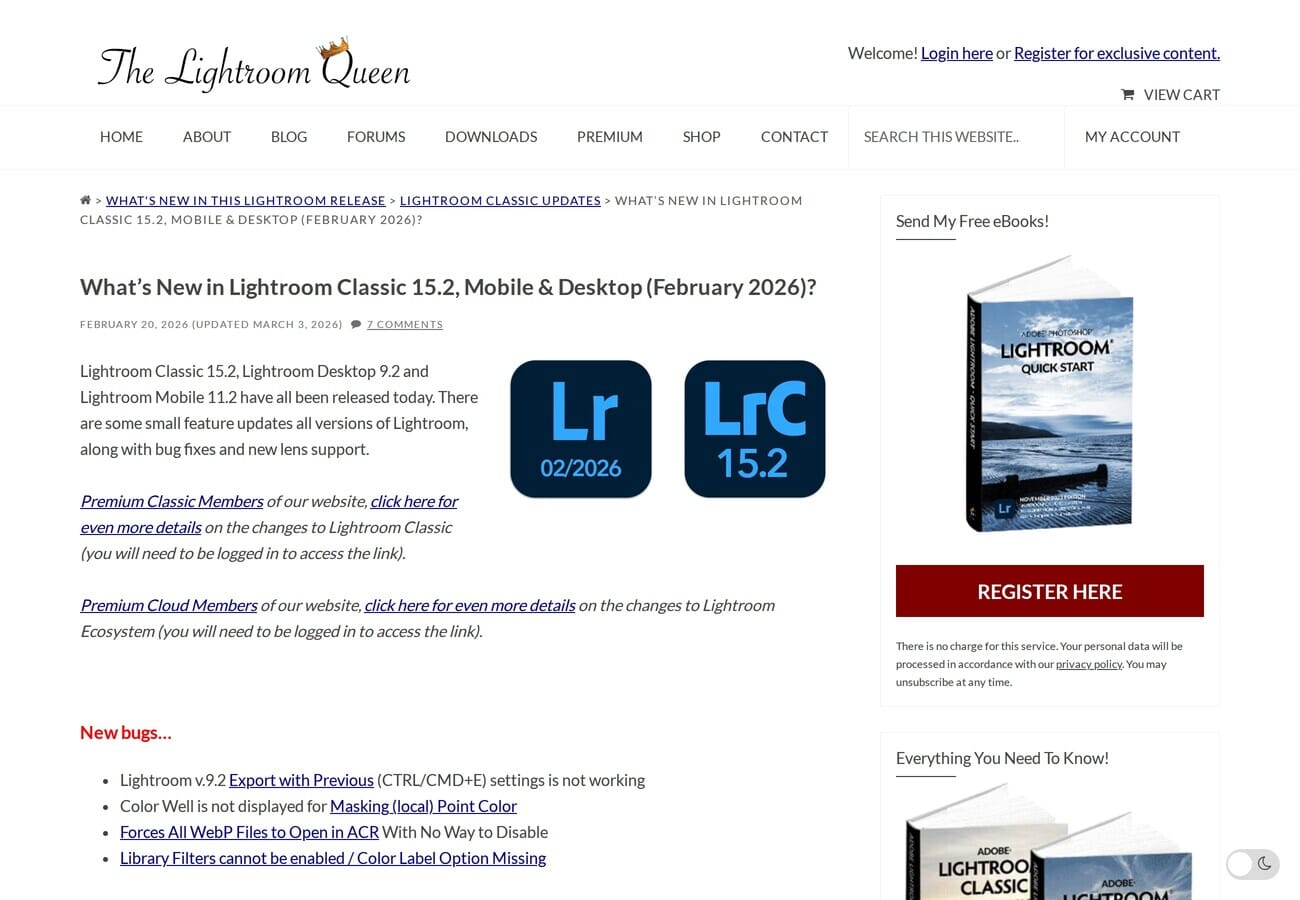
The caveat: early adopters have reported a few bugs. Export with Previous (Ctrl/Cmd+E) is broken in Lightroom Desktop 9.2, and some users report issues with color label filters in the Library module. If you’re mid-project on a tight deadline, it may be worth waiting a week or two for a hotfix.
The Firefly and Generative Upscale features are interesting additions but won’t transform most photography workflows. They’re best suited for quick creative experiments and social media content. For serious generative editing, dedicated tools like DxO PureRAW (for noise reduction) or ON1 Photo RAW (for all-in-one editing) still offer more control.
To update, open the Creative Cloud Desktop app and check for updates, or go to Help > Updates inside Lightroom Classic. The update is included with all Creative Cloud Photography plans — no additional purchase required.
For a complete guide to organizing and backing up your Lightroom catalog before major updates, check our dedicated walkthrough.
Is Lightroom Classic 15.2 a free update?
Yes. Lightroom Classic 15.2 is included with all Adobe Creative Cloud Photography plans at no additional cost. Update through the Creative Cloud Desktop app or Help > Updates inside Lightroom Classic.
What are Generative Credits in Lightroom?
Generative Credits are Adobe’s currency for AI features that run on their servers, like Firefly editing and Generative Upscale. Your subscription includes a monthly allotment. Firefly edits cost 10 credits per image; video generation costs 80 credits.
Does the AI Subject Selection update affect my existing culling scores?
Yes. When you update to Lightroom Classic 15.2, existing images will have their Assisted Culling scores recalculated using the new AI model. Your previous ratings may shift slightly.
Can Lightroom Classic export WebP files now?
Lightroom Classic 15.2 can import and edit WebP files, and export them to other formats like JPEG and TIFF. However, exporting as WebP format is not yet supported.
Is Generative Upscale better than Super Resolution?
Not necessarily. Independent reviewers note that Super Resolution combined with manual noise reduction often produces cleaner 2x upscales with more natural texture. Generative Upscale (powered by Topaz Gigapixel) tends to smooth some areas while oversharpening others, and costs Generative Credits with no refund for unsatisfactory results.
Sources and further reading:
Featured image: Screenshot from The Lightroom Queen.
Related Posts
Get the Weekly Photography News Digest
Join photographers who get our top stories delivered every Monday morning. No spam, unsubscribe anytime.