


- Follow the 2026 editing order: White balance → Exposure → Contrast → Highlights/Shadows → Whites/Blacks → HSL → AI Denoise → Masking → Sharpening → Lens corrections → Export. Skipping steps produces muddy or over-edited results.
- AI Denoise is now the default noise-reduction tool in Lightroom Classic 15.3 (April 2026) — 5× faster than before, runs as a background process, and keeps the catalog responsive during batch work.
- Lightroom Classic vs Lightroom (cloud): Classic for large libraries, tethering, and offline work. Cloud for mobile-first editing across devices. Both under the same $9.99/mo Photography Plan.
- Batch editing a wedding or event: cull with P/X, edit one “hero” frame, Ctrl/Cmd+Shift+S to sync settings across the selection, then export presets for final delivery.
- Non-destructive: every edit is a sidecar instruction set, never baked into the original file. Experiment freely — Ctrl/Cmd+Z always reverts, and History is infinite per image.
Lightroom has been the go-to photo editor for photographers since 2007 — but the Lightroom of 2026 is almost unrecognizable from its origins.
The April 2026 Lightroom Classic 15.3 update made the biggest perceptual jump since AI Denoise launched in 2023: 5× faster AI processing via background tasks, a new intensity slider surfaced directly in the Detail panel, and film-inspired preset packs baked in. Whether you’re editing a single portrait or batch-processing 500 wedding photos, Lightroom handles it all — and does it a lot faster in 2026 than it did last year.
This guide covers Lightroom Classic (the desktop powerhouse), with notes on Lightroom CC where relevant. By the end, you’ll know how to import and organize photos efficiently, master essential editing tools, leverage AI features that save hours, and export for any purpose.
When you buy through links on our site, we may earn a commission at no cost to you. We evaluate products independently. Commissions do not affect our evaluations.
The Correct Order of Editing Steps in Lightroom 2026
Every Lightroom edit benefits from a consistent order of operations. Jumping around the Develop panel produces muddy results; working top-to-bottom, global-then-local, produces clean ones. The order below matches how Adobe itself designed the Develop module — and it’s the order that keeps coming up in competitor guides because it genuinely works:
- White balance (Temp, Tint) — set this FIRST. Every adjustment downstream is built on the assumption that color is neutral.
- Exposure — overall brightness. Get mid-tones roughly right before anything else.
- Contrast — global punch. Most photos benefit from a small positive boost (+10 to +20).
- Highlights and Shadows — recover detail. Pull Highlights left for skies, push Shadows right for faces.
- Whites and Blacks — set black and white points. Alt/Option-drag to see clipping.
- Texture, Clarity, Dehaze — mid-tone micro-contrast. Small positive values on landscapes; usually zero or negative on portraits.
- Vibrance and Saturation — Vibrance first (it protects skin tones), Saturation only if the image needs more.
- Tone Curve — a subtle S-curve adds polish. RGB curves let you color-grade.
- HSL / Color Mixer — surgical per-color adjustments. Most common: drop blue luminance for moody skies, shift orange hue for skin tones.
- AI Denoise (for high-ISO files) — run this BEFORE masking and sharpening. It creates a new DNG that becomes your new edit target.
- Masking — AI Select Subject / Sky / Person, then local adjustments. Do this AFTER global tone is roughly right.
- Sharpening and lens corrections — near the end. Enable profile corrections + chromatic aberration removal automatically; sharpen last so noise reduction happens first.
- Export — separate settings for web vs print, saved as presets.
The rest of this guide walks through each step in detail. Think of the order as muscle memory — after 50 or 100 edits, you’ll run through steps 1-9 without reading the panels.
Lightroom Classic vs Lightroom CC: Which One?
Before we start, let’s clear up the confusion. Adobe offers two versions of Lightroom, and they’re quite different:
Lightroom Classic stores photos on your hard drive, offers a complete catalog system for organizing thousands of images, and works entirely offline. It’s the choice for professionals, wedding photographers, and anyone editing large volumes of photos.
Lightroom CC (sometimes just called “Lightroom”) stores photos in Adobe’s cloud, syncs automatically across devices, and has a simplified interface. It’s ideal for casual photographers who want to edit on their phone and computer seamlessly.
This guide focuses on Lightroom Classic, but about 90% of the editing techniques apply to both versions.
| Feature | Lightroom Classic | Lightroom (cloud) |
|---|---|---|
| Storage model | Local catalog + optional cloud sync | Cloud-only, syncs across devices |
| Subscription | Photography Plan ($9.99/mo, 20 GB) | Same plan; can upgrade to 1 TB |
| Catalog + large libraries | Full catalog with folders, collections, smart collections, metadata filters | Simplified folders only — no smart collections |
| Mobile sync | Syncs via Smart Previews (subset of catalog) | Native full sync across iOS, Android, web, desktop |
| Offline editing | Fully offline | Requires internet for initial sync, then offline for recently-viewed files |
| AI Denoise | ✅ Full support (background processing in 15.3) | ✅ Full support |
| Generative Remove | ✅ Cloud-backed (requires internet) | ✅ Native |
| Tethered shooting | ✅ Full studio support | ❌ Not supported |
| Plugins / presets | ✅ Full ecosystem (imported .lrtemplate + .xmp) | Limited — .xmp presets only, no plugins |
| Best for | Professionals, wedding shooters, anyone with 20,000+ photo libraries | Casual shooters, mobile-first editors, multi-device workflows |
Step 1: Importing Photos into Lightroom
Every Lightroom workflow starts with importing your photos. Connect your memory card or navigate to your photo folder, then click Import in the bottom-left of the Library module.
You’ll see three import methods:
- Copy — copies files to a new location (recommended for most photographers)
- Move — moves files and deletes originals from the source
- Add — references files in their current location without copying
For the import settings, choose Standard previews for a balance of speed and quality. Enable Build Smart Previews if you edit on a laptop that won’t always have your external drive connected.
Pro tip: Create an import preset that includes your copyright metadata and a subtle base develop preset. Every photo will start partially edited before you touch it.
Related: Adobe recently released Lightroom Classic 15.2 with new AI features including Firefly integration and improved group portrait culling.
Step 2: The Develop Module — Where Editing Happens
Press D or click “Develop” to enter the editing workspace. The right panel contains all your editing tools, organized from top to bottom in a logical order.
The Basic Panel (Start Here)
The Basic panel handles roughly 80% of your edits. Work through it in order:
White Balance: The Temp slider adjusts cool (blue) to warm (yellow), while Tint handles green to magenta. Use the eyedropper tool on something neutral gray for automatic correction.
Exposure: Controls overall brightness, adjustable from -5 to +5 stops. Get this roughly correct before moving on.
Contrast: Increases the difference between light and dark tones.
Highlights and Shadows: These are your recovery tools. Pull Highlights left to recover blown-out bright areas; push Shadows right to lift dark areas without affecting the entire image.
Whites and Blacks: Set your white point and black point. Hold Alt/Option while dragging to see clipping — any color that appears is losing detail.
Texture: Enhances mid-tone detail. Great for landscapes and architecture; use negative values to smooth skin.
Clarity: Adds contrast to mid-tones. Powerful but easy to overdo — use sparingly on portraits.
Vibrance: Intelligent saturation that protects skin tones. Almost always preferable to the Saturation slider.
Tone Curve
The Tone Curve offers more precise contrast control than the Basic panel. The classic “S-curve” — lifting shadows slightly while dropping highlights — adds pleasing contrast. The individual R, G, and B curves let you create color grades.
HSL/Color Panel
Control individual colors with precision:
- Hue shifts colors (make orange skin less orange, shift blue sky toward teal)
- Saturation controls intensity per color
- Luminance adjusts brightness per color
Common uses: Drop blue luminance for dramatic skies. Shift orange hue slightly for more natural skin tones. Desaturate greens for a muted film look.
Step 3: AI-Powered Editing (Game-Changers)
These features have transformed Lightroom over the past two years. If you learned Lightroom before 2023, pay close attention — this is where the magic happens now.
AI Denoise (Updated for 2026)
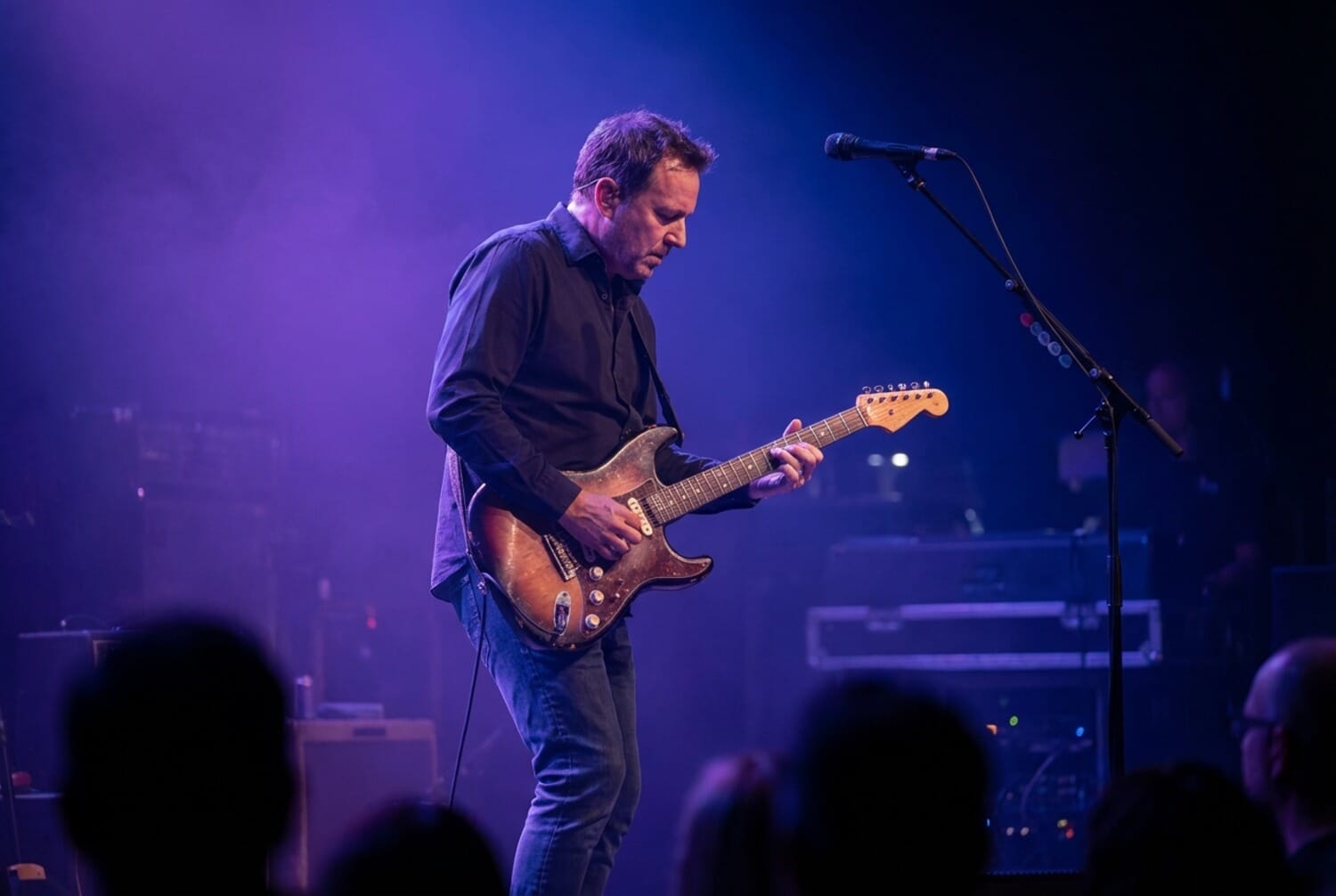
AI Denoise is the single most impactful Lightroom feature of the last three years. In the April 2026 Classic 15.3 update, Adobe rebuilt the processing pipeline so it now runs 5× faster and executes as a background task — the catalog stays responsive while AI Denoise chews through a batch of files in the queue.
Two access paths in 15.3 and later:
- Detail panel intensity slider (new in 15.3) — scrub the AI Denoise amount directly without the modal dialog. Alt/Option-click applies your last-used value in one stroke.
- Photo > Enhance > Denoise (the original modal) — still works, still shows the 100% preview, useful when you want to confirm detail preservation before committing.
When to use AI Denoise vs manual noise reduction
AI Denoise isn’t always the right tool. Decision framework:
- ISO 3200 or higher, detail matters (faces, text, fine fabric): AI Denoise. Manual luminance NR will smear the details you care about.
- ISO 1600–3200, mild grain visible at 100%: Start with Detail panel’s Color NR at 25 (fixes chroma speckles); only reach for AI Denoise if luminance grain bothers you at final output size.
- Below ISO 1600: No denoise. Modern sensors are clean enough; AI processing at this ISO can cost micro-contrast and lens bokeh character.
- Film scans or intentional grain aesthetics: AI Denoise aggressively smooths grain — which destroys the intentional look. Use manual Luminance NR lightly or skip entirely.
- Astro and night sky: AI Denoise preserves stars and star trails beautifully; it’s the default choice for any astro workflow.
AI Denoise creates a new DNG alongside the original. The new file inherits the RAW’s edit settings, so the workflow remains non-destructive; the original stays untouched in the catalog, and you can always go back.
Batch tip: Select 10–50 RAW files, right-click → Enhance → check “Apply to selection.” In 15.3 the batch runs in the background — you can keep culling and editing other photos while it works.
AI Denoise: Before and After

Lens Blur
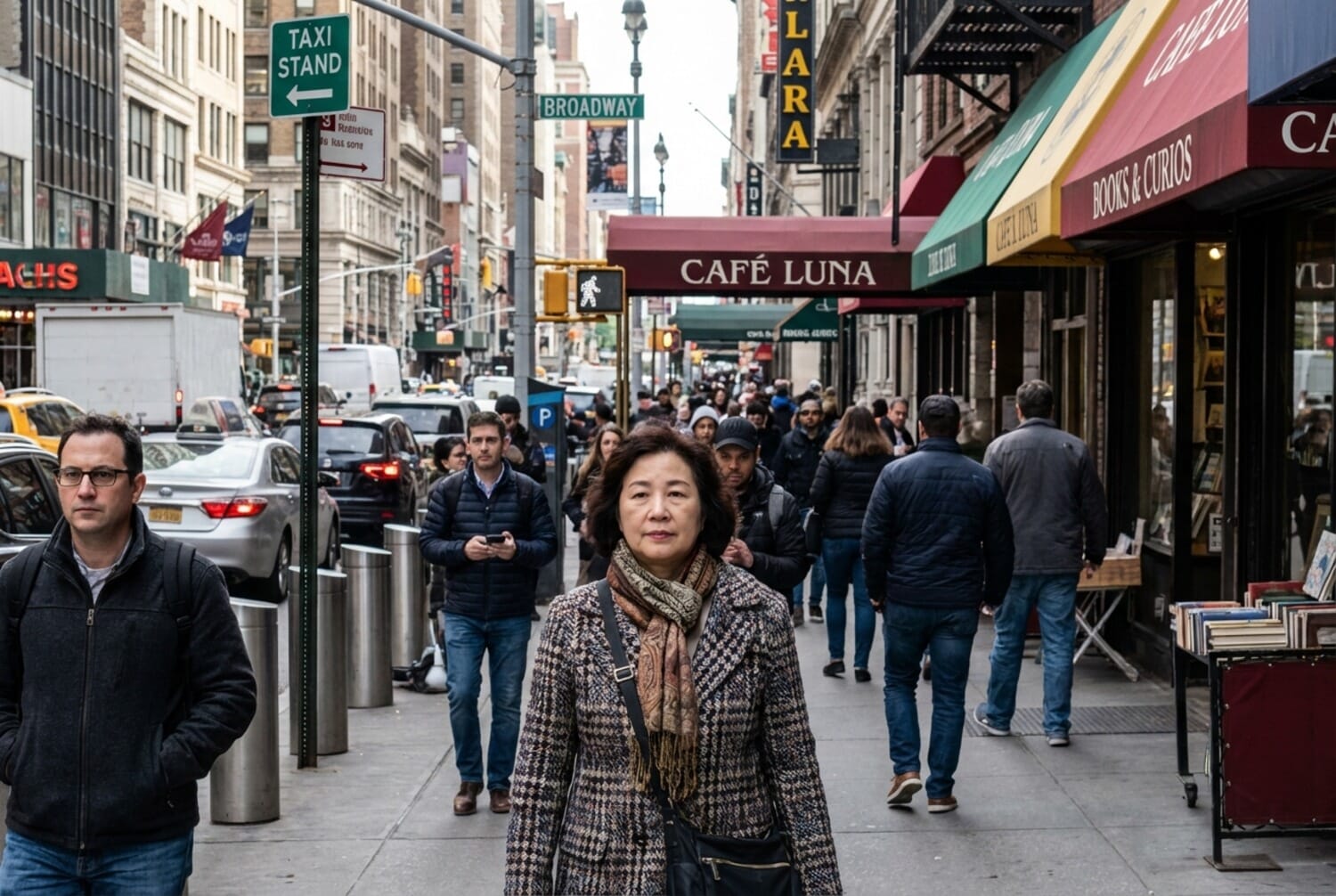
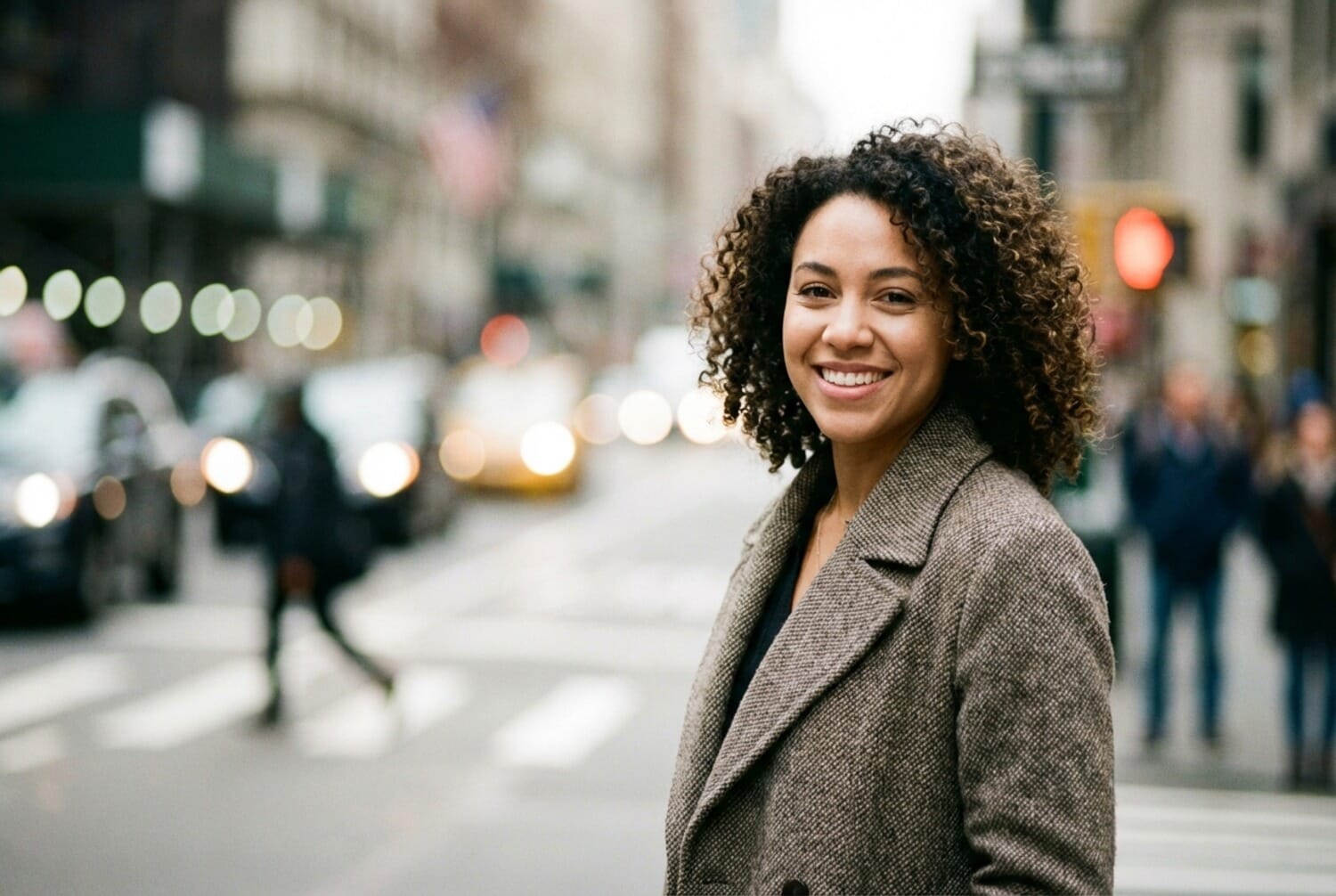
Added in 2024, Lens Blur uses AI depth mapping to add realistic bokeh to any photo. You can simulate f/1.4 background blur from an f/4 lens, separate subjects from busy backgrounds, or create depth in smartphone photos.
Find it in the Lens Blur panel within the Develop module. Enable it, set your blur amount, and adjust the focal range if the AI doesn’t detect your subject perfectly. Use the included brush to refine the selection.
Lens Blur: Before and After
Generative Remove
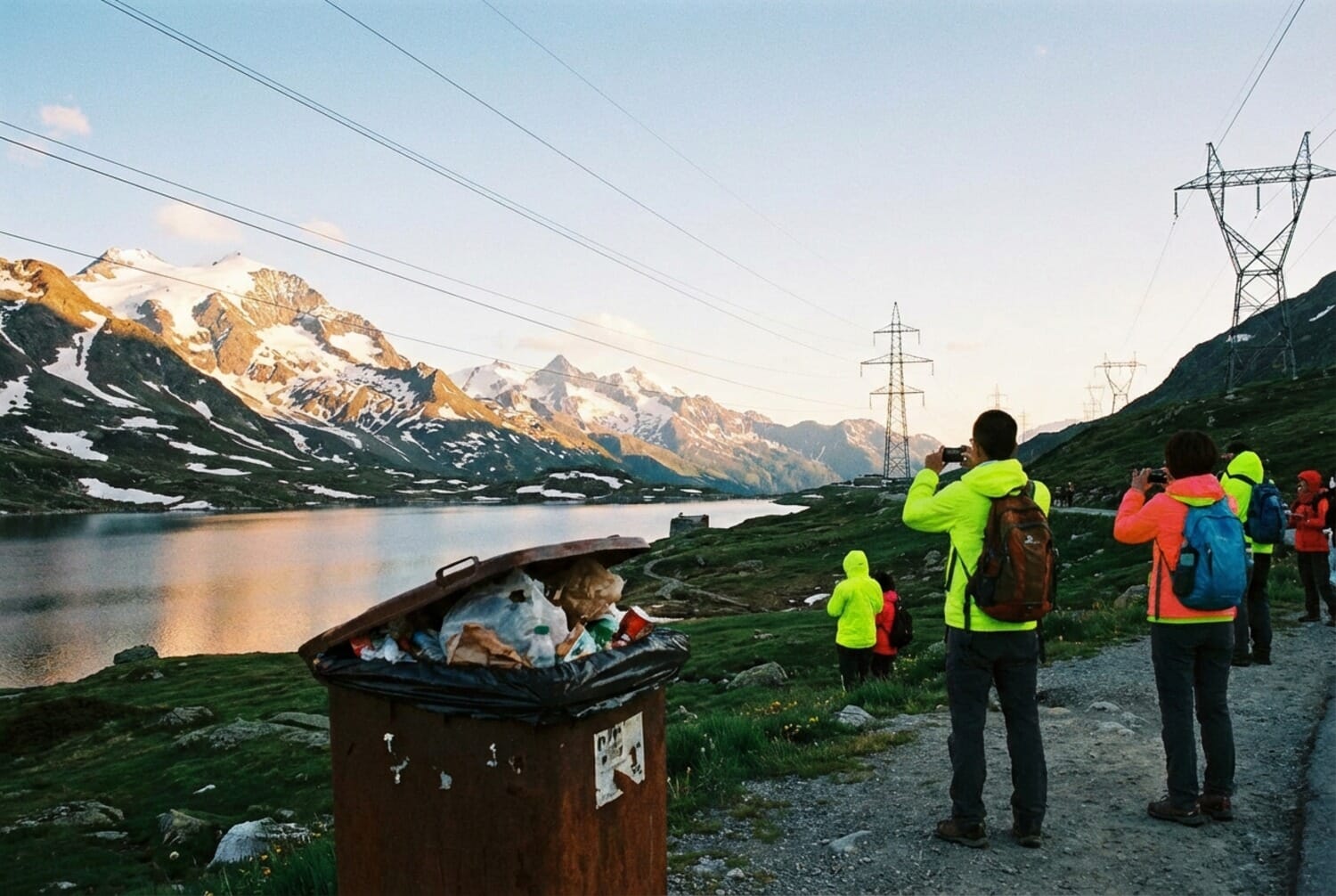
The newest addition, Generative Remove uses cloud-based AI to remove objects and fill in complex backgrounds intelligently. Select the Remove tool, paint over the unwanted object, enable the “Generative AI” toggle, and wait for processing.
It’s perfect for removing power lines, tourists in the background, trash, or any distracting elements. For complex scenes with detailed backgrounds, it outperforms traditional Content-Aware tools.
Generative Remove: Before and After
Step 4: AI Masking — Select Anything Instantly
Masking — selecting specific parts of your image for targeted adjustments — used to be tedious. Now it’s a few clicks. Click the Masking icon (circle with dotted outline) to access these tools:
Select Subject: One click identifies and masks people, animals, or objects. Lightroom’s AI creates a precise selection around your main subject.
Select Sky: Instantly masks the sky for separate adjustments. Darken blue skies, add drama to sunsets, or balance exposure between sky and foreground.
Select Background: The inverse of Select Subject — masks everything except your subject for background adjustments.
Select People: When faces are detected, you get granular control. Select the entire person, or choose specific features: face skin, body skin, eyebrows, eyes (iris and pupils separately), lips, teeth, hair, or clothes.
For portrait retouching, try: Select Person > Face Skin, then reduce Clarity slightly and boost Shadows. Professional skin smoothing in seconds.
You can also combine masks. Want to adjust the sky but not where a tree overlaps? Select Sky, then subtract a brush stroke over the tree.
Step 5: Local Adjustments (Manual Masks)
When AI doesn’t get it right, or you need creative control, use manual masking tools:
Linear Gradient: Pull from the edge of your frame to create a gradual adjustment. Perfect for darkening skies, creating light falloff, or directional color grades.
Radial Gradient: Create circular or oval selections. Invert the mask and reduce exposure to spotlight your subject while darkening the surroundings. Or use it for controlled vignettes.
Brush: Paint your selection freehand. Hold Alt/Option to erase mistakes. Enable “Auto Mask” when brushing along high-contrast edges for cleaner selections.
Step 6: Sharpening and Noise Reduction
In the Detail panel, you’ll find manual sharpening and noise reduction controls.
For sharpening, start with Amount around 40-60, Radius at 1.0, and Masking around 30. Hold Alt/Option while adjusting Masking to see which areas will be sharpened (white) versus protected (black).
For noise reduction when AI Denoise is overkill, use Luminance to reduce grain and Color to remove color speckles. Most photos only need minor Color noise reduction.
Step 7: Lens Corrections
In the Lens Corrections panel, enable profile corrections to automatically fix lens distortion and vignetting. Most modern lenses have built-in profiles.
Always enable “Remove Chromatic Aberration” to eliminate color fringing on high-contrast edges.
The Transform panel fixes perspective issues like converging verticals in architecture. Try “Auto” first — it usually works. For manual control, use “Guided” and draw vertical and horizontal reference lines.
Step 8: Exporting Your Photos
Press Ctrl/Cmd + Shift + E to open the Export dialog. Your settings depend on the output:
For Web and Social Media:
- Format: JPEG
- Quality: 80-85%
- Resize: Long edge 2048px
- Sharpen for screen, standard amount
For Print:
- Format: JPEG or TIFF (16-bit for fine art)
- Quality: 100%
- Resolution: 300 PPI
- No resize, or set dimensions to match print size
- Sharpen for matte or glossy paper
Save your common export settings as presets. You can then drag photos directly onto presets for one-click export.
Batch Editing Workflow for Shoots and Weddings
Lightroom’s killer feature on high-volume shoots isn’t AI — it’s the batch tools. A 500-image wedding should take two or three hours to edit, not twenty. Here’s the workflow that makes that real.
Step 1: Cull first, edit second
Never edit photos you won’t use. In Library grid view (press G), walk through every frame with P for pick and X for reject. Then Photo → Delete Rejected Photos removes them from the catalog (optionally from disk). A typical wedding starts at 2,000 shots and should cull down to 400–600 picks before editing begins.
Step 2: Edit your “hero” frame
Pick the best-lit, most representative frame from each lighting scenario (ceremony, reception, portraits, first dance). Edit it fully — white balance, exposure, tone curve, color grading, AI Denoise if high-ISO, and any masks. This is the template every other shot in that scene will sync to.
Step 3: Sync settings across the shoot
Back in grid view, select your hero frame first (it must be the “most selected” photo — the one with the white highlight in the selection), then Cmd/Ctrl-click the other photos in the same lighting scene. Press Ctrl/Cmd+Shift+S (Sync Settings) and in the dialog, check only what you want to transfer:
- White balance, Exposure, Contrast, Tone Curve — almost always
- Color grading, HSL — yes, as long as lighting is consistent
- Local adjustments (masks) — usually no; masks are per-frame
- Crop and rotation — almost always no; every shot needs its own framing
- AI Denoise — yes if the full selection was shot at the same ISO
Step 4: Auto Sync for real-time batch editing
For a tighter loop, toggle Auto Sync on (the tiny switch next to the Sync button in Develop). Every slider move you make applies to all selected photos in real time. Use this when the scene is identical and you just want to nudge tone. Turn it off when editing individual frames — it’s easy to accidentally edit 50 photos at once.
Step 5: Per-frame polish
After syncing, every frame still needs a quick individual look. Walk through them with the arrow keys and fix: local exposure (someone’s face too dark), specific crop adjustments, any Generative Remove cleanup, and any scene-specific masks. This is where the time you saved in bulk editing gets reinvested in per-image quality.
Step 6: Batch export with presets
Save two export presets: one for web / social (JPEG, 2048px long edge, 80–85% quality) and one for full-resolution delivery (JPEG 100%, no resize, 300 PPI). Drag selected photos directly onto the preset in the Export panel — Lightroom exports the full batch in parallel across CPU cores.
Lightroom Workflow Tips
A few techniques that save serious time:
Learn the keyboard shortcuts. Press G for grid view, D for Develop, R for crop, Q for spot removal, and \\ to toggle before/after. Use P to flag picks and X to flag rejects when culling.
Sync settings across photos. Edit one photo perfectly, select similar photos, then click “Sync” or press Ctrl/Cmd+Shift+S. Choose which settings to copy. This is Lightroom’s superpower for events and weddings.
Use Virtual Copies. Right-click any photo and choose “Create Virtual Copy” to try different editing directions without duplicating files.
Presets in 2026: What Actually Changed
Adobe shipped a wave of film-inspired preset packs with the April 2026 15.3 update, bundled free with the Photography Plan. The Kodak Portra / Fujifilm Pro 400H / Kodak Ektar looks land as native presets rather than third-party .xmp files — one-click starts that a lot of working photographers were already building themselves.
Preset best practice in 2026 hasn’t changed: treat every preset as a starting point, not a finished edit. Apply the preset, then step through the Basic panel to fine-tune exposure and white balance for the specific image. The presets get you 70% of the way; manual tweaks deliver the final 30% that keeps your look consistent across a set.
For building your own preset library:
- Save presets per lighting scenario (golden hour, overcast, studio, indoor tungsten), not per “look” — that way the right baseline applies to the right scene.
- Keep them partial: include white balance, tone curve, and color grading; exclude crop, masks, and exposure from the preset definition. Per-photo adjustments should stay per-photo.
- Stack presets: one for scene setup, a second for color grading. Combining two narrow presets is more flexible than one do-everything preset.
Note that AI-suggested presets specifically (Lightroom looking at an image and recommending a matching preset) isn’t a real Lightroom feature yet in April 2026, despite being widely rumored. The 2026 preset story is the new film packs plus continued ecosystem maturation — not an AI suggestion engine.
Common Lightroom Mistakes to Avoid
- Over-sharpening: If you see halos around edges, reduce the Amount
- Crushed blacks: Check your histogram — don’t clip shadows completely unless intentional
- Over-saturation: Vibrance is almost always better than the Saturation slider
- Too much Clarity on portraits: It emphasizes skin texture and ages people
- Ignoring white balance: Get this right first; it affects every other adjustment
How to Edit Photos in Lightroom: Summary
The essential workflow: Import with smart presets, nail the Basic panel adjustments, use AI tools for heavy lifting (Denoise, Lens Blur, Remove), apply targeted masks for local edits, then export with appropriate settings.
The AI features added to Lightroom between 2023-2025 genuinely transformed photo editing. Tasks that once took 20 minutes now take 20 seconds. But understanding the fundamentals still matters — AI works best when you know what you’re trying to achieve.
FAQs
Is Lightroom Classic better than Lightroom CC?
For professionals and high-volume shooters, Lightroom Classic offers full catalog control, better performance with large libraries, and works entirely offline. Lightroom CC is better for casual photographers who want seamless cloud sync across devices.
Does Lightroom AI require an internet connection?
Generative Remove requires internet because it processes in Adobe’s cloud. AI Denoise, Lens Blur, and AI masking all work offline.
Can I edit JPEG files in Lightroom?
Yes, but RAW files give you significantly more editing flexibility. JPEGs are already processed by your camera, so there’s less data to work with when adjusting exposure or recovering highlights.
What’s the difference between Lightroom presets and manual editing?
Presets are saved editing settings you can apply with one click. They’re a starting point for your editing, not a replacement for understanding the tools. Most photographers use presets as a base, then fine-tune each image.
How do I batch edit photos in Lightroom?
Edit one photo from a series, then select the other photos you want to match. Use Sync Settings (Ctrl/Cmd+Shift+S) to apply your edits across all selected images. You can choose exactly which settings to sync.
Sources for this guide:
Adobe official
- Adobe Lightroom Classic April 2026 release notes – 15.3 feature list including AI Denoise background processing and film-inspired presets
- Adobe Help — AI Denoise – Adobe's official AI Denoise workflow documentation
- Adobe Help — Masking tools – Reference for AI Masking (Subject, Sky, People)
Related PhotoWorkout coverage
- Lightroom Classic 15.2 Update – The February 2026 release that preceded 15.3, covering Firefly integration and group portrait culling



