


- Adobe launched the AI Assistant public beta for Photoshop on web and mobile — edit photos by describing what you want in plain language or using your voice on mobile.
- Two modes: “Do it for me” applies edits automatically, while “Show me” walks you through the manual steps — ideal for learning Photoshop.
- New AI Markup feature lets you draw directly on images to target specific areas for AI edits.
- Firefly Image Editor gets five new tools: Generative Fill, Remove, Expand, Upscale, and Remove Background — all in one workspace.
- Unlimited AI generations for paid subscribers through April 9, 2026. Free users get 20 generations.
Adobe just made photo editing as simple as talking. The company launched the public beta of AI Assistant in Photoshop for web and mobile on March 10, 2026 — and on mobile, you can literally tell Photoshop what to do with your voice.
This is a significant shift for photographers. Instead of hunting through menus or memorizing keyboard shortcuts, you describe the edit you want — “remove that person in the background,” “make the sky more dramatic,” “brighten my subject’s face” — and Photoshop handles it. The mobile app takes this further with full voice input, making on-the-go editing genuinely hands-free.
Here’s what’s new, how it works, and how to start using it right now.
What Is Photoshop’s AI Assistant?
AI Assistant is Adobe’s conversational editing interface built into Photoshop on the web and mobile. It analyzes your image and lets you request edits in natural language — no need to know which tool to use or where to find it.
Think of it as having an experienced retoucher sitting next to you. You describe what you want, and AI Assistant either does it for you or teaches you how to do it yourself. It’s powered by Adobe Firefly, Adobe’s commercially safe generative AI model.

The key capabilities include:
- Object removal — describe what to remove, and it disappears
- Background replacement — swap backgrounds with a text description
- Lighting adjustments — refine exposure, shadows, and highlights conversationally
- Color correction — adjust white balance, saturation, and tones by describing the look you want
- Non-destructive workflow — all AI edits land on new layers, so you can always revert or fine-tune
Voice Commands on Mobile: How It Works
The standout feature for photographers on the go: the Photoshop mobile app now accepts voice input. Instead of typing prompts on a small screen, you tap the microphone icon and speak your edit request naturally.
This is particularly useful when you’re editing on a phone or tablet — situations where typing detailed prompts feels awkward. Say “remove the trash can on the left,” and AI Assistant processes it exactly like a typed command.
Voice commands work for any edit AI Assistant supports: removals, background swaps, lighting tweaks, color adjustments, and more. The feature is currently available in English during the beta period.
“Do It for Me” vs “Show Me” — Two Editing Modes
Adobe built AI Assistant with two distinct approaches, and this is what separates it from a simple “auto-fix” button:
“Do it for me” — AI Assistant applies the edit automatically. Describe what you want, and it handles the technical execution. Best for quick fixes when you know the result you’re after.
“Show me” — AI Assistant walks you through the manual steps to achieve the same result. This is huge for photographers learning photo editing. Instead of just getting a result, you learn how to create it yourself. It’s like having a Photoshop tutor built into the app.
For working photographers, the practical workflow is clear: use “Do it for me” for repetitive tasks (culling distractions, basic corrections) and “Show me” when you encounter a technique you want to learn.
AI Markup: Draw Your Edits
Also launching in public beta is AI Markup — a feature available in Photoshop on the web that lets you combine drawing and text prompts for spatially targeted edits.
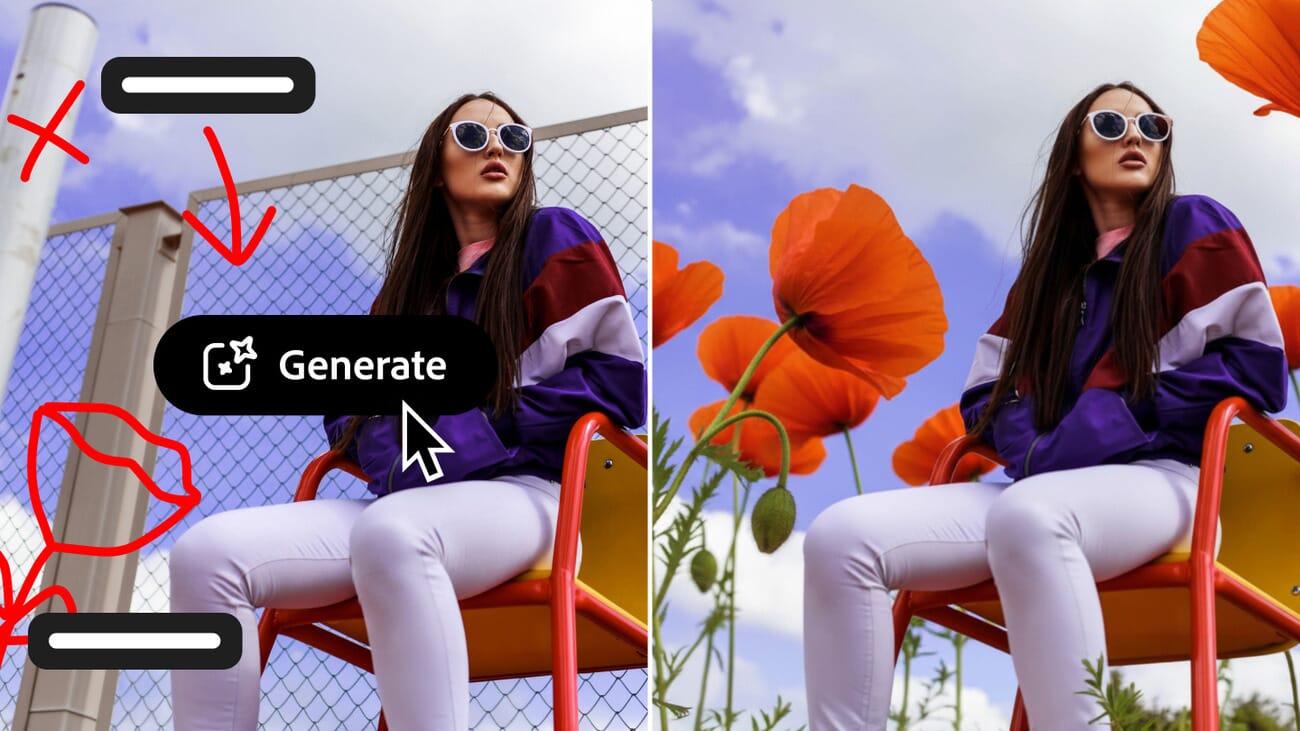
Here’s how it works: you draw directly on your image using the contextual task bar, then add a text prompt to describe what should happen in the marked area. For example:
- Draw an X over a distracting element → it gets removed
- Sketch a rough shape → type “add wildflowers here” → Photoshop generates them in context
- Draw an arrow pointing at the sky → type “add dramatic clouds” → targeted generation
- Add a note to a specific object → type what you want changed about it
This is essentially a more intuitive version of Generative Fill’s selection-based approach. Instead of carefully masking areas, you sketch your intent — and the AI figures out the rest.
Voice AI vs Manual Editing: Speed Comparison
The obvious question: is voice-driven AI editing actually faster? For common tasks, the time savings are significant — especially for repetitive operations across multiple images.
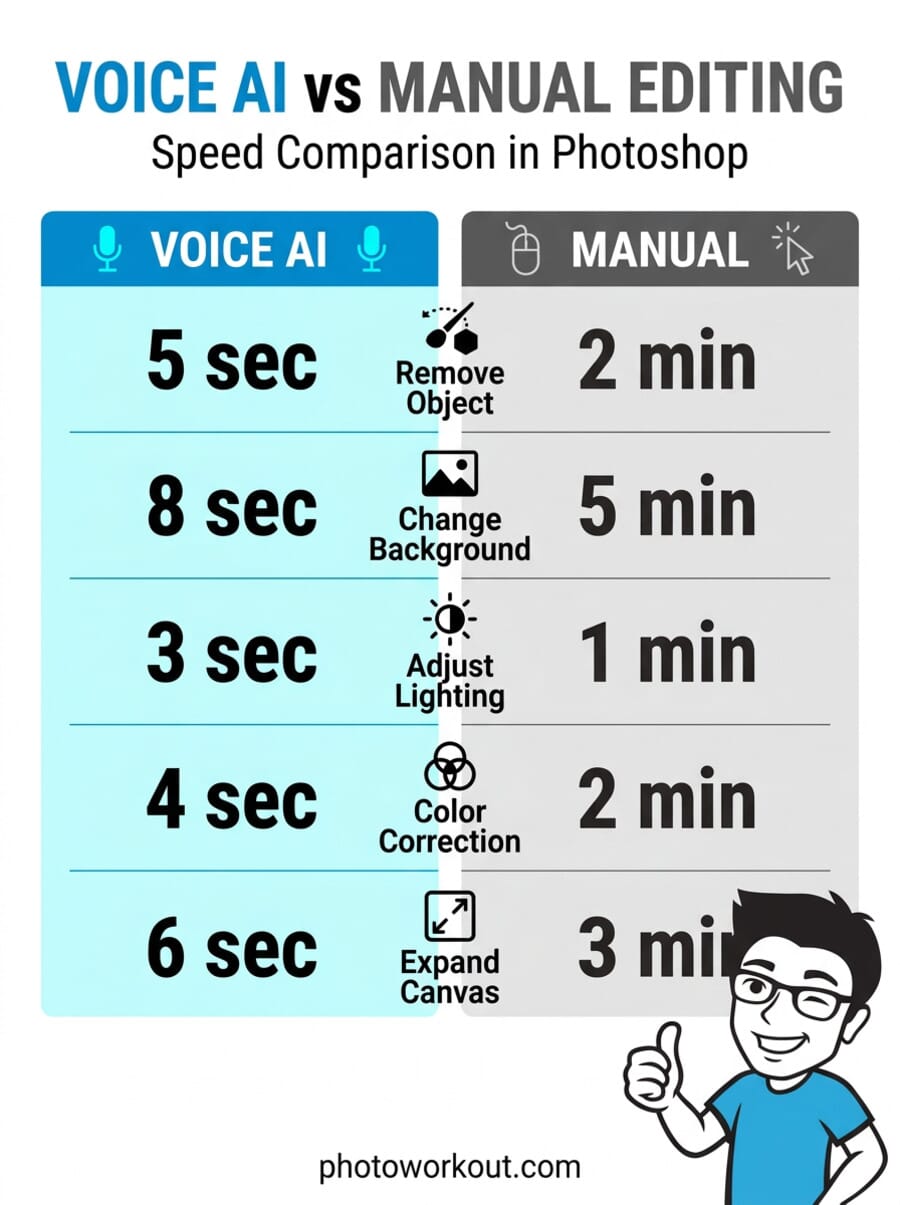
The biggest wins come from tasks that traditionally require multiple tool switches: object removal (Clone Stamp → Healing Brush → Content-Aware Fill) becomes a single voice command. Background replacement that involves selection, masking, and compositing is reduced to one sentence.
That said, voice AI editing isn’t replacing precision manual work — it’s eliminating the tedious parts. Fine art retouching and complex composites still benefit from hands-on control. But for the 80% of edits that are routine cleanup and corrections, voice commands are a genuine time-saver.
Firefly Image Editor: Five New Tools in One Workspace
Alongside the AI Assistant launch, Adobe has consolidated its generative editing tools into the Firefly Image Editor — a single workspace where you can generate, edit, and refine images without switching between apps.

The five tools now available:
- Generative Fill — add, replace, or refine elements with context-aware results
- Generative Remove — eliminate unwanted objects cleanly
- Generative Expand — extend images to new sizes and aspect ratios seamlessly
- Generative Upscale — increase resolution and sharpen details for large prints or exports
- Remove Background — isolate subjects with a single click
Firefly now also supports over 25 AI models from multiple providers — including Adobe’s own commercially safe models, Google’s Nano Banana 2, OpenAI’s Image Generation, Runway’s Gen-4.5, and Black Forest Labs’ Flux.2 [pro]. You can generate with any model, then immediately edit with Firefly’s tools without leaving the workspace.
How to Get Started
AI Assistant is available right now in public beta. Here’s how to access it:
Photoshop Web: Go to photoshop.adobe.com and look for the AI Assistant panel. AI Markup is also available here via the contextual task bar.
Photoshop Mobile: Update the Photoshop app on iOS or Android. The voice input button appears in the AI Assistant interface — tap it and speak your edit.
Firefly Image Editor: Visit firefly.adobe.com and open the Image Editor to access the new generative tools.
Pricing and Availability
- Paid subscribers (Photoshop web/mobile) — unlimited AI generations through April 9, 2026
- Free users — 20 free generations to try it out
- Firefly subscribers — unlimited generations available now
The AI Assistant is in public beta, so expect some rough edges. That said, the core functionality — voice input, conversational editing, and the “Show me” learning mode — is already polished enough for everyday use.
What This Means for Photographers
Voice-controlled AI editing isn’t just a novelty — it’s a fundamental shift in how photographers interact with editing software. The barrier to entry for advanced Photoshop techniques just dropped significantly.
For beginners, the “Show me” mode essentially turns Photoshop into an interactive tutorial. For experienced editors, voice commands eliminate the tedious parts of workflows — freeing up time for the creative decisions that actually matter.
The fact that edits land on new layers by default is a smart design choice. You’re never locked into an AI-generated result, and you can fine-tune or discard any change. This non-destructive approach should ease concerns from photographers who are wary of AI overwriting their creative intent.
Between this, the broader wave of AI editing tools, and the expanded Firefly model library, Adobe is clearly betting that the future of photo editing is conversational. Based on what’s available today, it’s hard to argue with them.
Is Photoshop’s AI voice editing available on desktop?
Not yet. Voice input is currently limited to the Photoshop mobile app (iOS and Android). The web version uses text prompts and AI Markup (drawing + text). Desktop Photoshop doesn’t have AI Assistant in this beta — it’s web and mobile only.
Do I need a paid subscription to use AI Assistant?
You can try it for free with 20 generations. Paid Photoshop web/mobile subscribers get unlimited generations through April 9, 2026. After that, generation limits will depend on your plan’s credit allocation.
Will AI Assistant work with RAW files?
AI Assistant works with images in Photoshop’s web and mobile apps. These apps support common formats like JPEG, PNG, and PSD. For RAW workflow, you’d process in Lightroom or Camera Raw first, then use AI Assistant for further editing in Photoshop.
Are AI-generated edits commercially safe to use?
Yes. AI Assistant is powered by Adobe Firefly, which is trained on licensed and public domain content. Adobe provides IP indemnification for Firefly-generated output on eligible plans, meaning commercial use is covered.
Can I undo voice-commanded edits?
Yes. All AI edits are placed on new layers, so you can hide, delete, or adjust any change without affecting your original image. You can also type “undo” in the prompt box or use standard undo shortcuts.
Featured image: Photo by dlxmedia.hu on Unsplash.
Sources used for this article:
Related Posts
Get the Weekly Photography News Digest
Join photographers who get our top stories delivered every Monday morning. No spam, unsubscribe anytime.