
Key Takeaways: Topaz Photo Review
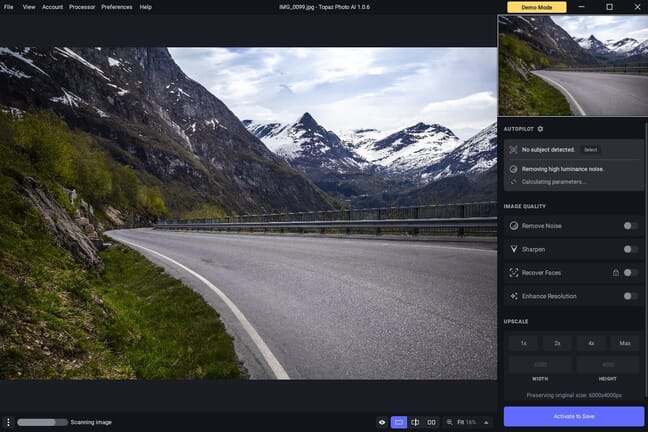
Topaz Photo (formerly Topaz Photo AI) combines noise reduction, sharpening, upscaling, and now 11 AI-powered tools into one polished package. Here’s what you need to know:
- Best for: Wildlife, sports, and event photographers who regularly shoot in challenging conditions
- Standout features: AI noise reduction that preserves detail, motion blur recovery, and face restoration
- New in 2025-2026: Wonder Model for one-click enhancement, Healing Brush, cloud rendering option, and major “Fidelity Update”
- Pricing shift: Now subscription-based ($17-21/month) — no longer the $199 one-time purchase
- Bottom line: Industry-leading results, but the subscription model makes it a bigger commitment than before
When you buy through links on our site, we may earn a commission at no cost to you. We evaluate products independently. Commissions do not affect our evaluations.
Introduction
Topaz Labs has built its reputation on AI-powered image enhancement, particularly noise reduction, sharpening, and upscaling. Their flagship product, now simply called Topaz Photo (the company dropped “AI” from the name in 2024), consolidates these core features along with several new tools into a single, powerful package.
The software uses machine learning trained on millions of images to analyze photos, detect issues like noise or blur, and apply corrections automatically. In this Topaz Photo review, we examine whether the software delivers on its promises — and whether the new subscription pricing model makes sense for your workflow.
Topaz Photo: Overview
 PhotoWorkout’s Rating: 4.5/5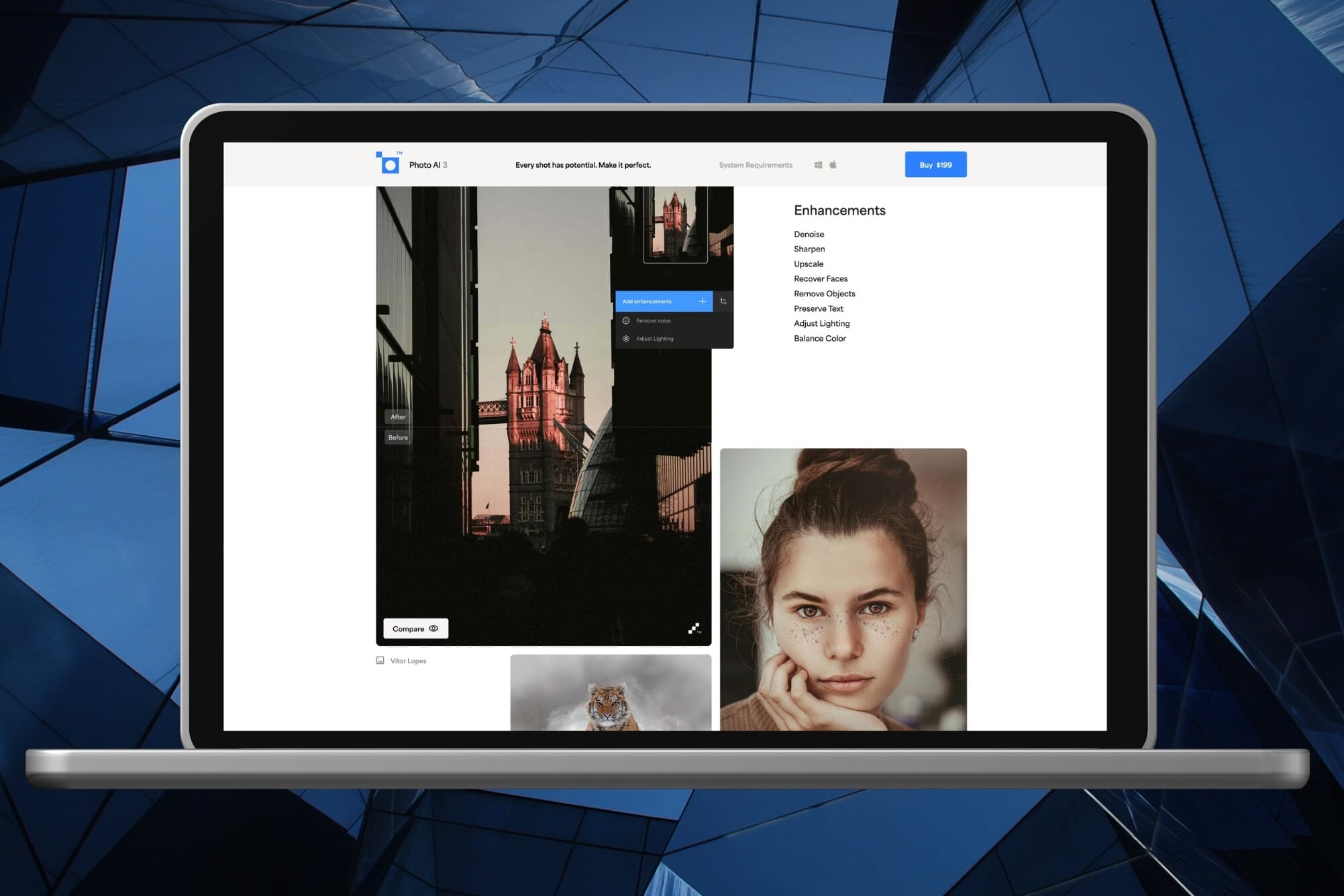
Industry-leading AI enhancement software with 11 tools for noise reduction, sharpening, upscaling, face recovery, and more. Now with cloud rendering option. The subscription model replaces the former one-time purchase.
From $17/month- Industry-leading AI noise reduction
- Excellent sharpening and motion blur recovery
- New Wonder Model delivers one-click enhancement
- Cloud rendering option for faster processing
- Clean, intuitive interface
- Subscription pricing replaced one-time purchase
- Still relatively slow on local hardware
- No file management or basic editing tools
Topaz Photo is a standalone program for applying noise reduction, sharpening, upscaling, and additional enhancement tools to your images. It supports multiple file formats including RAW and is available for Windows and Mac. The software also works as a plugin for Photoshop, Lightroom Classic, Capture One, and Apple Photos.
With Topaz Photo, you get access to 11 AI-powered tools:
- Sharpen — Recover soft focus and enhance edge detail
- Denoise — Remove grain while preserving texture
- Upscale — Enlarge images without losing quality
- Recover Faces — Restore facial detail with realistic or creative modes
- Super Focus — Fix motion blur and missed focus
- Adjust Lighting — Correct exposure, highlights, and shadows
- Balance Color — Automatic color and contrast optimization
- Remove — Context-aware removal of objects and blemishes
- Dust and Scratch — Clean scanned or archival images
- Healing Brush — Manual touch-ups for small blemishes
- Preserve Text — Maintain legibility of text in upscaled images
The software combines what were previously three separate Topaz products — DeNoise AI, Sharpen AI, and Gigapixel AI — into one application. Those standalone products have since been discontinued.
Important note: Topaz Photo is an enhancement tool, not a full editor. It has no file management, color grading, or cropping capabilities. You’ll still need Lightroom, Capture One, or another editing program for complete photo processing.
Related Posts
An In-Depth Look at Topaz Photo
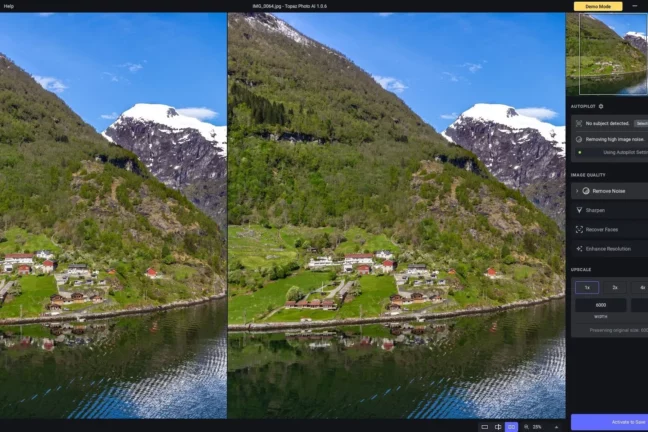
We spent considerable time testing the software across various image types — from high-ISO wildlife shots to scanned film negatives. Here’s what we found.
System Requirements
Topaz Photo is available for Windows and Mac (no Linux support). The current requirements:
Windows:
- Processor: Intel/AMD with AVX2 support
- Memory: 16 GB RAM minimum (32 GB recommended)
- Graphics: DirectX 12 compatible (NVIDIA RTX or AMD recommended)
- Display: 1280×720 minimum
- OS: Windows 10 or later
Mac:
- Processor: Intel (2nd Gen i5+) or Apple Silicon (M1/M2/M3/M4)
- Memory: 16 GB RAM (8 GB minimum for Apple Silicon)
- Display: 1280×720
- OS: macOS 11 Big Sur or later
Apple Silicon Macs show significantly better performance than Intel Macs, particularly with the M3 and M4 chips. If you’re on an older Intel Mac, consider using cloud rendering for faster results.
Performance
AI-intensive software is demanding, and Topaz Photo is no exception. Each enhancement requires the image to be analyzed through complex neural networks — this takes time regardless of your hardware.
Local rendering: On a mid-range Windows PC (Core i7, 32GB RAM, RTX 3060), expect 10-30 seconds per enhancement depending on file size and selected tools. The preview also needs to re-render when panning or zooming, which can be frustrating when evaluating results.
Cloud rendering (new): Topaz now offers unlimited cloud rendering included with all subscriptions. This offloads processing to Topaz’s servers, delivering faster results without taxing your hardware. Files are processed securely and not stored on Topaz servers — useful for professionals handling confidential work who still want speed.
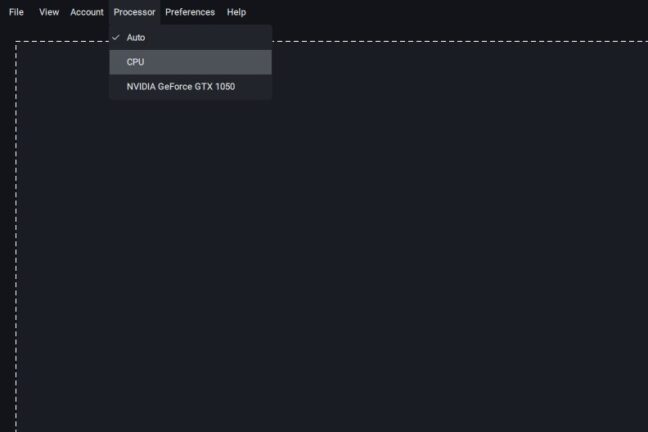
Tip: In the Preferences menu, you can select “Auto,” “CPU,” or “GPU” processing. If you have a powerful dedicated GPU, forcing GPU mode often improves performance.
User Experience
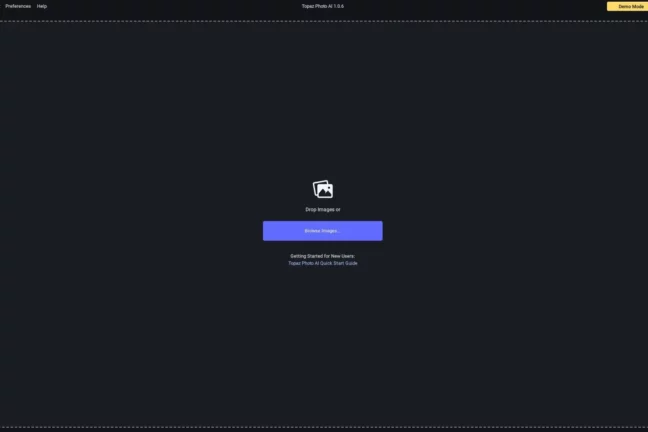
Performance quirks aside, Topaz Photo is genuinely easy to use. The interface is clean and uncluttered, with your original image on the left, the enhanced preview on the right, and the tool panel on the far right.
The Autopilot feature analyzes each image on import and automatically suggests enhancements. In most cases, Autopilot’s suggestions are solid starting points. You can customize Autopilot behavior in Preferences — enable or disable subject detection, face detection, auto-upscaling, and more.
New users can be productive within minutes. The limited number of tools (compared to Photoshop or Lightroom) means there’s less to learn, but each tool is exceptionally refined.
Noise Reduction
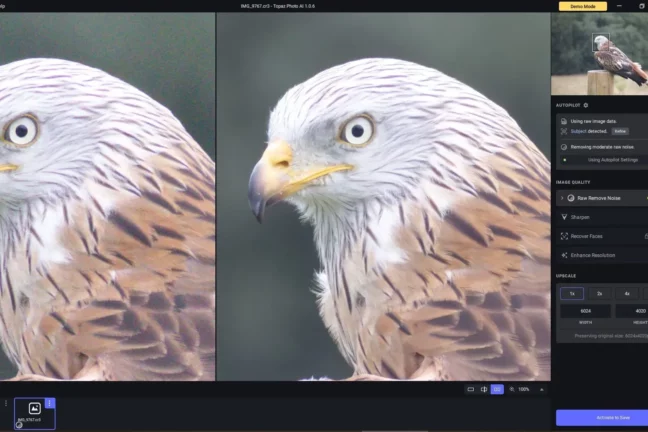
Noise reduction remains Topaz’s crown jewel. The results consistently outperform what’s available in Lightroom, Capture One, or other general-purpose editors.
The software offers two modes:
- Denoise: For processed images (JPEG, TIFF)
- Denoise RAW: Optimized for unprocessed RAW files
Both modes use AI to distinguish between noise and actual image detail — preserving texture in fur, fabric, and foliage while eliminating grain. High-ISO wildlife shots and low-light event photos benefit enormously.
The “Strength” and “Detail” sliders let you fine-tune the balance between noise removal and detail preservation if the automatic settings miss the mark.
Sharpening
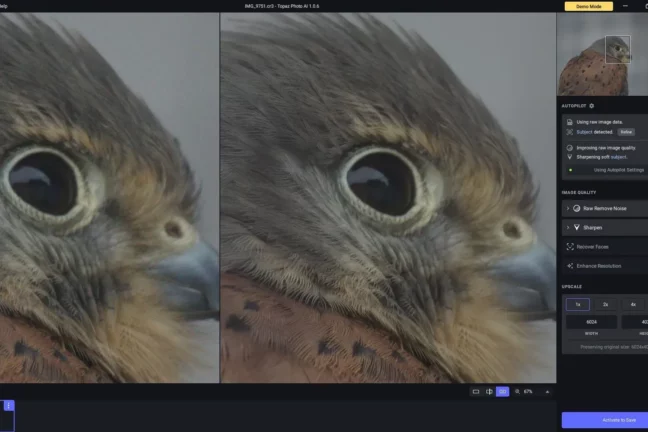
Topaz Photo excels at recovering sharpness from slightly soft images. The AI detects subjects automatically and creates masks, applying selective sharpening where it matters most.
Three sharpening modes address different issues:
- Standard: General enhancement for slightly soft images
- Lens Blur: Corrects optical softness from lower-quality lenses
- Motion Blur: Recovers detail lost to camera shake or subject movement
The motion blur recovery is particularly impressive. Images that would otherwise be destined for the trash can often be salvaged. It won’t work miracles on severely blurred shots, but moderate motion blur is handled remarkably well.
Face Recovery
The Recover Faces tool received a major upgrade, now offering double the resolution of previous versions plus two modes:
- Realistic: Preserves the original character of the face
- Creative: Generates more detail, which may diverge slightly from the original
For portraits, event photography, and archival restoration, face recovery can transform unusable shots into keepers. The AI reconstructs pores, hair wisps, and eye reflections with surprising accuracy.
Upscaling
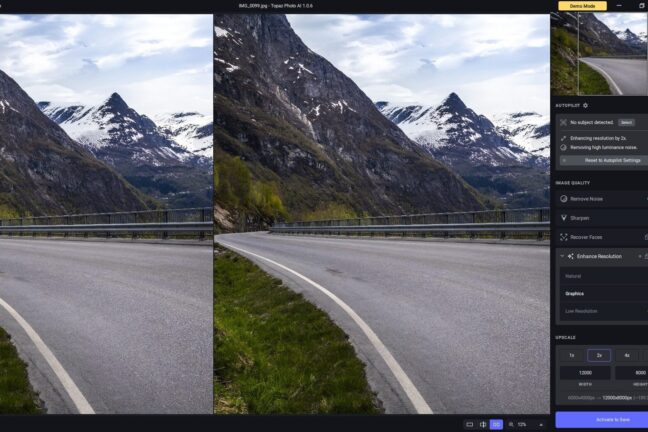
The upscaling capabilities have expanded significantly with the addition of the Wonder Model and Standard MAX Model:
- Wonder Model: One-click upscaling that combines sharpen, denoise, and upscale — no settings to tune
- Standard MAX Model: Precise, true-to-input restoration with higher quality than previous versions
- Low Resolution: Optimized for extremely small source images
- Graphics: For illustrations and non-photographic content
You can upscale by specific factors (1x, 2x, 4x) or let the AI determine the optimal enlargement. The software displays original and output resolutions with file size estimates.
Additional Tools
The 2025-2026 updates introduced several new capabilities:
- Dust and Scratch: Automatically identifies and removes blemishes from scanned images — essential for archival work
- Healing Brush: Manual touch-up tool for fixing small artifacts
- Adjust Lighting: Exposure, highlight, and shadow sliders for quick corrections
- Balance Color: AI-powered color and contrast optimization
- Remove: Context-aware object removal, similar to Photoshop’s Content-Aware Fill
- Super Focus: Specifically designed to recover lost sharpness from missed focus
Pricing: The Subscription Shift
The biggest change since our original review: Topaz Photo now uses subscription pricing.
Current plans (2026):
- Personal (Annual): $17/month, billed annually (~$199/year)
- Personal (Monthly): $21/month, billed monthly
- Topaz Studio bundle: Includes Video AI + Photo
All plans include unlimited local rendering, unlimited cloud rendering, all current AI models, and future updates during subscription.
The trade-off: The old $199 one-time purchase is gone. You now pay roughly the same amount per year. For professionals using the software daily, the subscription makes sense — you get continuous updates and cloud rendering. For occasional users, it’s a harder sell.
A free trial is available for evaluation before committing.
Topaz Photo Alternatives
If Topaz Photo’s subscription doesn’t fit your budget, consider these alternatives:
For noise reduction:
- DxO PureRAW — One-time purchase, excellent RAW optimization
- Adobe Lightroom/Camera Raw — Improved AI denoise in recent updates
- Nik Collection Dfine — Part of our recommended noise reduction software
For sharpening:
- DxO PhotoLab — Strong sharpening with lens correction profiles
- Capture One — Excellent sharpening tools built-in
For upscaling:
- Pixelmator Pro (Mac) — ML Super Resolution feature
- ON1 Resize AI — Dedicated upscaling tool
All-in-one editors with AI tools:
- Adobe Lightroom — Now includes AI noise reduction
- Capture One — Comprehensive RAW editing
- ON1 Photo RAW — One-time purchase option with AI features
None of these match Topaz’s enhancement quality in a direct comparison, but they may be “good enough” for many workflows — especially at lower price points.
Verdict: Who Should Buy Topaz Photo?
Topaz Photo is worth it if you:
- Regularly shoot in challenging conditions (low light, fast action, long distances)
- Need to rescue slightly soft or noisy images
- Process archival or scanned images
- Want the best possible results for print or commercial use
- Can justify the ongoing subscription cost
Consider alternatives if you:
- Only occasionally need enhancement tools
- Already use Lightroom/Capture One with their built-in AI features
- Prefer one-time purchases over subscriptions
- Have a tight budget
The bottom line: Topaz Photo remains the industry leader in AI-powered image enhancement. The noise reduction and sharpening capabilities are genuinely best-in-class. The shift to subscription pricing is the main sticking point — it’s a fair deal for power users but harder to recommend for casual photographers.
For professionals who regularly push their gear to its limits, Topaz Photo is an indispensable tool that can salvage shots and elevate good images to great ones.
