How to Use AI Photo Editing Tools in Your Photography Workflow

Editor’s Key Takeaways

  • What AI Can Do — AI excels at technical tasks like noise reduction and masking, but creative vision remains human territory
  • AI Noise Reduction — The biggest game-changer for photographers, enabling confident high-ISO shooting
  • AI-Powered Masking — One-click selections that used to take hours, perfect for targeted adjustments
  • AI Sky Replacement — Powerful but requires careful application to avoid obvious fake results
  • AI Upscaling — Essential for heavy cropping, large prints, and rescuing older images
  • Object Removal — Clean up distractions effortlessly, but understand the ethical boundaries
  • Batch Processing — AI can cut wedding/event editing time from days to hours
  • Complete Workflow — 7-step process integrating AI tools into your existing editing routine
  • Ethics Matter — Know the difference between AI-enhanced and AI-generated content
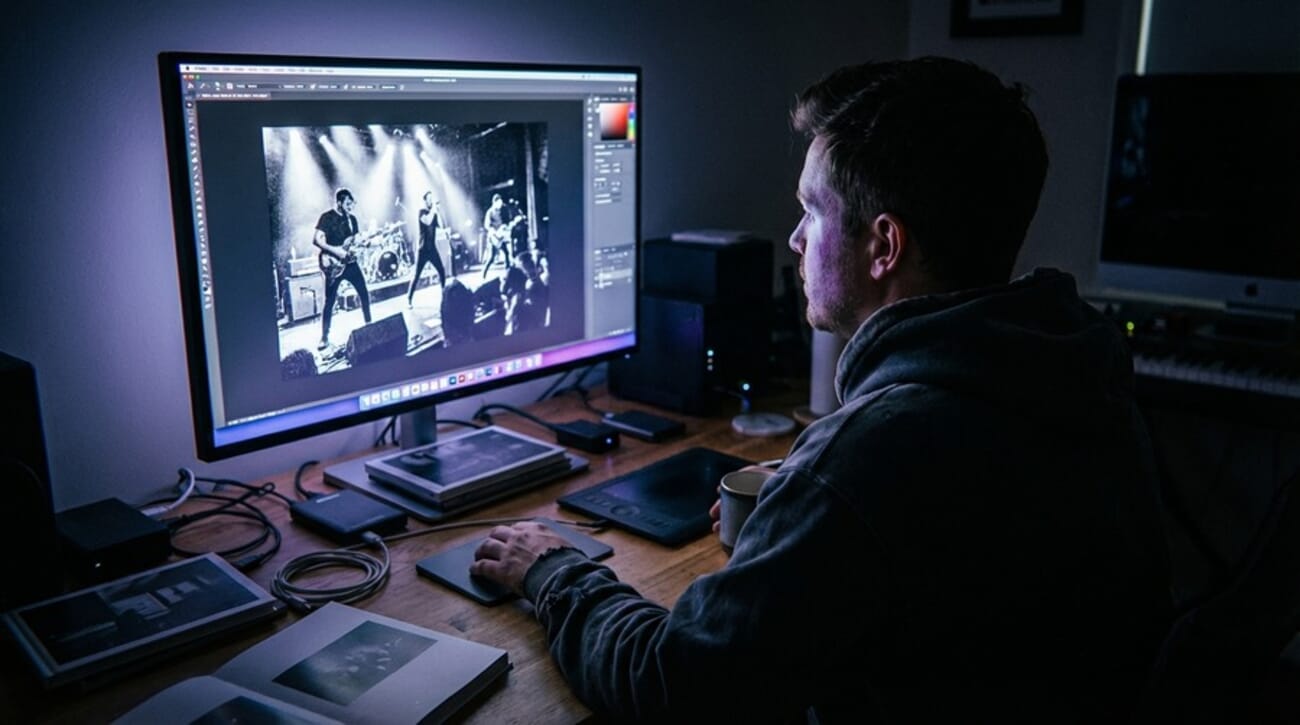
Photographer using AI photo editing tools at desk with large monitor
Modern AI photo editing tools have become essential parts of professional photography workflows

Artificial intelligence has transformed photo editing from a time-consuming technical process into an efficient creative workflow. What started as experimental features have become industry-standard tools that most photographers now use daily—often without realizing it.

Adobe Lightroom’s AI-powered noise reduction, automatic masking, and intelligent cropping suggestions are just the beginning. Today’s AI editing tools can eliminate hours of tedious work while maintaining the creative control that photographers demand.

This comprehensive guide explores practical AI integration strategies that enhance rather than replace traditional photography skills. Whether you’re shooting concerts in low light, processing wedding galleries, or preparing images for large prints, understanding AI’s role in modern photo editing will transform how you approach post-processing.

What AI Can (and Can’t) Do for Your Photos

Understanding AI’s capabilities and limitations is crucial for effective integration into your editing workflow. AI excels at pattern recognition and technical corrections but struggles with creative interpretation and contextual understanding.

Where AI Excels

Noise Reduction: AI algorithms can distinguish between image detail and digital noise with remarkable accuracy, preserving fine textures while eliminating grain that traditional noise reduction would blur.

Masking and Selection: Complex selections that previously required careful manual work—like separating hair from backgrounds or selecting specific objects—now happen with single clicks.

Sky Replacement: Advanced AI can identify sky boundaries, even through complex foreground elements like tree branches, and blend replacement skies naturally.

Upscaling: AI upscaling preserves and enhances detail when enlarging images, far surpassing traditional interpolation methods.

Batch Processing: AI can analyze thousands of images, automatically applying appropriate corrections based on content analysis and learning from your editing preferences.

Object Removal: Generative AI fills removed areas with contextually appropriate content, seamlessly erasing distracting elements.

AI’s Current Limitations

Creative Vision: AI cannot understand artistic intent, emotional impact, or the story you want to tell through your images.

Style Consistency: While AI can mimic styles, it lacks the nuanced understanding of when to break rules for creative effect.

Context Understanding: AI might perfectly remove a “distraction” that’s actually crucial to your image’s meaning or composition.

Technical Judgment: AI doesn’t know when slight imperfections enhance an image’s character or when clinical perfection isn’t the goal.

The key insight: AI handles repetitive technical tasks brilliantly, freeing photographers to focus on creative decisions that define compelling imagery.

AI Noise Reduction: The Game-Changer

Before and after comparison showing grainy concert photo cleaned up with AI noise reduction
AI noise reduction can salvage high-ISO shots that would have been unusable with traditional tools

AI-powered noise reduction represents the single most impactful advancement in photo editing for working photographers. This technology has fundamentally changed how we approach low-light photography and high-ISO shooting.

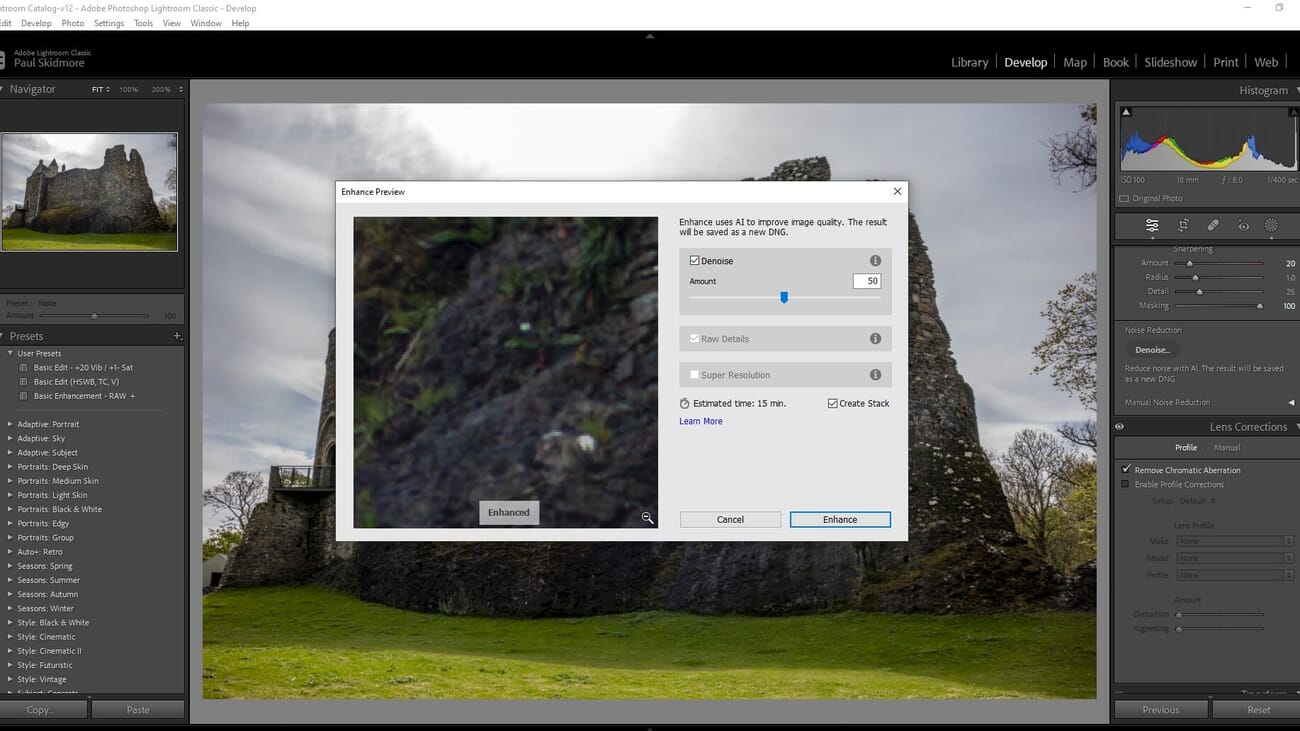
Adobe Lightroom AI Denoise

Lightroom’s Enhanced Details feature uses machine learning to distinguish between actual image detail and digital noise. Unlike traditional noise reduction that applies blanket smoothing, AI denoise preserves texture and fine detail while eliminating grain.

Best Use Cases:

  • Concert photography at ISO 6400 and above
  • Astrophotography with long exposures
  • Wedding reception candids in dim lighting
  • Street photography in available light conditions

Workflow Integration: Right-click any RAW file in Lightroom, select “Enhance,” then choose “AI Denoise.” The process creates a new DNG file with dramatically reduced noise while maintaining original image sharpness.

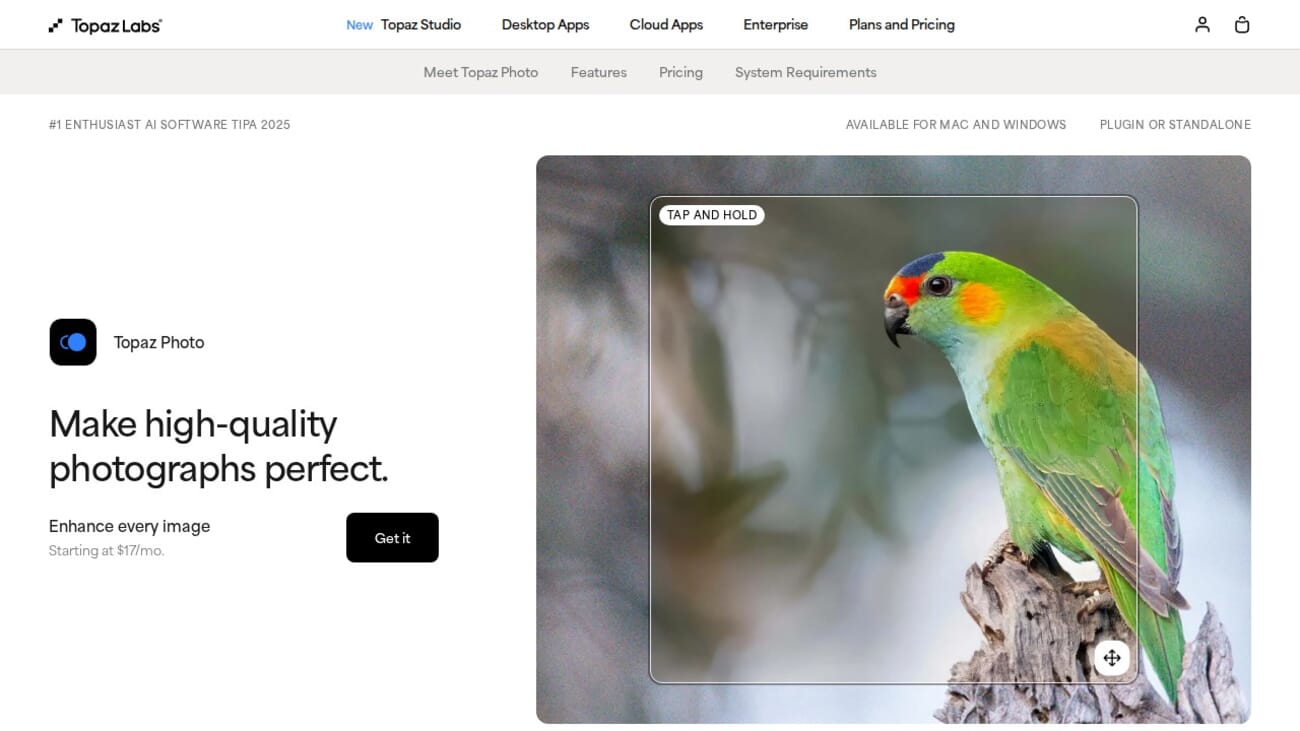
Topaz Photo AI

Topaz Photo AI combines noise reduction, sharpening, and upscaling in a single AI-powered process. It’s particularly effective for challenging images where multiple quality issues need addressing simultaneously.

Key Advantages:

  • Handles extreme noise levels (ISO 12800+)
  • Processes multiple quality issues in one pass
  • Batch processing capabilities for large image sets
  • Superior performance on older camera sensors

Confidence in High-ISO Shooting

AI noise reduction changes shooting strategy. Instead of compromising composition for lower ISO settings, photographers can prioritize perfect moments and optimal compositions, knowing post-processing can handle technical quality issues.

This shift is particularly valuable for essential camera settings in challenging conditions where maintaining fast shutter speeds for sharp subjects outweighs noise concerns.

Practical Example: A wedding photographer can shoot reception dancing at ISO 8000 to maintain 1/200s shutter speed, then process files with AI denoise to achieve clean, printable results that would have been impossible with traditional noise reduction tools.

AI-Powered Masking and Selection

Portrait photo showing AI selection overlay with glowing outline around subject
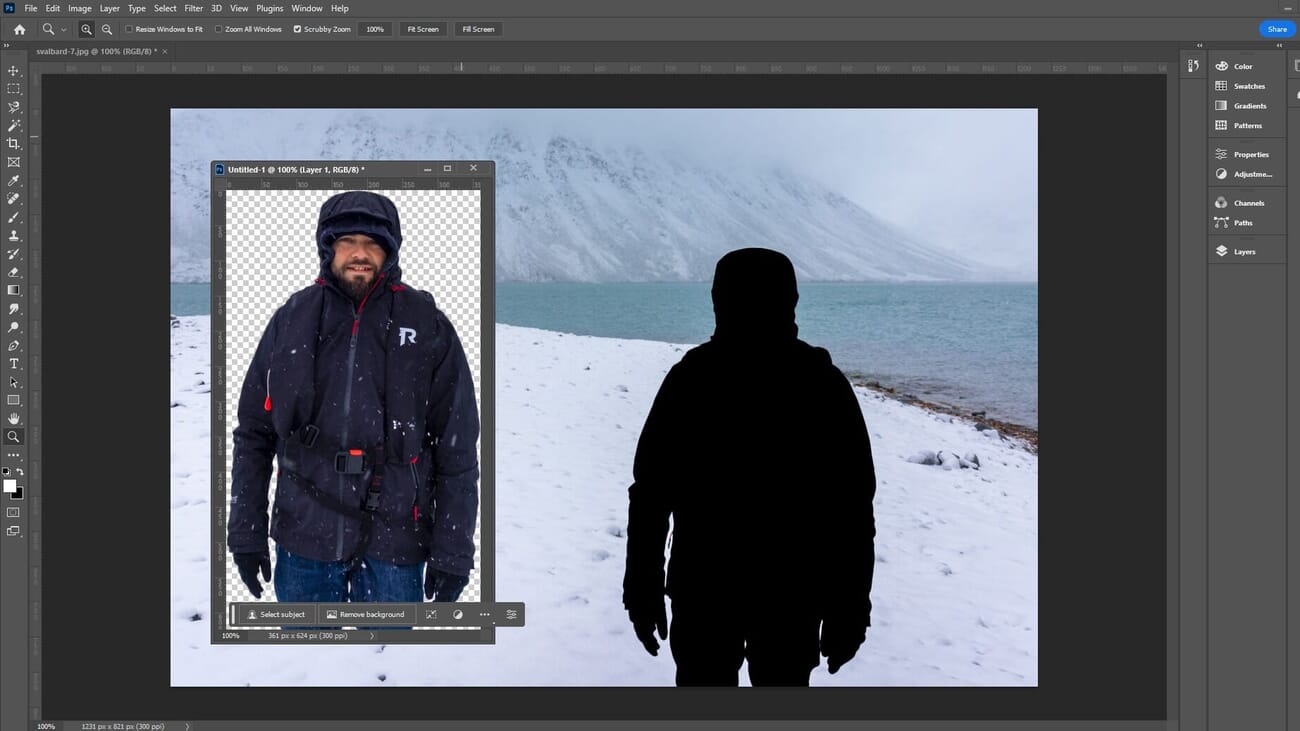
AI masking tools can create precise selections in seconds that would take hours manually

Precise selections form the foundation of advanced photo editing. AI-powered masking tools have revolutionized this process, making complex selections accessible to photographers at all skill levels.

Lightroom’s AI Masking Tools

Adobe Lightroom offers several AI-powered masking options that integrate seamlessly into local adjustment workflows:

Select Subject: Automatically identifies and masks the main subject in portrait, wildlife, or product photography. Particularly effective for separating subjects from backgrounds for independent color and exposure adjustments.

Select Sky: Perfect for landscape photography, this tool identifies sky areas even through complex foreground elements like branches or architectural details.

Select Background: Creates masks for everything except the main subject, ideal for background adjustments without affecting subject exposure or color.

Select People: Advanced person detection that can distinguish between different individuals in group shots, with separate masks for faces, bodies, clothing, and hair.

Photoshop AI Selection Tools

Photoshop’s AI selection capabilities offer more precision and control for complex editing scenarios:

Object Selection Tool: Draw a rough selection around any object, and AI refines the selection to precise edges. Exceptionally effective for products, vehicles, animals, and architectural elements.

Select Subject: One-click subject isolation that works across diverse image types, from portraits to complex scenes with multiple focal points.

Remove Tool: Combines intelligent selection with content-aware fill, allowing photographers to select and remove objects in a single workflow step.

Practical Applications

Portrait Enhancement: Select subjects to brighten faces independently from backgrounds, or isolate skin tones for natural-looking adjustments without affecting clothing or hair color.

Landscape Processing: Separate sky and foreground elements for targeted exposure and color adjustments. This approach is essential when learning how to fix overexposed photos where different image areas require different correction levels.

Product Photography: Quickly isolate products from backgrounds for consistent e-commerce presentations or creative compositing work.

Event Photography: Speed up wedding and event processing by batch-selecting people for consistent skin tone adjustments across entire galleries.

AI masking reduces selection time from hours to minutes, allowing photographers to focus on creative adjustments rather than technical selection work. This efficiency gain is particularly valuable when processing large image sets or working under tight deadlines.

AI Sky Replacement

AI-powered sky replacement has transformed landscape and architectural photography, offering creative possibilities that were previously reserved for advanced compositing specialists. However, effective sky replacement requires understanding both technical capabilities and aesthetic principles.

Luminar Neo Sky AI

Luminar Neo’s Sky AI represents the current gold standard for automated sky replacement. The system analyzes foreground elements, lighting conditions, and atmospheric perspective to create believable composites.

Key Features:

  • Automatic foreground lighting adjustment to match new sky conditions
  • Reflection mapping for water surfaces and reflective elements
  • Atmospheric haze simulation for depth and realism
  • Edge refinement that handles complex boundaries like tree branches

Best Practices:

  • Choose replacement skies with lighting that matches your original scene direction
  • Adjust foreground exposure and color temperature to maintain consistency
  • Use subtle opacity adjustments rather than full replacement for natural results
  • Consider atmospheric perspective—distant objects should have less contrast and cooler color temperatures

Photoshop Sky Replacement

Adobe Photoshop’s Sky Replacement feature offers more control over the replacement process, making it ideal for photographers who need precise adjustments.

Workflow Advantages:

  • Maintains separate layers for sky, foreground adjustments, and color matching
  • Provides manual override options for edge refinement
  • Integrates with Photoshop’s full compositing toolset for advanced effects
  • Supports custom sky libraries for consistent brand aesthetics

When Sky Replacement Works (and When It Doesn’t)

Ideal Scenarios:

  • Landscape photography with clear horizon lines
  • Architectural photography where dramatic skies enhance composition
  • Real estate photography requiring consistent weather conditions
  • Commercial work where specific moods are required

Challenging Situations:

  • Complex foreground elements with intricate sky interactions
  • Images with significant atmospheric haze or fog
  • Scenes where original sky contributes important lighting information
  • Transparent or translucent foreground elements

Ethical Considerations

Sky replacement raises important questions about photographic authenticity, particularly in photojournalism and documentary work.

Commercial and Personal Work: Sky replacement is generally accepted for commercial, artistic, and personal photography where creative interpretation is expected.

Photojournalism Standards: Most news organizations prohibit sky replacement as it misrepresents actual conditions at the time and location of capture.

Contest Submissions: Photography competitions have varying policies. Many allow technical corrections but prohibit content addition or replacement.

Client Transparency: Professional photographers should discuss sky replacement policies with clients, particularly for wedding or event photography where natural documentation might be expected.

AI Upscaling and Enhancement

AI upscaling has revolutionized how photographers approach image resolution and print quality. Modern AI algorithms can increase image dimensions while adding believable detail, far surpassing traditional interpolation methods.

Topaz Photo AI Upscaling

Topaz Photo AI combines multiple enhancement processes—upscaling, sharpening, and noise reduction—in a single AI-driven workflow.

Technical Capabilities:

  • Up to 600% enlargement with maintained detail quality
  • Simultaneous noise reduction and sharpening
  • Content-aware processing that handles different image types optimally
  • Batch processing for large archives or commercial workflows

Best Applications:

  • Preparing images for large format printing
  • Rescuing older digital files with lower resolution
  • Enabling aggressive cropping without quality loss
  • Digitizing and enhancing film scans

Photoshop Super Resolution

Adobe Camera Raw’s Super Resolution feature doubles image dimensions in both width and height, effectively quadrupling total pixel count.

Integration Benefits:

  • Seamless workflow integration with existing Adobe tools
  • Maintains RAW file editability after enhancement
  • Consistent results across different image types
  • No additional software licensing required for Creative Cloud subscribers

Strategic Applications

Crop-Heavy Photography: Street and wildlife photographers can shoot wider compositions and crop aggressively, using AI upscaling to maintain print quality.

Archive Enhancement: Older digital files or scanned film images can be enhanced for modern display and printing standards.

Client Deliverables: Wedding and portrait photographers can offer larger print sizes from existing files, expanding revenue opportunities without requiring reshoots.

Stock Photography: Images can be prepared at multiple resolutions for different licensing tiers and use cases.

Quality Expectations

While AI upscaling produces impressive results, understanding its limitations ensures appropriate application:

  • Best results come from well-exposed, reasonably sharp source images
  • Extreme upscaling (beyond 400%) may introduce artifacts in complex texture areas
  • Processing time increases significantly with output resolution
  • File sizes grow substantially, requiring adequate storage capacity

AI Object Removal and Generative Fill

AI-powered object removal has transformed photo cleanup from a specialized skill requiring hours of manual work to an accessible tool that produces professional results in minutes.

Photoshop Generative Fill

Adobe’s Generative Fill represents a breakthrough in content-aware technology, using AI to generate contextually appropriate content for removed areas.

Key Capabilities:

  • Intelligent content generation based on surrounding image context
  • Multiple variation options for each removal request
  • Seamless blending that matches lighting and perspective
  • Canvas expansion for creative cropping and composition adjustment

Workflow Integration:

  1. Select unwanted elements using any Photoshop selection tool
  2. Choose “Generative Fill” from the contextual menu
  3. Review multiple AI-generated options
  4. Fine-tune results using traditional retouching tools if needed

Lightroom Remove Tool Enhancement

Lightroom’s Remove tool has been enhanced with AI capabilities, making basic object removal accessible within the primary editing workflow.

Advantages:

  • Non-destructive editing maintains RAW file flexibility
  • Instant preview of removal effects
  • Batch application across similar images
  • Integration with other local adjustment tools

Limitations:

  • Less sophisticated than Photoshop’s generative options
  • Best suited for smaller objects and simple backgrounds
  • Limited control over generated content style

Practical Applications

Landscape Cleanup: Remove hiking trails, litter, or temporary structures that detract from natural scenes.

Portrait Enhancement: Eliminate blemishes, stray hairs, or distracting background elements that draw attention from subjects.

Event Photography: Clean up exit signs, security equipment, or temporary event infrastructure for cleaner compositions.

Architecture Photography: Remove construction equipment, vehicles, or pedestrians that interfere with building documentation.

Ethical Guidelines and Professional Standards

Object removal capabilities raise important questions about photographic integrity and appropriate use across different contexts.

Personal and Commercial Photography: Object removal is widely accepted for artistic, commercial, and personal work where creative interpretation is expected.

Wedding and Portrait Photography: Minor cleanup (blemishes, distracting background elements) is standard practice, but significant alterations should be discussed with clients.

Photojournalism: Most news organizations have strict policies against object removal, as it can misrepresent factual conditions.

Documentary Work: Context matters—removing litter might be appropriate for artistic landscape work but inappropriate for environmental documentation.

Contest Submissions: Photography competitions have varying policies. Always review specific rules before using object removal on contest entries.

AI Batch Processing and Presets

AI-powered batch processing addresses one of photography’s most time-consuming challenges: efficiently processing large numbers of images while maintaining consistent quality and style.

Lightroom AI Auto-Settings

Adobe Lightroom’s AI auto-adjustments analyze image content and apply appropriate corrections as starting points for manual refinement.

Content-Aware Adjustments:

  • Exposure compensation based on scene analysis
  • Highlight and shadow recovery optimized for image content
  • Color temperature adjustment for mixed lighting conditions
  • Tone curve adjustments tailored to image characteristics

Efficiency Gains: AI auto-adjustments can reduce initial processing time by 60-80%, providing solid foundations for creative refinement rather than technical correction.

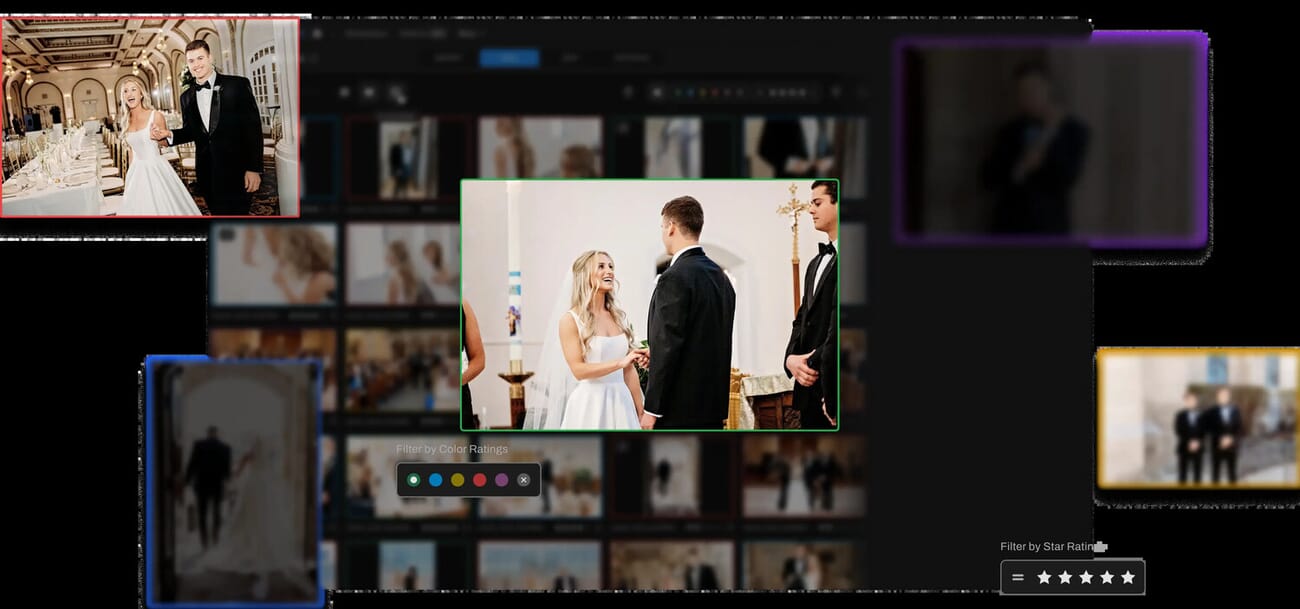
Aftershoot: AI-Powered Culling

Aftershoot represents a revolutionary approach to image selection, using AI to identify the best shots from large sets based on technical quality and aesthetic factors.

Selection Criteria:

  • Technical quality assessment (focus, exposure, composition)
  • Duplicate detection and best-of-series selection
  • Facial expression analysis for portrait work
  • Event moment prioritization for wedding and documentary photography

Workflow Integration: Photographers can import entire shoots into Aftershoot, receive AI selections within minutes, then import only the best images into Lightroom for detailed editing.

Time Savings: Wedding photographers report reducing culling time from 8-12 hours to 1-2 hours for typical 3,000-image wedding shoots.

ImagenAI: Learning Your Style

ImagenAI takes batch processing further by learning individual editing preferences and applying consistent style across large image sets.

Training Process:

  1. Upload 3,000+ edited image pairs (before/after) to train the AI
  2. AI learns specific color grading, contrast, and tonal preferences
  3. System generates custom profiles matching individual style
  4. New images receive automatic edits matching learned preferences

Professional Applications:

  • Wedding photographers maintaining signature look across entire galleries
  • Commercial photographers delivering consistent brand aesthetics
  • Event photographers processing thousands of images with uniform quality
  • Studio photographers automating repetitive product photography edits

Workflow Optimization Strategies

Hybrid Approach: Combine AI batch processing with selective manual refinement. Use AI for technical corrections and consistent base adjustments, then manually refine key images for creative impact.

Quality Control: Implement review checkpoints to ensure AI adjustments align with creative intentions. Random sampling can catch systematic issues before they affect entire galleries.

Client Expectations: Educate clients about AI-assisted workflows to set appropriate expectations for delivery times and consistency levels.

Archive Management: Consider long-term storage implications of AI processing. Maintain RAW originals and document AI tools used for future compatibility.

AI in Mobile Photography

Hands holding smartphone with landscape photo editing interface visible on screen
Mobile AI editing tools bring professional capabilities to smartphone photography

Mobile AI editing tools have democratized advanced photo processing, bringing professional-quality corrections and enhancements to smartphone photography workflows.

Platform-Specific AI Tools

Google Photos Magic Eraser: Google’s computational photography approach enables sophisticated object removal directly on mobile devices. The system analyzes scene context and generates appropriate background content for seamless removal results.

Apple’s Clean Up Tool: Introduced with iOS updates, Apple’s Clean Up feature integrates machine learning with the native Photos app, allowing users to remove unwanted objects with simple taps.

Samsung AI Editing Features: Samsung’s Galaxy devices include AI-powered scene optimization, night mode enhancement, and intelligent cropping suggestions that adapt to different shooting scenarios.

Professional Mobile Apps

Lightroom Mobile AI Features:

  • AI-powered auto-adjustments that match desktop capabilities
  • Intelligent masking tools for selective adjustments
  • Cloud synchronization with desktop workflows
  • Premium features including AI noise reduction and enhanced details

Snapseed AI Integration:

  • Smart suggestions based on image analysis
  • Automatic perspective correction
  • Intelligent cropping recommendations
  • HDR processing with AI tone mapping

Mobile Workflow Advantages

Immediate Processing: Mobile AI tools enable on-location editing, allowing photographers to deliver processed images within minutes of capture.

Social Media Optimization: AI-powered mobile editing streamlines social media publishing workflows, automatically optimizing images for platform-specific requirements.

Client Previews: Professional photographers can provide immediate preview galleries to clients using AI-processed mobile edits before desktop post-production.

Travel Photography: Limited internet connectivity makes mobile AI processing valuable for travel photographers who need to process and share images without desktop access.

Integration with Professional Workflows

Mobile AI editing complements rather than replaces professional desktop workflows:

Initial Processing: Use mobile AI for immediate corrections and client previews, then refine with desktop tools for final delivery.

Backup Workflows: Mobile processing provides backup options when desktop systems are unavailable or when quick turnaround is required.

Creative Exploration: Mobile AI tools offer different algorithmic approaches that can inspire creative directions for desktop editing.

Building an AI-Enhanced Workflow: Step by Step

7-step AI photo editing workflow infographic with PhotoWorkout mascot
A complete 7-step workflow integrating AI tools into professional photo editing

Effective AI integration requires systematic workflow design that balances automation with creative control. This step-by-step approach ensures consistent quality while maximizing efficiency gains.

Step 1: Import and Cull (AI-Assisted Selection)

Traditional Approach: Manual review of every image, flagging keepers and rejecting obvious failures—typically 2-4 hours for wedding shoots.

AI Enhancement: Use Aftershoot or similar AI culling tools to pre-select technically sound images and identify best shots from sequences.

Implementation:

  1. Import entire shoot into AI culling software
  2. Run automated technical analysis (focus, exposure, composition)
  3. Review AI selections and adjust parameters if needed
  4. Import only selected images into primary editing software
  5. Perform final manual review for creative and emotional factors

Time Savings: Reduces culling time by 70-80% while maintaining selection quality.

Step 2: AI Auto-Adjustments as Base

Process: Apply AI-powered auto-corrections to establish technical foundation before creative adjustments.

Lightroom Implementation:

  • Select all imported images
  • Apply Auto settings using AI analysis
  • Review batch results and adjust outliers
  • Create virtual copies for alternative processing approaches

Quality Control: AI auto-adjustments provide 80% of needed corrections, leaving creative fine-tuning for manual control.

Step 3: AI Denoise Where Needed

Identification: Use metadata filtering to identify high-ISO images that benefit from AI noise reduction.

Batch Processing:

  1. Filter images by ISO value (typically 3200+)
  2. Preview noise levels at 100% magnification
  3. Apply AI denoise to qualifying images
  4. Queue processing during non-work hours to manage system resources

Efficiency Note: Process AI denoise overnight or during breaks to avoid interrupting creative work.

Step 4: AI Masking for Targeted Adjustments

Common Applications:

  • Portrait subjects: AI subject selection for independent exposure/color adjustment
  • Landscapes: Separate sky and foreground processing
  • Events: Group masking for consistent skin tone adjustments
  • Architecture: Building isolation for perspective and exposure corrections

Workflow Integration: Use AI masking as starting points, then refine manually for precise creative control.

Step 5: Object Removal and Cleanup

Systematic Approach:

  1. Identify images requiring cleanup during initial review
  2. Batch similar removal tasks (exit signs, power lines, etc.)
  3. Use Lightroom Remove tool for simple objects
  4. Export to Photoshop for complex generative fill requirements
  5. Maintain removal documentation for client records

Quality Standards: Establish removal criteria to maintain consistency across projects and client expectations.

Step 6: Final Creative Touches (Human Decisions)

This stage focuses exclusively on creative interpretation that AI cannot replicate:

  • Color Grading: Establish mood and artistic vision through intentional color choices
  • Local Adjustments: Fine-tune specific areas for emotional impact
  • Creative Effects: Apply artistic processing that serves the image’s story
  • Print Preparation: Output-specific adjustments for intended display medium

Step 7: Export and Organize

Automated Organization: Use AI-assisted keywording and metadata enhancement for long-term archive management.

Output Optimization: Leverage AI upscaling for print versions while maintaining web-optimized standard exports.

Client Delivery: Implement consistent export presets that incorporate AI enhancements for professional presentation.

This workflow integrates smoothly with existing photo organization systems, ensuring AI enhancements support rather than complicate long-term archive management.

The Ethics of AI in Photography

As AI editing capabilities expand, understanding ethical boundaries becomes crucial for maintaining professional integrity and meeting audience expectations across different photography contexts.

Context-Dependent Standards

Personal and Artistic Work: Creative photography enjoys broad freedom in AI tool usage. Personal expression, fine art, and conceptual work traditionally embrace manipulation as part of the artistic process.

Commercial Photography: Client work typically allows extensive AI editing, including sky replacement, object removal, and enhancement, as long as final images serve marketing or brand objectives effectively.

Wedding and Portrait Photography: Industry standards generally accept AI tools for technical corrections and minor enhancements while expecting transparency about significant alterations.

Stock Photography: Most platforms allow AI-enhanced images but require disclosure of significant AI-generated content or compositing.

Photojournalism and Documentary Standards

News and documentary photography maintain stricter standards due to their role in factual communication:

Generally Accepted:

  • AI noise reduction that preserves original image information
  • Cropping and basic exposure/color corrections
  • Dust removal and minor sensor cleaning corrections

Generally Prohibited:

  • Object removal or addition that changes scene content
  • Sky replacement or background alteration
  • Generative fill that creates new image content
  • Composite images without clear disclosure

Organization Policies: Major news organizations like Reuters, AP, and National Geographic publish specific guidelines about acceptable AI tool usage.

Competition and Contest Considerations

Photography competitions vary significantly in AI tool policies:

Traditional Categories: Many competitions allow AI tools for technical corrections but prohibit content generation or significant scene alteration.

Open/Creative Categories: Artistic competitions often welcome AI enhancement as part of creative expression, though disclosure may be required.

Specific AI Categories: Some competitions now include dedicated categories for AI-assisted or AI-generated imagery.

Due Diligence: Always review specific contest rules before submission, as policies continue evolving with technological advancement.

Client Communication and Transparency

Professional photographers should establish clear policies about AI tool usage:

Contract Language: Include specific language about AI editing capabilities and limitations in client contracts.

Portfolio Representation: Consider whether portfolio images accurately represent typical client deliverables when showcasing AI-enhanced work.

Delivery Documentation: Maintain records of significant AI enhancements for potential client questions or future reference.

Educational Approach: Help clients understand the distinction between AI-enhanced and AI-generated content.

The AI-Enhanced vs. AI-Generated Distinction

This distinction proves crucial for maintaining photographic integrity:

AI-Enhanced Photography:

  • Starts with original captured photographs
  • Uses AI to improve technical quality or correct issues
  • Maintains the photographer’s creative vision and intent
  • Enhances rather than replaces photographic skill

AI-Generated Content:

  • Creates new images from text prompts or style instructions
  • May not involve any original photography
  • Raises questions about authorship and creative authenticity
  • Requires disclosure in most professional contexts

Future Considerations

As AI capabilities continue advancing, ethical frameworks must evolve:

Industry Standards: Professional organizations are developing updated ethical guidelines for AI tool usage across different photography specialties.

Legal Implications: Copyright, licensing, and authorship questions surrounding AI-assisted work continue developing through case law.

Audience Expectations: Public understanding of AI capabilities will influence acceptable usage standards across different contexts.

Technological Transparency: New tools may include automated documentation of AI enhancements, simplifying disclosure requirements.

Frequently Asked Questions

Is AI photo editing cheating?

AI photo editing is a tool, not cheating, when used appropriately for your context. Photography has always involved technical processing—from darkroom techniques to digital corrections. AI simply automates time-consuming technical tasks while preserving creative control.

The key is matching tool usage to context: technical corrections are widely accepted across all photography types, while content generation or major scene alterations may be inappropriate for documentary or journalistic work but perfectly acceptable for commercial or artistic projects.

Consider AI editing similar to other established tools like telephoto lenses, flash systems, or traditional post-processing techniques—powerful capabilities that enhance rather than replace photographic skill and vision.

Which AI photo editing tool is best for beginners?

Adobe Lightroom provides the most accessible entry point for AI photo editing. Its AI features integrate seamlessly into familiar editing workflows without requiring separate software or complex setup processes.

Start with Lightroom’s AI auto-adjustments, which provide excellent results across most image types. As comfort grows, explore AI masking tools for selective adjustments and AI denoise for high-ISO images.

For mobile-first users, start with platform-native tools like Google Photos Magic Eraser or Apple’s Clean Up tool, then progress to Lightroom Mobile for more sophisticated AI capabilities.

Avoid jumping to specialized tools like Topaz or Luminar until you understand AI integration principles through more familiar interfaces.

Can AI replace learning photography skills?

AI cannot replace fundamental photography skills—it enhances them. Understanding composition, lighting, timing, and technical camera operation remains essential for creating compelling images that AI tools can then refine.

AI excels at correcting technical issues like noise, exposure problems, or distracting elements, but it cannot create interesting subjects, emotional moments, or meaningful compositions. These core photographic skills become more important, not less, as AI handles routine technical corrections.

Think of AI as similar to autofocus or automatic exposure—powerful assistance that frees photographers to focus on creative decisions rather than technical execution. The most successful photographers combine strong foundational skills with intelligent AI tool usage.

Learning proper photo editing fundamentals remains valuable even with AI assistance, as understanding editing principles helps you direct AI tools more effectively and recognize when manual intervention produces better results.

Do AI editing tools work with RAW files?

Yes, most professional AI editing tools support RAW files, which is crucial for maintaining image quality and editing flexibility. Adobe Lightroom, Topaz Photo AI, and Photoshop all process RAW files directly with AI enhancements.

RAW support is particularly important for AI noise reduction, which works more effectively with unprocessed sensor data than with compressed JPEG files. AI tools can access the full dynamic range and color information captured by your camera.

Some AI tools process RAW files by creating new DNG or TIFF files with enhancements applied, preserving editing flexibility while incorporating AI improvements. This approach maintains non-destructive workflows that professional photographers require.

Mobile AI tools typically work with JPEG files from phone cameras, but desktop professional tools should always support RAW formats for serious photography work.

Conclusion

AI photo editing tools have evolved from experimental features to essential components of modern photography workflows. These technologies excel at automating time-consuming technical tasks—noise reduction, complex selections, object removal, and batch processing—while preserving the creative control that defines compelling photography.

The most successful approach treats AI as an intelligent assistant rather than a replacement for photographic skill. By handling routine corrections efficiently, AI tools free photographers to focus on the creative decisions that distinguish professional work: composition, timing, emotional impact, and artistic vision.

Integration requires thoughtful workflow design that balances automation with creative control. The seven-step process outlined—from AI-assisted culling through creative finishing—demonstrates how these tools can reduce processing time by 60-80% while maintaining or improving output quality.

Ethical considerations remain paramount. Understanding appropriate AI tool usage across different contexts—from permissive commercial work to strict photojournalistic standards—protects professional integrity while embracing technological advancement.

As AI capabilities continue advancing, photographers who master these tools while maintaining strong foundational skills will find themselves best positioned for future success. The goal isn’t to replace human creativity with automation, but to amplify creative potential by eliminating technical barriers.

Start with familiar tools like Lightroom’s AI features, gradually expanding to specialized applications as workflow needs develop. Focus on tools that solve specific problems in your photography rather than adopting technology for its own sake.

The future of photography lies not in choosing between traditional techniques and AI enhancement, but in thoughtfully combining both approaches to create more compelling imagery with greater efficiency. Master the tools, understand the ethics, and maintain creative control—that’s the path to leveraging AI successfully in your photography workflow.

About the Author Andreas De Rosi

Close-up portrait of Andreas De Rosi, founder of PhotoWorkout.com

Andreas, with a background in economics and marketing, heads PhotoWorkout's editorial team in Berlin. Starting his photography with film at 14, he's developed his craft through courses and hands-on experience, focusing on travel photography. Andreas blends academic and practical insights to shed light on the latest trends in photography. Connect with him on Instagram, Facebook, and LinkedIn.

Leave a Comment

Your email address will not be published. Required fields are marked *