


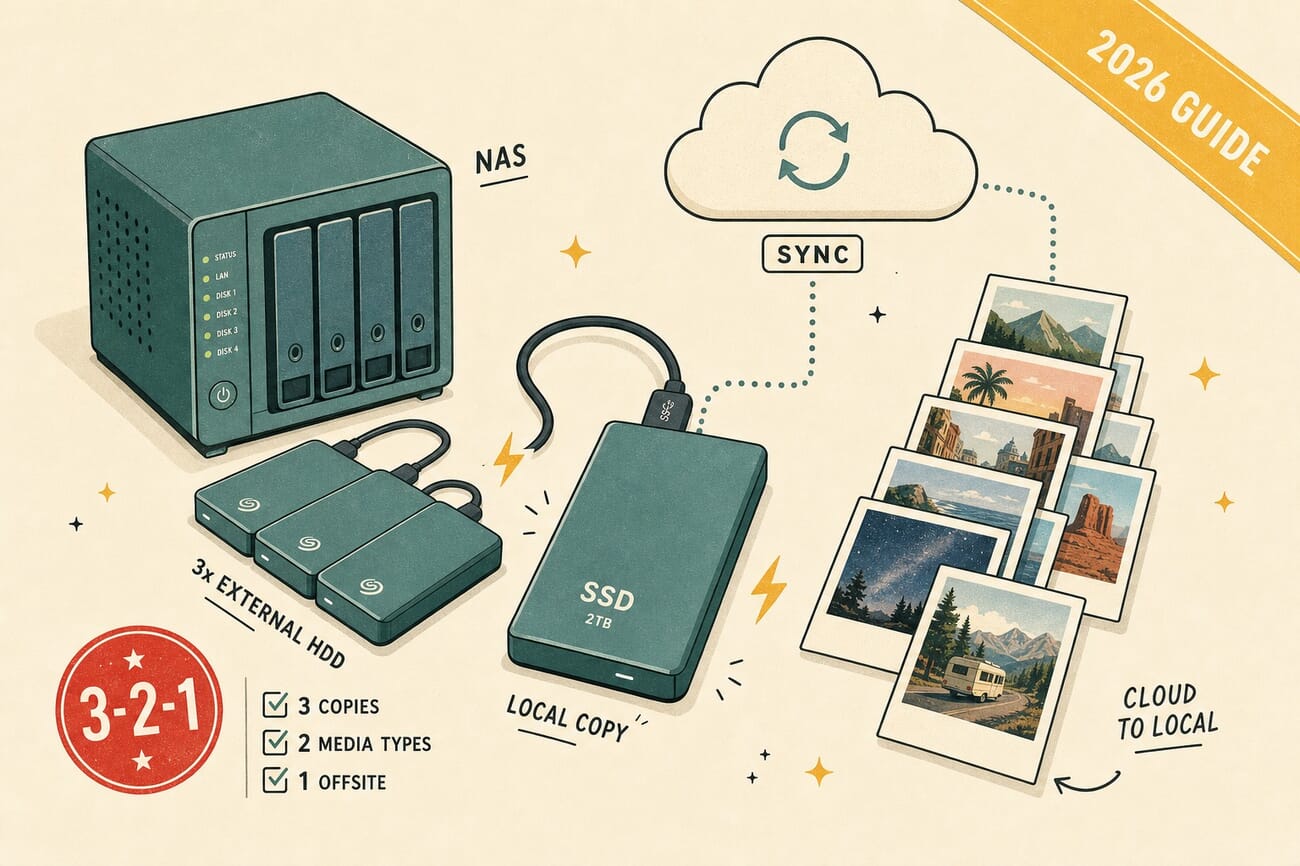
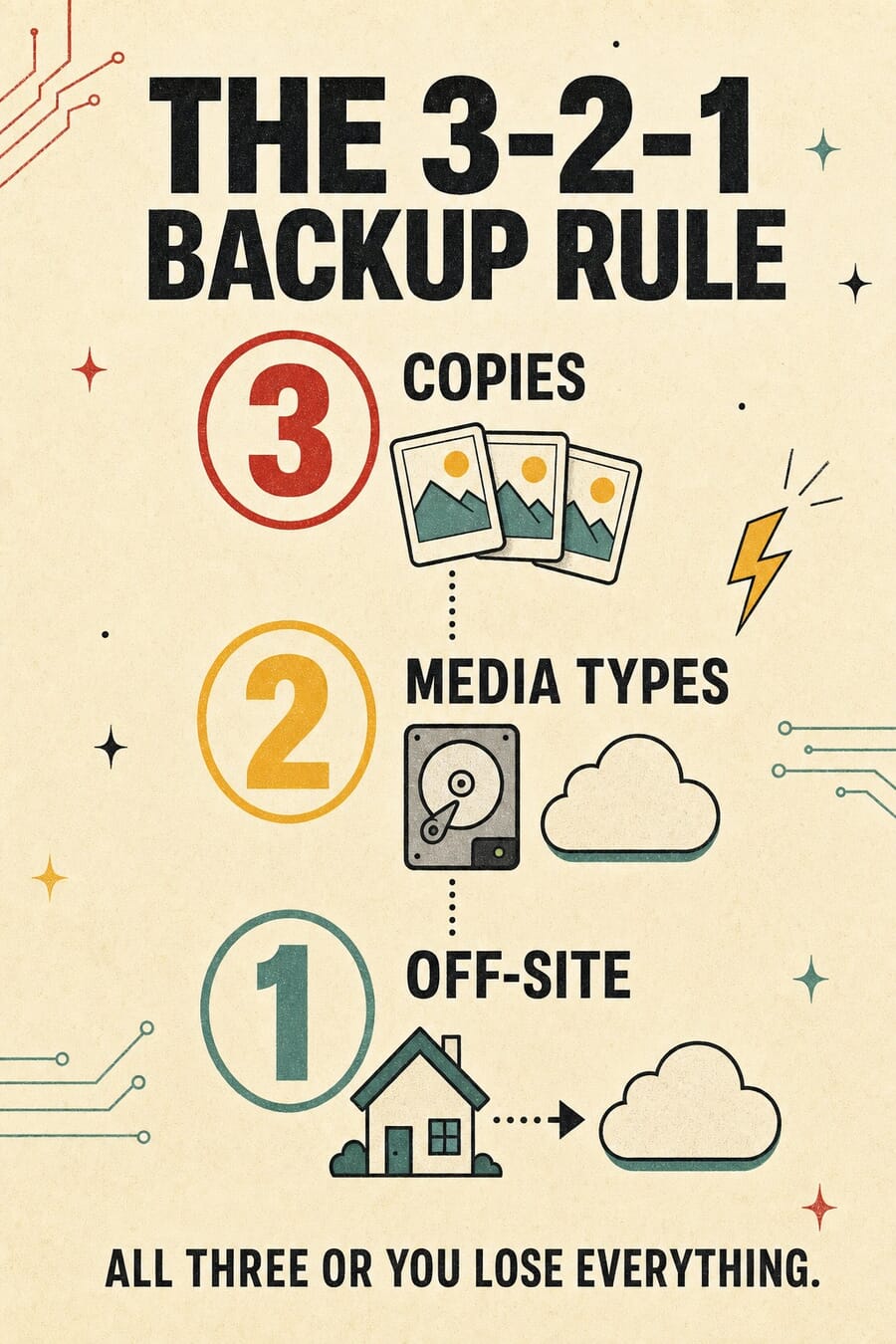
- The 3-2-1 rule still wins: 3 copies of every photo, 2 different media types, 1 off-site. For 10TB+ RAW libraries, scale this up — multiple physical drives + a hybrid cloud archive.
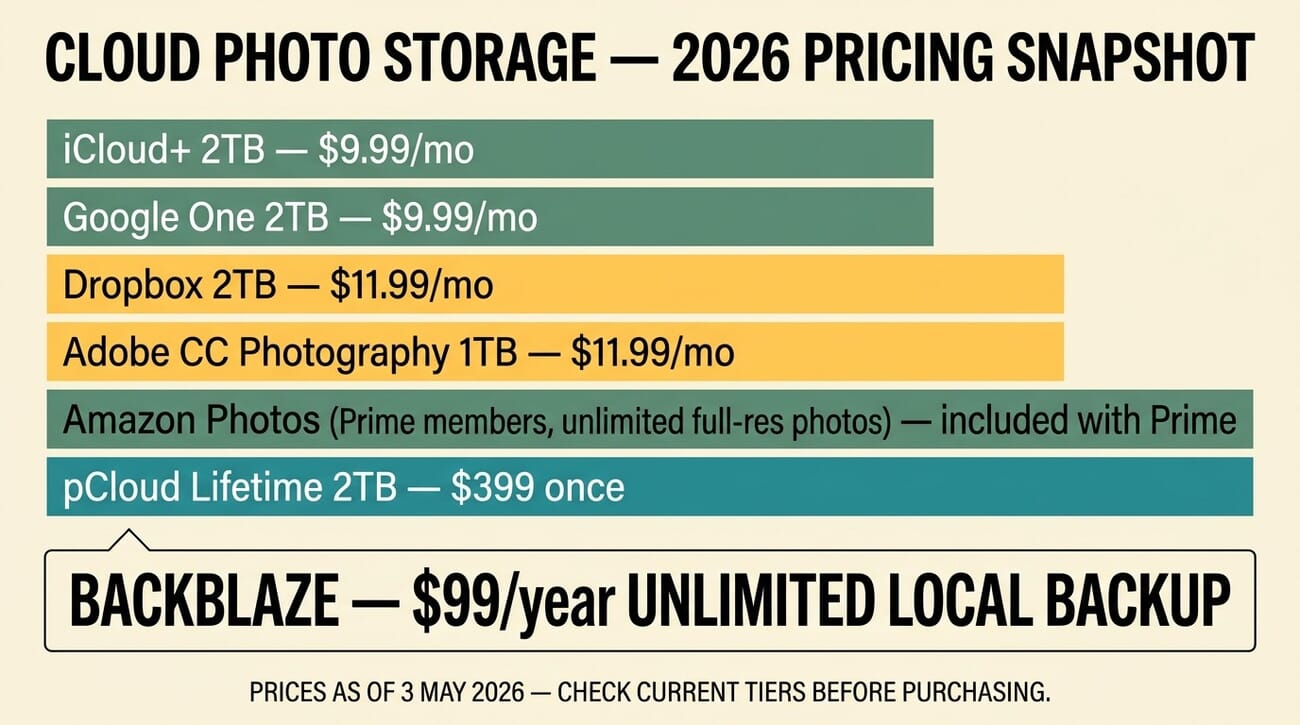
- Cloud pricing in 2026: Google One and iCloud+ both at $9.99/mo for 2TB; Amazon Photos still free for Prime members (unlimited full-res photos); pCloud Lifetime 2TB at $399 one-time pays back in 40 months vs subscriptions.
- Best local backup: Backblaze at $99/year for unlimited Personal Backup (one computer + attached drives). For object storage, B2 Cloud at $6/TB/month is the go-to.
- External SSDs are pricey in 2026 — tariffs and supply have pushed 4TB SSDs into the $400-1,000 range. The Crucial X10 4TB ($428) is the sweet spot; high-performance Samsung T7 Shield 4TB now lands closer to $999. Older WD My Passport HDDs at $137/4TB are the value play.
- AI organization is the new layer: Apple Photos Intelligence, Google Photos AI, and Lightroom AI tagging now do the cataloguing work that took photographers hours. Always combine with manual keyword discipline for the photos that truly matter.
Digital photographers accumulate thousands of images over time — and losing them to a failed hard drive, a corrupted memory card, or a deleted cloud account is devastating. The fix is a deliberate storage strategy that combines cloud convenience with local control, and that scales as your library grows from 100 GB to 10 TB+. This guide is the 2026 refresh: current cloud pricing as of May 3, updated Amazon picks for external SSDs and HDDs, and the AI-organisation tools that have changed how photographers actually manage their archives this year.
When you buy through links on our site, we may earn a commission at no cost to you. We evaluate products independently. Commissions do not affect our evaluations.
Why Photo Storage Matters in 2026
A 24-megapixel mirrorless camera produces ~30 MB RAW files; a 50-megapixel body produces ~75 MB. A modest enthusiast shoots 5,000 frames a year; a working photographer shoots 50,000+. Without a thought-through storage plan, you end up with photos scattered across an iPhone, an old laptop, a failed external drive, and three half-filled cloud accounts. The cost of recovery — assuming recovery is even possible — is far higher than the cost of doing it right from the start.
A solid storage strategy in 2026 has three layers: local working storage (an SSD fast enough for active editing), local archive (HDD or NAS for completed work), and cloud backup (off-site protection against fire, theft, and hardware failure). The rest of this guide breaks down what to use for each.
The 3-2-1 Backup Rule (and How to Scale It for 10 TB+ Libraries)
Before any specific service, the 3-2-1 rule remains the gold standard for photographers:
- 3 copies of every photo (the original plus two backups).
- 2 different media types (e.g., internal SSD + external HDD, or local drive + cloud).
- 1 off-site copy (cloud storage, a drive at a different physical location, or both).
For most enthusiasts shooting under 1 TB/year, this is straightforward: laptop SSD + external HDD + one cloud service covers all three. The math gets complicated as the library grows.
Scaling 3-2-1 for 10 TB+ RAW Libraries
Working photographers and serious enthusiasts cross the 10 TB threshold faster than they expect. Wedding shooters, wildlife photographers, and anyone shooting 4K/6K video alongside stills hit it within 3-5 years. At that scale, the 3-2-1 rule still applies, but the implementation changes:
- Working tier: a fast NVMe SSD on the editing machine for the current 6-12 months of active projects (2-4 TB).
- Local archive tier: a NAS with 4-6 large HDDs in RAID-6 or RAID-Z2, holding the full library mirrored across drives. 8-bay Synology or QNAP units handle 60-100 TB usable.
- Off-site tier: a cloud backup service (Backblaze B2 or unlimited Personal Backup) syncing the NAS, OR a second physical drive set rotated quarterly to a remote location (a relative’s house, a paid storage unit, an office locker).
The cloud-only approach gets expensive at this scale. Restoring 20 TB from cloud — even at gigabit speeds — takes 2-3 days minimum. For 10 TB+ libraries, a physical off-site rotation is often faster and cheaper than pure cloud, especially if you have a colleague or family member willing to keep a drive plugged in.
Cloud Photo Storage Options (May 2026 Pricing)
Cloud storage gives you off-site protection automatically and lets you access your photos from any device. The right pick depends on your ecosystem (Apple, Google, Adobe), how many photos you have, and whether you’re willing to pay subscriptions forever.
1. iCloud+ — Apple Ecosystem Default
Pricing (May 2026): 5 GB free; 50 GB $0.99/mo; 200 GB $2.99/mo; 2 TB $9.99/mo; 6 TB $29.99/mo; 12 TB $59.99/mo. All paid tiers include Private Relay, Hide My Email, and shareable storage with up to 5 family members.
For iPhone and Mac users, iCloud Photos is the path of least resistance — photos sync across all your Apple devices automatically, RAW preservation works correctly on Pro models, and the 12 TB tier is now genuinely competitive on price for serious archives. Watch out for: the 5 GB free tier fills up in days; budget for at least 200 GB ($3/mo) the moment you start shooting RAW.
2. Google Photos — Best AI Search
Pricing (May 2026): 15 GB free shared with Gmail/Drive; Google One 100 GB $1.99/mo or $19.99/yr; 2 TB $9.99/mo; 10 TB $49/mo; 20 TB $99/mo; 30 TB $149/mo. Google AI Pro at $19.99/mo now bundles 5 TB of storage with Gemini Advanced — competitive if you use Gemini anyway.
Google Photos’ AI search is genuinely best-in-class — natural-language queries like “beach sunset 2024” or “photos with mom and dog” actually work. The Storage Saver compression isn’t suitable for RAW archives, but the Original Quality tier (which is what 2 TB+ subscribers default to) preserves full resolution. Best for: Android users, anyone who prioritises searchability over deep editing-tool integration.
3. Amazon Photos — Free Unlimited for Prime Members
Pricing (May 2026): Unlimited full-resolution photo storage included with Amazon Prime ($14.99/mo or $139/yr). 5 GB of video storage in the Prime tier; paid tiers start at $1.99/mo for 100 GB of additional combined storage.
The most overlooked deal in cloud photo storage. If you already pay for Prime, full-resolution RAW files of unlimited count are bundled in. The mobile app is decent, the web interface is basic but functional, and there are no Storage Saver-style compressions. Watch out for: if you cancel Prime, your photos remain accessible for 60-90 days but then start being deleted — and video stops being unlimited the day Prime ends.
4. pCloud Lifetime — Pay Once, Store Forever
Pricing (May 2026): 500 GB Lifetime $199 once; 2 TB Lifetime $399 once; 10 TB Lifetime $1,190 once. Periodic sales bring the 2 TB tier to ~$279 and the 10 TB tier to ~$799 (Black Friday and Valentine’s Day are the consistent deal windows).
pCloud is the answer to “I’m tired of paying $10/month forever.” A 2 TB lifetime plan breaks even against iCloud or Google’s $9.99/mo subscription in about 40 months and saves money for the next 10+ years. The service runs under Swiss data-protection laws, integrates with Lightroom for auto-upload, and previews RAW files natively without downloading. Watch out for: “lifetime” means the lifetime of the service. pCloud has been around since 2013 and is profitable, but it’s not Apple/Google. Treat it as a primary cloud archive, not your only off-site copy.
5. Adobe Creative Cloud Photography Plan
Pricing (May 2026): $11.99/mo for the Photography Plan with Lightroom + Photoshop + 1 TB of Creative Cloud storage. The 20 GB plan at $9.99/mo exists but isn’t worth it.
The Adobe Photography Plan is the only cloud storage that integrates directly with Lightroom’s develop module — your edits sync across devices alongside the RAW files. The 1 TB ceiling is the major catch; you’ll outgrow it in a year or two. Adobe’s recent Claude integration hints that AI-driven workflows on Lightroom are about to accelerate, which makes the platform lock-in even stickier. Best for: photographers who already pay for the Photography Plan and want the cloud sync as a bonus, not as a primary archive.
6. Dropbox & Flickr Pro — Niche but Useful
Dropbox ($11.99/mo for 2 TB) is mostly worth it for cross-platform file sharing, not photo-specific archiving. Flickr Pro ($8.49/mo or $77.99/yr) gives unlimited photo storage at original resolution plus a public-portfolio component, which makes it a niche pick for photographers who actively use Flickr as a community/portfolio platform — but the social-network side has shrunk a lot since the Yahoo era.
Cloud Backup Services — When You Need Full-Drive Protection
Cloud photo storage and cloud backup are different categories. Photo storage services (above) sync specific photo libraries. Cloud backup services back up your entire computer or specific drives — OS, applications, RAW archives, everything. Two services dominate this category for photographers:
Backblaze Personal Backup — Unlimited at $99/year
Pricing (May 2026): $99/year for unlimited backup of one computer plus all attached external drives. The 2-year plan at $189 is the best value. Free 15-day trial.
Backblaze Personal Backup is the photographer’s default cloud backup. It backs up your entire computer including any external drives plugged in at the moment of backup, with no storage caps, no file-size limits, and no throttling. The 2-year deal works out to $7.88/mo for genuinely unlimited storage — there is no other service that comes close at this price. For 10 TB+ libraries: Backblaze handles it; the initial backup just takes a long time (1-3 weeks depending on your upload speed).
Backblaze B2 — Object Storage for Power Users
Pricing (May 2026): $6/TB/month object storage with the first 10 GB free and free egress up to 3x your stored data. Roughly 1/5 the cost of AWS S3.
B2 is for users who want programmatic access — automated NAS backups, custom scripts, integration with applications like Hazel or rclone. Photographers running a Synology or QNAP NAS can use the built-in B2 backup app to mirror the entire NAS to B2 for ~$60-300/month depending on library size. Cheaper than Personal Backup for 10 TB+ libraries when factoring in restore costs.
iDrive — The Multi-Computer Alternative
Pricing (May 2026): 10 GB free; 5 TB plan around $79.50/year (first year), 10 TB plan around $99.50/year. iDrive backs up unlimited computers per account, which is the unique selling point — Backblaze charges per-computer.
For households with multiple Macs or PCs needing backup (your computer, partner’s laptop, kid’s machine), iDrive’s per-account pricing wins. For a single editing machine, Backblaze’s unlimited plan is simpler and usually cheaper.
Local Storage — SSDs, HDDs, NAS, and the 2026 Pricing Reality
Local storage prices have shifted a lot since early 2025. Tariffs, NAND-flash supply changes, and the broader memory-card price hike (which went into effect on May 1) have pushed external SSD prices up across the board. The headline: 4 TB SSDs that cost $300 in mid-2025 now sit anywhere from $400 to $999 depending on speed tier. The good news: HDDs have gotten cheaper relative to SSDs, making them the value play again.
External SSDs — Fast, Pricey, Best for Active Projects
For active editing — anything you’re currently working on — an external NVMe SSD is the right choice. Three solid 4 TB picks at the May 2026 price points:
- Crucial X10 4TB Portable SSD ($428) — 2,100 MB/s read/write, USB 3.2 Gen 2×2, IP65 rated. The current sweet spot. Crucial’s X10 series replaced the X9 in late 2025 with double the speed at similar pricing.
- SanDisk Extreme Pro 4TB Portable SSD ($530) — 2,000 MB/s, USB-C 3.2 Gen 2×2. The professional standard for working photographers; the rugged build justifies the premium.
- Samsung T7 Shield 4TB ($999 — pricing varies wildly) — 1,050 MB/s with IP65 protection and 9.8 ft drop rating. Pricing has spiked dramatically in 2026; the 2 TB version (~$200) is the better-value option in this line.
External HDDs — The 2026 Value Play
For archival storage — completed projects you don’t edit any more — HDDs are the obvious choice. 4 TB HDDs sit around $130, a fraction of the SSD-equivalent price. Speed doesn’t matter for archive (you’re reading the file once into Lightroom for an occasional reprint, not editing live).
- WD My Passport 4TB ($137) — the workhorse archive HDD; 5400 RPM, USB-C, includes WD’s backup software. Pair two for an instant 3-2-1 setup.
NAS — Best for 10 TB+ Local Archives
Network-Attached Storage is the right answer once your library crosses ~6 TB. A NAS gives you RAID protection (one drive can fail without data loss), accessibility from every computer in the house, and a single device that holds your entire archive. Synology and QNAP are the two consumer-grade players worth considering:
- Synology DS225+ 2-bay NAS ($340) — the new 2-bay default. RAID 1 mirroring with 2× large HDDs gives you 8-20 TB usable. Run Synology Photos for a self-hosted Google Photos alternative.
- Synology DS223 ($285) — the budget 2-bay option. Same case, fewer ports, slightly weaker CPU; fine for pure backup, less suited if you want to run Synology’s photo apps.
The HDDs themselves are bought separately. WD Red Plus 4 TB or Seagate IronWolf 4 TB are the standard NAS-grade picks, $90-120 each. Two HDDs in RAID 1 plus a Synology DS225+ sits around $520 all-in for an 8 TB local archive — still cheaper than three years of cloud subscription at the same size.
RAID — Important Concept, Mostly NAS Territory
RAID (Redundant Array of Independent Disks) lets multiple drives act as one logical volume with redundancy. RAID 1 mirrors two drives (one drive can fail with no data loss). RAID 5 and RAID 6 add parity across 3+ drives for similar protection with more usable capacity. For photographers, RAID lives inside a NAS — modern NAS units handle RAID setup with one-click configuration. Direct-attached RAID enclosures (OWC ThunderBay, etc.) exist but are mostly relevant for video editors needing thunderbolt-speed multi-drive volumes; for stills work, a NAS plus an editing SSD is a simpler setup.
AI-Powered Photo Organization — The 2026 Layer
Photo organization changed quietly but completely in 2026. Three years ago, “organising your photos” meant a weekend with Lightroom keywords, hierarchical folders, and a star-rating system. Now, the platforms do most of that work automatically — and the photographers who don’t use AI organization are doing 10× the manual work for 1× the searchability. The three tools that matter:
Apple Photos Intelligence
Apple’s on-device AI in iOS 27 / macOS 16 added Visual Intelligence — the system identifies objects, scenes, locations, and people across your library and lets you query them in natural language. “Photos of Sarah at a beach” or “sunsets from 2024” returns results in seconds. The critical advantage: it runs on-device, so your library never leaves your phone or Mac. The catch: the AI quality is a step behind Google’s, and it requires Apple Silicon hardware.
Google Photos AI Search
Google Photos was the original here and remains the strongest at language-based search. Gemini integration in 2026 added more sophisticated multi-step queries — “compare this year’s family beach trip to last year’s” surfaces relevant photos across years and lets you pull a side-by-side collage. The catch: this runs in Google’s cloud, so your photos are AI-indexed in their data centres. Trade-off depends on your privacy preferences.
Lightroom AI Tagging
Adobe added Adaptive Subject Detection and AI-powered keyword suggestions to Lightroom Classic in late 2025. The model identifies subjects, locations, weather conditions, and even rough emotional tone, and suggests keywords automatically. For working photographers cataloguing client shoots, this cuts catalogue-tagging time by 80% — at the cost of a Photography Plan subscription. PhotoWorkout’s full AI photo organizer roundup covers the alternatives in more detail.
The honest take: AI organization works great for the 95% of your library that’s casual snapshots. For the 5% that matters — portfolio shots, paid client work, family milestones — still apply manual keywords and folder discipline. AI gets you 80% of the way to a searchable archive; the manual layer gets the last 20% for the photos you can’t afford to lose track of.
Mobile-First Photo Storage — Phones Are the Primary Camera Now
For most readers — including many of PhotoWorkout’s editorial team — the phone is the primary camera. iPhone Pro shoots ProRAW, the Pixel 10 shoots 50-megapixel JPEGs that rival mid-range mirrorless output, and the storage strategy has to start with the phone, not with an SD card and a desktop import workflow. Three patterns work in 2026:
- iPhone + iCloud Photos + 200 GB tier ($2.99/mo) — auto-sync to all Apple devices, full RAW preservation, family sharing for up to 5 people. The default for any iPhone shooter who also uses a Mac. Upgrade to 2 TB once you cross ~150 GB of photos (about 18 months of casual + Pro mode shooting).
- Android + Google Photos + Google One 2 TB ($9.99/mo) — same pattern with better AI search but cloud-based AI (your photos are indexed in Google’s data centres). For most Android users, this is the obvious answer.
- Both ecosystems + Amazon Photos as the off-site copy — if you have Amazon Prime anyway, the “free unlimited photos for Prime members” deal makes Amazon Photos the natural off-site layer that doesn’t require any extra subscription. Use auto-upload from the Amazon Photos mobile app on both iPhone and Android.
For phone shooters who also want a local archive, the workflow gets more interesting. iPhone Pro’s USB-C port now supports direct-to-SSD recording for ProRAW and ProRes video, which means an external SSD plugged into the phone over USB-C can serve as a primary storage destination. Android via USB OTG has had similar capability for years. The result: your phone, an external SSD, and one cloud service can deliver full 3-2-1 protection without ever touching a laptop.
Recommended Storage Strategies by Photographer Profile
The Casual Shooter (Up to 1 TB)
Cloud: iCloud+ 200 GB or Google One 200 GB ($2.99/mo each). Local: whatever’s on your phone or laptop is fine; a single external HDD ($137) for occasional offline backup. Cost: ~$50/year + $137 one-time.
The Enthusiast (1-5 TB)
Cloud: iCloud+ or Google One 2 TB ($9.99/mo) or pCloud Lifetime 2 TB ($399 once). Local: 4 TB external SSD for working storage (Crucial X10, $428) + 4 TB external HDD for archive ($137). Cost: ~$120/year + ~$565 one-time, or $565 + $399 = $964 with pCloud lifetime and no recurring cloud cost after year 1.
The Working Photographer (5-20 TB)
Cloud: Backblaze Personal Backup ($99/year) backs up everything plugged in. Add iCloud+ 6 TB ($29.99/mo) or Google One 10 TB ($49/mo) only if you specifically need cross-device sync of finals. Local: editing SSD on the working machine + 2-bay NAS (Synology DS225+) with two 8-12 TB HDDs in RAID 1. Cost: ~$100-700/year + ~$700-1,000 NAS setup.
The Pro/Studio (20 TB+ or Multi-Photographer)
Cloud: Backblaze B2 syncing the NAS ($60-300/month at this scale, depending on library size). Local: 4-8 bay NAS with RAID-Z2 / RAID 6 + a separate working SSD array. Off-site rotation: a second drive set kept at a colleague’s office or storage unit, rotated quarterly. Cost: $1,500+ NAS + ~$1,200/year cloud at 20 TB.
Frequently Asked Questions
Is cloud storage safe enough as my only backup?
No — not for serious photographers. Cloud accounts can be locked, hacked, or suspended (Apple, Google, and Adobe have all done this to legitimate users). Always combine cloud with at least one local copy on hardware you physically own. The 3-2-1 rule exists for exactly this reason.
Should I store RAW files in the cloud or just JPEGs?
RAW. The whole point of shooting RAW is preserving full sensor data for re-editing later — if you only back up JPEGs, you lose that flexibility forever. iCloud+, Google Photos (Original Quality tier), Amazon Photos (Prime), and pCloud all preserve RAW losslessly. Avoid services that compress or transcode to JPEG.
How long do external HDDs and SSDs actually last?
HDDs typically last 3-5 years of regular use, longer if powered off most of the time. SSDs are rated by total bytes written (TBW) — most photographer-grade 4 TB SSDs are rated for 600-1,200 TBW, enough for 7-15 years of normal use. The risk isn’t time; it’s the day a drive fails unexpectedly. Always have a backup of any drive you can’t afford to lose.
What’s the cheapest 3-2-1 setup that actually works?
Internal drive on your computer (copy 1) + a $137 4 TB external HDD (copy 2) + Amazon Photos free with Prime (copy 3, off-site). Total non-Prime cost: $137 one-time. If you don’t already have Prime, swap Amazon Photos for Backblaze Personal Backup at $99/year — still under $250 to be fully protected.
Should I use a NAS or just multiple external drives?
Below ~6 TB total library, multiple external drives are simpler and cheaper. Above ~6 TB, a 2-bay NAS pays back in convenience (centralised storage, accessible from every device, RAID protection) and ends up cheaper than buying ever-larger external drives every two years. Crossover usually happens at the 4-5 TB mark when one external drive isn’t enough but a second one is annoying to manage.
How often should I run a test restore?
Once a year, minimum — pick 3-5 random photos from your archive, delete the local copy, and restore from each backup tier. Most “I lost everything” stories aren’t about the original failure; they’re about discovering the backup was broken when it was needed. A 30-minute test restore once a year saves catastrophe.
Image credits: PhotoWorkout editorial illustrations.
Affiliate disclosure: Product links above are Amazon affiliate links — PhotoWorkout earns a commission if you purchase through them at no extra cost. Recommendations are independent.
Cloud Pricing References (May 2026)
- Apple Support — iCloud+ plans and pricing – Canonical iCloud+ tier pricing as of May 2026 (50 GB → 12 TB).
- Google One — Plans and Pricing – Google One subscription tiers including the AI Pro 5 TB bundle.
- pCloud — Lifetime Cloud Storage Plans – pCloud's lifetime tier pricing — 500 GB / 2 TB / 10 TB.
- Backblaze — Personal Backup Pricing – Personal Backup at $99/year unlimited; B2 Cloud Storage at $6/TB/month.
- Amazon Photos — Prime Photo benefits – Unlimited full-resolution photo storage included with Prime ($14.99/mo or $139/yr).
Hardware Reviews
- DPReview — USB 4 / Thunderbolt 5 SSD speed roundup – DPReview's SSD speed comparison covering current high-performance picks.
- Imaging Resource — Best External SSDs 2026 – Imaging Resource's 2026 photographer-focused SSD roundup.
- Tom's Hardware — Best External Hard Drives & SSDs – Tom's Hardware editor's-pick reference for current external storage.
Some product links above are Amazon affiliate links: PhotoWorkout earns a commission if you purchase through them at no extra cost. Recommendations are independent.



