


- Lightroom Classic 15.4 (June 2026) finally ships automatic duplicate detection: it scans the catalog and stacks duplicates for review, the cleanup feature users have requested for over a decade.
- The new Faces panel turns Assisted Culling into a per-face tool, showing Eye Focus and Eyes Open scores for every person in a group shot. Event and wedding culling is the big winner.
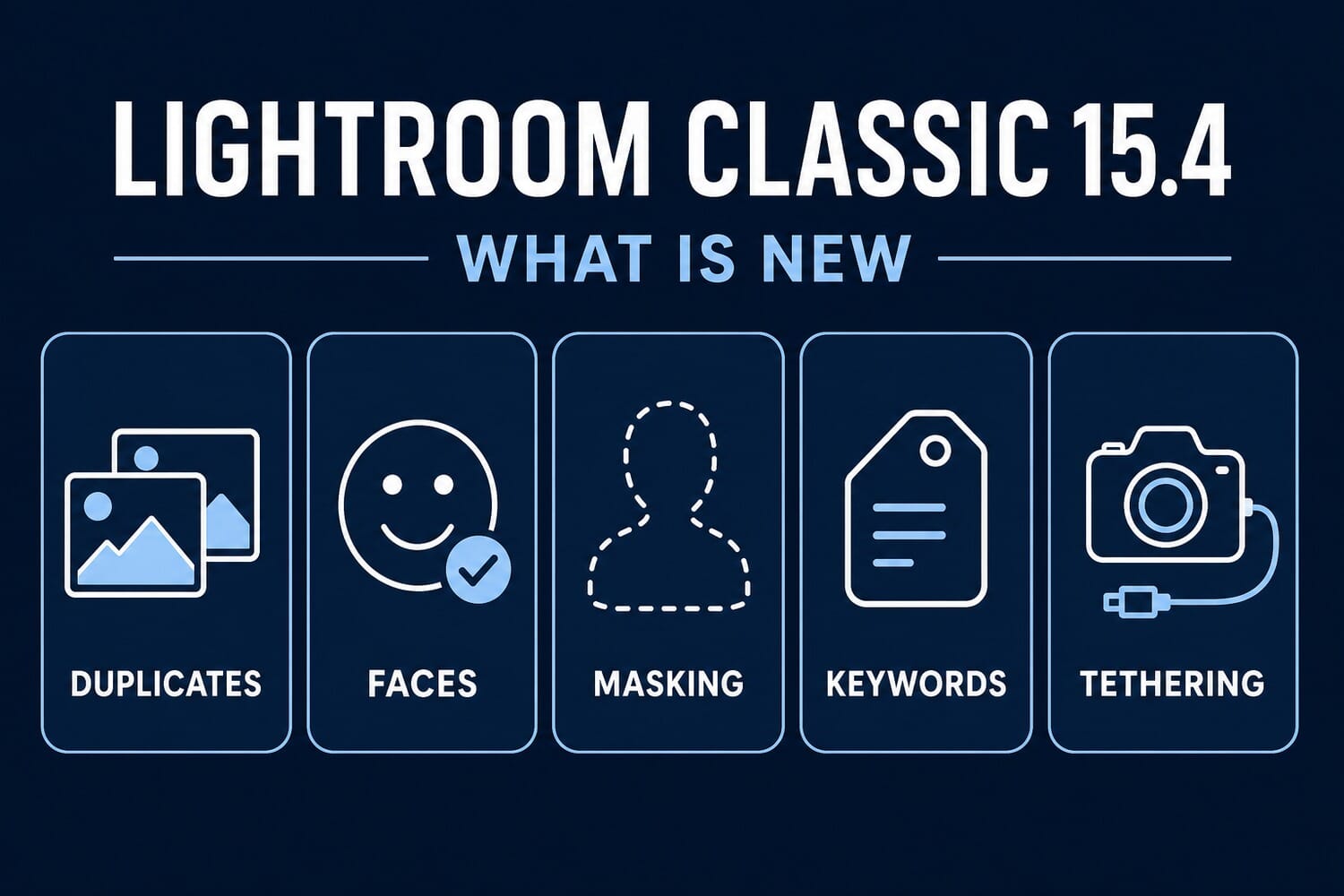
- Also new: sharper Select Subject masking with faster brushes, AI-powered metadata filters and Smart Collections, keyword sync across the whole Lightroom ecosystem, and Canon tethering moving to the open PTP standard.
- Free for Creative Cloud Photography subscribers. Update to 15.4.1 (the bug-fix release), back up the catalog first, and expect the first duplicate scan on a large catalog to take a while.
Adobe’s June 2026 Lightroom drop is the most practical Classic release in a long time. No generative fireworks this round: version 15.4 goes after the two chores that eat real hours, finding duplicates in a bloated catalog and culling group shots face by face.
Lightroom Classic 15.4 arrived alongside Lightroom Desktop 9.4 and Mobile 11.4, with a 15.4.1 bug-fix release following. Here is what actually changed, what it means for working photographers, and whether to hit update today.
Duplicate Detection: The Decade-Old Request, Finally Shipped
Every long-running catalog accumulates duplicates: re-imports, backup restores, the same shoot pulled from two cards. Until now the fixes were third-party plugins or grim manual passes. 15.4 adds native duplicate detection that scans the catalog and gathers suspected duplicates into stacks for review and cleanup.
The stacking approach is the right call: nothing is deleted automatically, so the tool surfaces candidates and leaves the judgment to you. Two practical notes from early use around the community: run the first scan overnight on six-figure catalogs, and review stacks before any mass delete, because burst frames and exposure brackets can look duplicate-adjacent to any detector. Pair it with a proper folder discipline (the photo organization guide covers the system side) and a bloated catalog becomes genuinely fixable in an afternoon.
The Faces Panel: Culling Group Shots Person by Person

Assisted Culling arrived in 15.0 and got smarter through the spring, but it always judged a photo as a whole. The new Faces panel in 15.4 breaks the score down per person: each detected face gets its own Eye Focus and Eyes Open readout, so a six-person family shot where one kid blinked is flagged for exactly that reason.
Wedding, event, and family photographers will feel this immediately: filtering a 400-frame group session down to the frames where every face passes used to be the slowest, most error-prone part of a cull. It also stacks neatly with February’s group-portrait improvements to the underlying AI models, which this panel now finally exposes in the interface.
Masking: Cleaner Subjects, Faster Brushes

Two quieter Develop-module wins. Select Subject got a precision pass and now produces cleaner edges on subjects against busy backgrounds, the exact scenario where earlier versions left halos to fix by hand. And the masking brushes themselves are noticeably more responsive, which matters on high-resolution files where brush lag has been a running complaint.
Neither will headline a keynote, but together they cut the correction time after every AI mask, and masking is where most editing minutes actually go. For how Lightroom’s AI toolset compares with the competition right now, the Capture One vs Lightroom vs Topaz denoise test is the current scoreboard on one front of that fight.
A Smarter Library: AI Filters, Smart Collections, Keyword Sync

The Library module gets AI-focused metadata filters and new Smart Collection criteria, turning things the AI knows about your photos into filterable catalog data. Combined with the Faces panel scores, Classic is quietly building toward a catalog you can query by image content and quality, not just by the keywords you remembered to type.

And keywords finally sync. Tags applied in Classic now propagate to Lightroom desktop, web, and mobile. Anyone running a hybrid workflow, culling on an iPad, finishing in Classic, has been waiting years for exactly this piece of plumbing.
The Grab Bag: Canon PTP Tethering, New Profiles, Landscape Presets
Three smaller changes worth knowing. Canon tethering is moving from the manufacturer SDK to the open PTP (Picture Transfer Protocol) standard, which should mean faster support for new Canon bodies and fewer broken-tether releases; studio shooters comparing options can weigh it against the dedicated tethering apps. Camera Raw adds the usual batch of new camera and lens profiles. And the Adaptive Preset library grows with eight new AI landscape presets that mask sky, subject, and terrain independently.
Should You Update?
Yes, with the standard ritual. Update to 15.4.1 rather than 15.4, since the point release fixes the launch bugs. Let Lightroom back up the catalog when it asks (the update migrates catalog data for the new features), and give the duplicate scanner its first pass overnight rather than mid-job.
The bigger picture: 15.4 is Adobe spending a whole release on workflow debt instead of generative features, and it lands two weeks after the June Creative Cloud update put on-device AI in Photoshop. Read together, the direction is clear: the AI is moving local, and the catalog is becoming something the AI can actually manage. For photographers still building their editing foundations, the beginner editing guide maps where these tools fit.

Frequently Asked Questions
What’s new in Lightroom Classic 15.4?
The June 2026 release adds automatic duplicate detection with stacking, a Faces panel showing per-face Eye Focus and Eyes Open scores for Assisted Culling, more precise Select Subject masking with faster brushes, AI-powered metadata filters and Smart Collections, keyword sync across Lightroom apps, Canon PTP tethering, eight new Adaptive Landscape presets, and new camera and lens profiles. A 15.4.1 release followed with bug fixes.
Is the Lightroom Classic 15.4 update free?
Yes. It is included in any Creative Cloud plan that carries Lightroom Classic, including the Photography plan. Update via the Creative Cloud desktop app; there is no separate purchase.
Is it safe to update mid-project?
The update migrates the catalog, so treat it like any catalog-touching change: let Lightroom create its backup first, and ideally update between jobs rather than mid-delivery. Going straight to 15.4.1 skips the launch-week bugs that the point release fixed.
Does Lightroom Classic 15.4 replace duplicate-finder plugins?
For most users, yes. The native tool scans the catalog and stacks suspected duplicates for review, which covers the common cases (re-imports, double card downloads). Specialist plugins still offer finer matching controls, but the default workflow no longer requires one.
The Bottom Line
15.4 is the rare update aimed squarely at the unglamorous middle of the job: the catalog, the cull, the mask cleanup. Duplicate detection alone will reclaim gigabytes and sanity in old catalogs, and the Faces panel turns group culling from guesswork into a checklist.
Update to 15.4.1, run the duplicate scan overnight, and enjoy the rare feeling of Adobe shipping the features users actually asked for.
Primary Coverage
- Adobe: What's new in Lightroom Classic (June 2026, version 15.4) – Official feature list: duplicate detection, Faces panel, masking, filters, keyword sync
- Adobe: Lightroom Classic release notes (15.4 and 15.4.1) – Version details, Adaptive Landscape presets, 15.4.1 bug fixes
- The Lightroom Queen: What's new in Lightroom Classic updates – Independent release-by-release breakdown of the Lightroom ecosystem
Image Sources
- Lightroom Classic 15.4 feature graphics (featured image, Faces panel, masking, filters, keyword sync): courtesy Adobe – Official Adobe product graphics from the What's New documentation
- What's-new infographic and vertical pin: PhotoWorkout illustrations – Editorial graphics created by PhotoWorkout



