- 300 PPI is the gold standard for prints viewed at arm’s length. It guarantees sharp, detailed output from any quality print lab.
- PPI vs DPI, solved: PPI (pixels per inch) describes your digital file; DPI (dots per inch) describes the printer’s ink output. When preparing files, only PPI matters.
- Find your max print size by dividing image dimensions by 300. A 6000×4000 pixel file prints beautifully up to 20×13 inches at full quality.
- Modern cameras have plenty of resolution. A 24MP mirrorless prints gorgeously at 20×13 inches; 45MP and up handles wall-sized prints with ease.
- AI upscaling extends your options. Tools like Topaz Photo AI and Lightroom Enhance can double or quadruple resolution for larger prints.
- Viewing distance changes everything. Big prints look razor sharp at 150 PPI from across a room; only close-up prints truly need the full 300.
When you buy through links on our site, we may earn a commission at no cost to you. We evaluate products independently. Commissions do not affect our evaluations.
What Is Print Resolution?
Resolution is one of the most misunderstood ideas in photography, and it causes the most confusion right when it matters most: preparing an image for print. Terms like PPI, DPI, and megapixels get tangled together, leaving photographers unsure whether their files will produce a crisp print or a soft, pixelated disappointment.
Print resolution refers to how much detail is packed into each inch of a physical print. A digital image stores information as pixels; a printed photo translates those pixels into tiny dots of ink or dye. The density of that information, measured in pixels per inch (PPI) or dots per inch (DPI), decides whether a print looks sharp and detailed or muddy and pixelated. Get it right and even a modest file makes a beautiful print. Get it wrong and a great photo falls apart on paper.
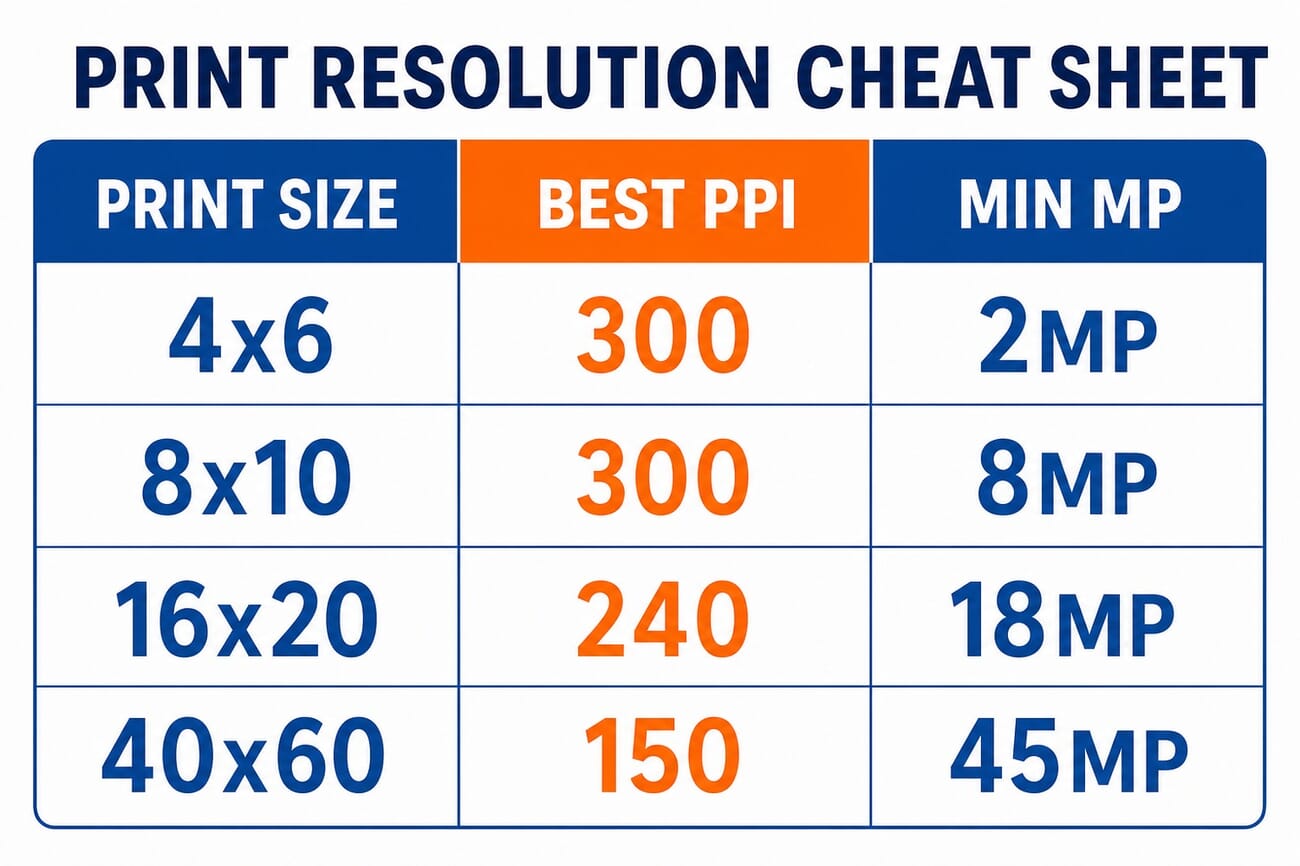
The good news is that the rules are simple once you see them laid out. Here is the whole thing on one cheat sheet, then the detail behind each number.
PPI: The Key Measurement of Pixel Density
Pixels per inch (PPI) measures how many pixels fall into each linear inch of an image at a given print size. It is the number that ties your digital file’s dimensions to the physical size of the print, which is exactly what you need to control.
Take an image 3000 pixels wide. Print it 10 inches wide and the PPI is 300 (3000 divided by 10). Print the same file 30 inches wide and it drops to 100 PPI (3000 divided by 30), which looks noticeably soft on close inspection. Same file, very different results, decided entirely by output size.
Screens have fixed PPI too, typically 72 to 110 PPI for monitors and 300 to 460 or more for modern smartphones. That gap is why an image can look razor sharp on your phone and softer on a desktop display, and why screen appearance is a poor predictor of print quality.
PPI vs DPI: What’s the Difference?
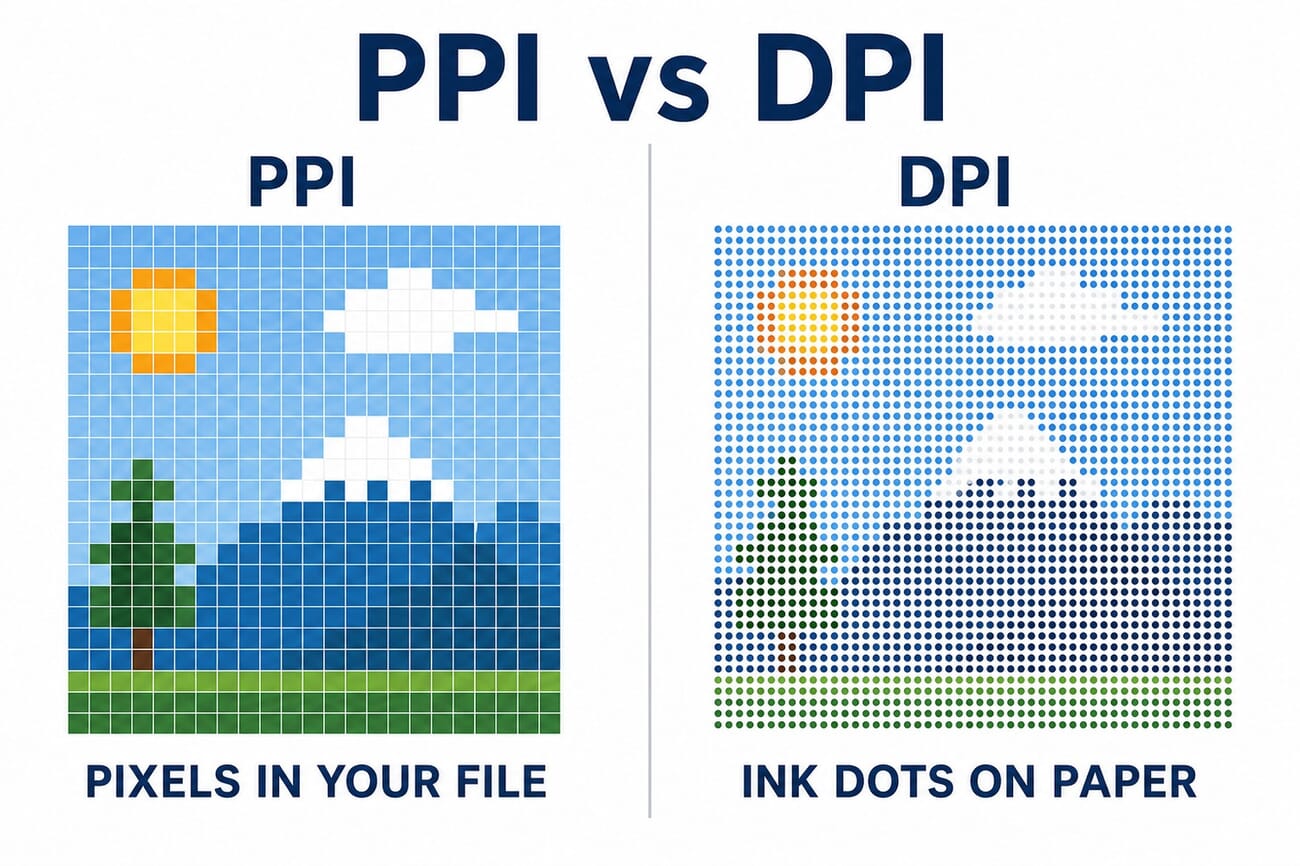
These two get used interchangeably, but they describe different things. PPI (pixels per inch) is the resolution of your digital file, how many pixels sit in each inch at a given output size. This is the number you control when preparing an image.
DPI (dots per inch) is the printer’s job, how many dots of ink or dye it lays down per inch. A photo printer might run at 1200 or 2400 DPI, using several ink dots to reproduce each pixel from your file. For commercial print work the press has its own DPI, but the file you hand over is still measured in PPI.
The practical takeaway: focus on PPI when preparing files. A 300 PPI image prints beautifully whether the printer runs at 600, 1200, or 2400 DPI, because the printer handles that translation for you.
How Many PPI Is Enough?
The widely accepted standard for high-quality photo prints is 300 pixels per inch. At that density individual pixels vanish to the naked eye at normal viewing distance, giving smooth tones and crisp detail. But 300 is a guideline, not a law, and three factors move it.
Viewing distance. A 4×6 held at arm’s length rewards 300 PPI. A 40×60 poster seen from across a room looks just as sharp at 150 PPI, because the distance makes the extra pixels invisible.
Print medium. Fine art paper reveals every detail, so resolution is critical. Canvas and metal are more forgiving; 240 PPI on canvas is often indistinguishable from 300.
Subject matter. Portraits with fine skin texture want maximum resolution. Landscapes with soft skies and smooth water tolerate lower PPI with no visible loss.
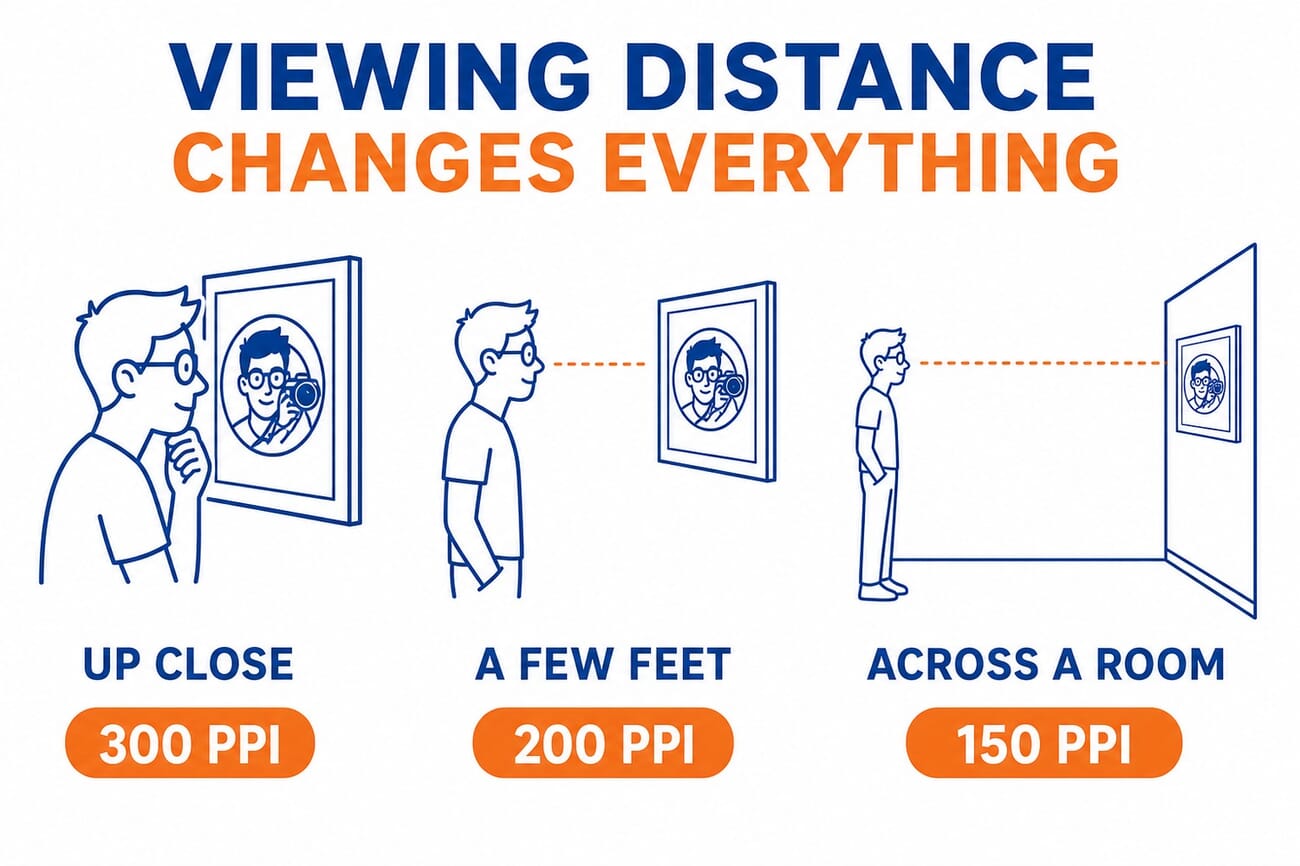
PPI Guidelines by Print Size
| Print Size | Typical Viewing Distance | Recommended PPI |
|---|---|---|
| 4×6 to 8×10 | Arm’s length (1 to 2 feet) | 300 PPI |
| 11×14 to 16×20 | 2 to 3 feet | 240 to 300 PPI |
| 20×30 to 30×40 | 4 to 6 feet | 180 to 240 PPI |
| 40×60 and larger | Across a room (8+ feet) | 100 to 150 PPI |
How to Calculate Print Sizes from Resolution
Finding the maximum print size for any image is simple division: take the pixel dimensions and divide each by the PPI you want.
Worked example:
- Image dimensions: 6000 x 4000 pixels (a standard 24MP camera)
- Desired PPI: 300
- Calculation: 6000 divided by 300 = 20 inches, and 4000 divided by 300 = 13.3 inches
- Maximum print size at 300 PPI: 20 x 13.3 inches
Any print smaller than that maximum exceeds 300 PPI and looks excellent. Going larger means either accepting lower PPI, which is usually fine for wall art, or using AI upscaling software to add pixels intelligently. If you are unsure which physical sizes to order, our photo print sizes guide covers the standard dimensions.
How Large Can Modern Cameras Print?
Today’s mirrorless cameras and phones capture more resolution than ever, which puts large prints within reach of nearly everyone. Here is what current sensors deliver at the standard 300 PPI.
| Camera Type | Resolution | Pixel Dimensions | Max Print @ 300 PPI |
|---|---|---|---|
| Entry mirrorless | 24 MP | 6000 x 4000 | 20 x 13 inches |
| Mid-range mirrorless | 33 MP | 7008 x 4672 | 23 x 15.5 inches |
| High-res mirrorless | 45 MP | 8192 x 5464 | 27 x 18 inches |
| Ultra high-res | 61 MP | 9504 x 6336 | 32 x 21 inches |
| iPhone 17 Pro (48MP mode) | 48 MP | 8064 x 6048 | 27 x 20 inches |
| Medium format | 100+ MP | 11648 x 8736 | 39 x 29 inches |
Even a 24-megapixel camera, now the entry point for mirrorless, produces a file big enough for a stunning 20×13 inch print at full quality. For most photographers and most print sizes, native camera resolution stopped being the limiting factor years ago.
AI Upscaling: Printing Beyond Native Resolution
When native resolution falls short of the size you want, AI upscaling adds pixels while preserving, and often sharpening, real detail. These tools have improved sharply and now rival optical capture in many situations.
Topaz Photo AI is the leading standalone option, handling 2x to 6x enlargement while sharpening detail and cutting noise. A 24MP file can be convincingly pushed to a quality 40×27 inch print.
Adobe Lightroom Enhance is built into Lightroom Classic and CC and doubles resolution (quadrupling total pixels) using Adobe’s machine learning, all inside your existing workflow.
Photoshop Super Resolution, available through Camera Raw, doubles image dimensions with a model trained on millions of photos. It is ideal for cropped images that need extra enlargement headroom.
When AI Upscaling Works Best
- Images that are already sharp and low in noise
- Photos where fine texture matters less (landscapes, architecture, abstracts)
- Files that need only 2x enlargement (results soften beyond 4x)
- Older photographs being reprinted at larger sizes
When to Skip Upscaling
- Already noisy high-ISO images, where AI can amplify artifacts
- Photos with critical fine detail like individual hair strands or small text
- Any time reshooting at higher resolution is an option
Common Print Resolution Mistakes to Avoid
Most bad prints come from a handful of avoidable errors, not from a lack of megapixels.
- Printing a web-sized JPEG. A 1200-pixel image saved for Instagram will never make a good print. Always export from the full-resolution original.
- Trusting how it looks on screen. A photo can look flawless on a phone and print soft. Judge print readiness by pixel dimensions and PPI, not the screen.
- Ignoring the crop. Cropping throws away pixels. A heavy crop of a 24MP file may only have the resolution of a 12MP one, so recheck your max size after cropping.
- Forgetting aspect ratio. A 3:2 camera file does not fit an 8×10 (which is 4:5) without cropping. Plan the crop before you print, not at the lab.
- Over-sharpening for print. Prints need a touch more sharpening than screens, but too much creates halos. Sharpen for the specific print size and medium.
Frequently Asked Questions
Does resolution matter when printing photos?
Absolutely. Resolution decides whether a print looks crisp and detailed or soft and pixelated. More pixels allow larger prints at full quality, while too few produce visible artifacts up close. For commercial and fine-art printing especially, it is the single biggest quality factor you control.
What resolution should I use for printing?
For prints viewed at arm’s length (up to about 16×20 inches), aim for 300 PPI. Larger wall prints can use 200 to 240 PPI, and very large prints of 40 inches and beyond, viewed from across a room, look sharp at 150 PPI or even lower.
What is PPI versus DPI?
PPI (pixels per inch) describes your digital file, how many pixels fit into each inch at a given print size. DPI (dots per inch) describes the printer, how many ink dots it places per inch. When preparing files, focus on PPI; the printer handles DPI automatically.
Is 150 PPI good enough for printing?
It depends on viewing distance and medium. For large prints of 30 inches and up viewed from several feet away, 150 PPI looks sharp. For small prints or fine art paper examined up close, 150 PPI will look soft, so aim for 300 PPI there.
Can I make my photos higher resolution for printing?
Yes. AI upscaling tools like Topaz Photo AI, Lightroom Enhance, and Photoshop Super Resolution can intelligently increase resolution. They work best on clean, well-exposed images and generally deliver good results up to 2x to 4x enlargement.
The Bottom Line
Print resolution sounds technical, but it comes down to one habit: match your file’s pixels to the print size and viewing distance. Aim for 300 PPI for anything you will hold, relax toward 150 PPI for big wall pieces you view from a distance, and lean on AI upscaling when you need to stretch a file further. Do that, and the camera you already own is almost certainly capable of prints far larger than you think.
Featured image and all diagrams: stylized illustrations created by PhotoWorkout.
Tools & Further Reading
- PhotoWorkout – Topaz Photo AI Review – Our hands-on look at the leading AI upscaling tool.
- PhotoWorkout – Photo Print Sizes Guide – Standard print dimensions and aspect ratios.
- Adobe – Enhance and Super Resolution – Official documentation for Adobe's AI resolution tools.
Image Sources
- Print resolution cheat sheet, PPI vs DPI diagram, viewing-distance diagram, featured image, and pin, created by PhotoWorkout – Editorial illustrations.