

Editor’s Key Takeaways: Best HEIC to JPG Converters in 2026

HEIC (High Efficiency Image Format) is Apple’s default photo format, offering better compression than JPEG while maintaining quality. While Windows 11 and Android now include native HEIC support, you may still need a converter for older systems, batch processing, or advanced control. Here are the best options:
- iMazing HEIC Converter — Our top pick: Free, fast batch conversions for Windows/Mac with EXIF preservation
- FreeConvert — Best online option: No software needed, batch upload up to 1GB, advanced settings
- CloudConvert — Most versatile: Supports 200+ formats, API available, 10 free conversions/day
- NCH Pixillion — Best for power users: Batch processing with resize, rotate, watermark, and effects
- Apowersoft — Simple and fast: Drag-and-drop batch conversion with quality control
- Ezgif.com — Best free online: Built-in cropping, resizing, and rotation tools
- HEICtoJPG.com — Fastest no-frills option: Upload up to 5 files, instant conversion
- FonePaw HEIC Converter — Best for Mac: Native macOS app with clean interface
When you buy through links on our site, we may earn a commission at no cost to you. We evaluate products independently. Commissions do not affect our evaluations.
Do You Still Need a HEIC Converter in 2026?
The good news: HEIC support has improved dramatically. Windows 11 now opens HEIC files natively (with the free HEIF Image Extensions from Microsoft Store), and Android 9+ devices can view HEIC photos. However, you’ll still benefit from a dedicated converter if you:
- Use Windows 10 or older systems without native HEIC support
- Need to batch convert hundreds of photos quickly
- Want to control output quality, resolution, or metadata
- Need to share photos with others who can’t open HEIC files
- Work with software that doesn’t support HEIC (older Photoshop versions, some web platforms)
Here are the best HEIC to JPG converters available today, including both downloadable software and online tools.

1. iMazing HEIC Converter
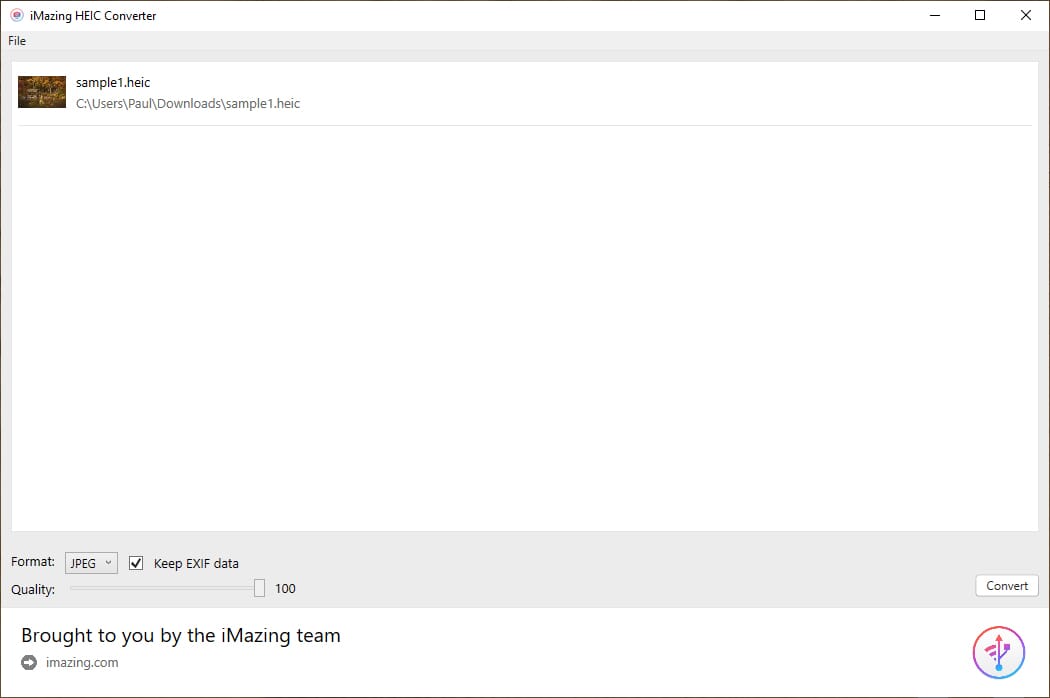
Fast, lightweight batch converter for Windows and Mac. Drag-and-drop interface with EXIF preservation and quality control.
iMazing Converter (formerly iMazing HEIC Converter) remains our top pick for HEIC to JPG conversion. It’s completely free, requires no account, and works on both Windows and Mac, and it now also converts HEVC (H.265) videos to MP4.
The interface couldn’t be simpler: drag your HEIC files into the window (or click to browse), select your output format (JPG or PNG), choose the quality level, and hit Convert. The software handles batch conversions effortlessly, so you can process entire folders of vacation photos in seconds.
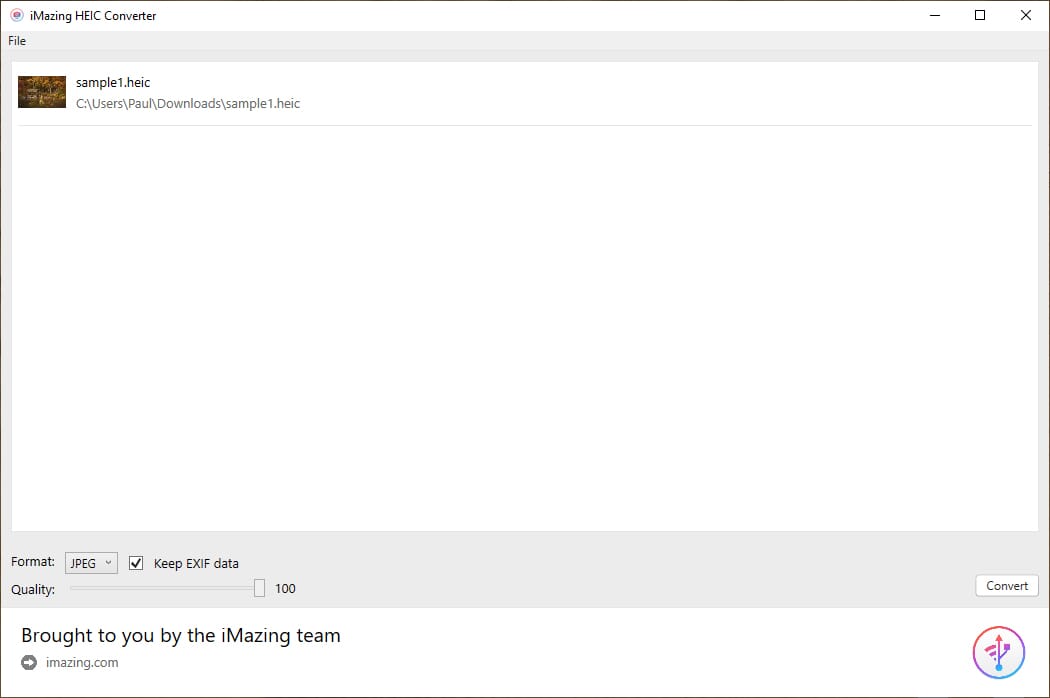
One feature photographers will appreciate: the option to preserve EXIF data. Your camera settings, GPS coordinates, and timestamps transfer to the converted JPG files. The software is lightweight and runs smoothly even on older computers.
2. FreeConvert
Powerful browser-based converter with batch upload, advanced compression settings, and up to 1GB file size support.
FreeConvert is the best option when you don’t want to install software. This browser-based tool handles HEIC conversions quickly and offers more control than most online alternatives.
Upload your HEIC files (up to 1GB total in the free tier), and you’ll see advanced options: output quality, resize dimensions, and whether to strip or preserve metadata. The conversion happens on FreeConvert’s servers, so it works regardless of your device, whether that’s Windows, Mac, Chromebook, or even your phone.
The free tier allows 20 conversion minutes per day (roughly 20 typical conversions), which is plenty for occasional use. Power users can upgrade for higher limits and larger file sizes.
3. CloudConvert
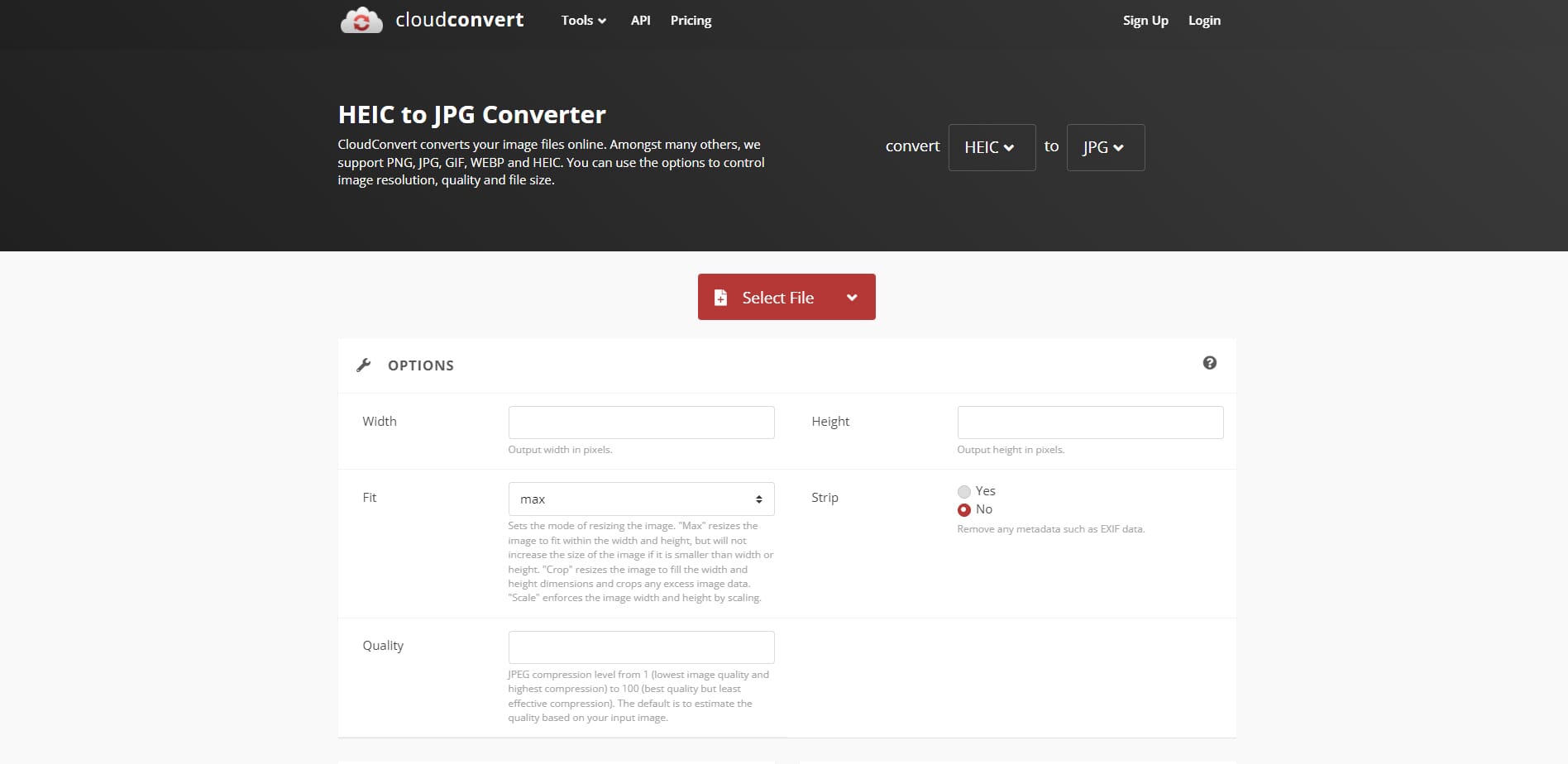
Professional-grade conversion service supporting 200+ formats. Includes API access for developers and integration with cloud storage.
CloudConvert is the Swiss Army knife of file conversion. While it handles HEIC to JPG beautifully, it also converts between 200+ formats, which is useful if you work with various file types.
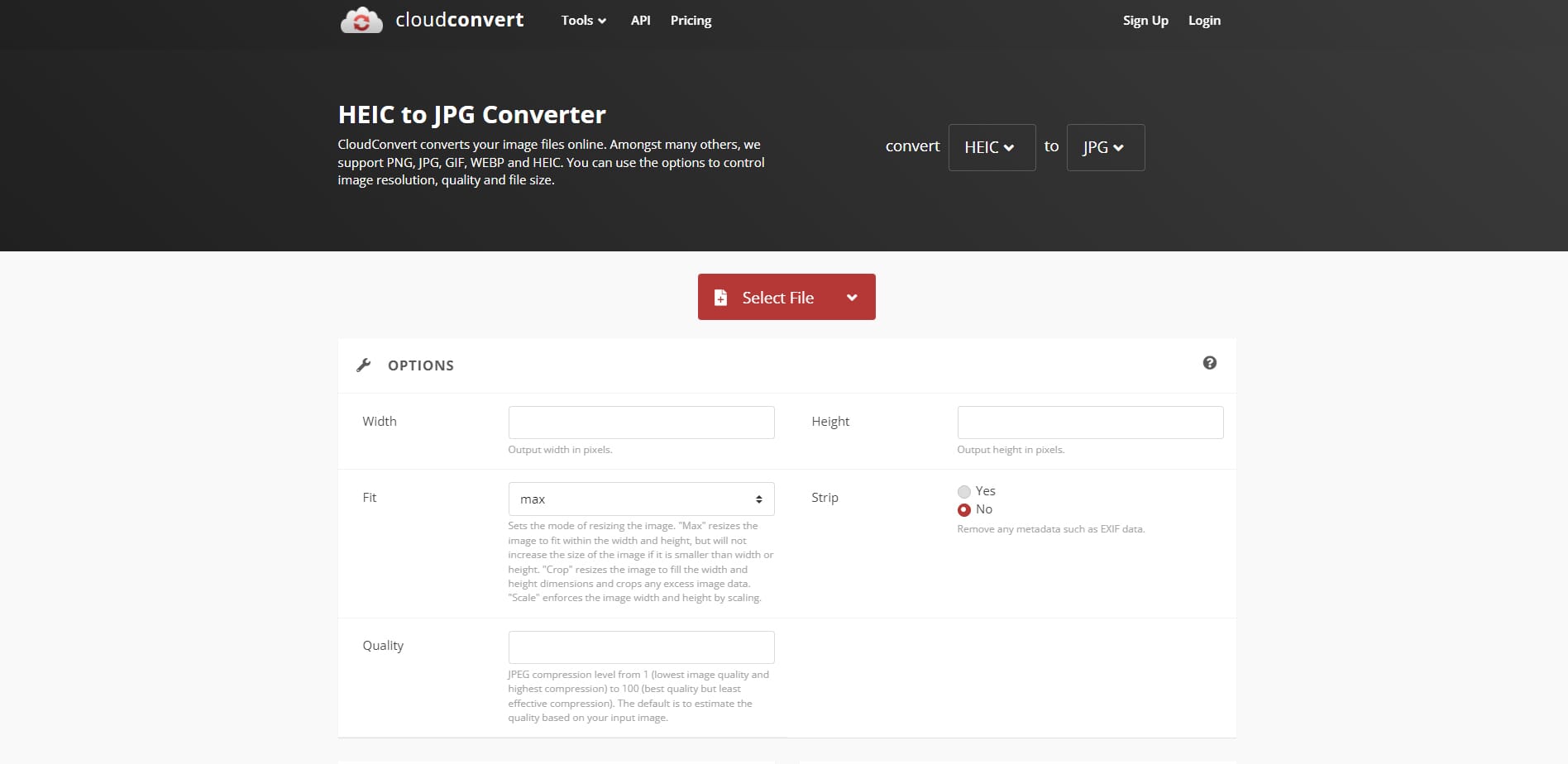
The standout feature is cloud storage integration. Pull files directly from Dropbox, Google Drive, or OneDrive, convert them, and save back to the cloud, with no downloads required. Developers will appreciate the API for automating conversions in their workflows.
Free users get 10 conversion credits per day. For heavier use, CloudConvert sells prepaid credit packages and monthly subscriptions.
4. NCH Pixillion Image Converter
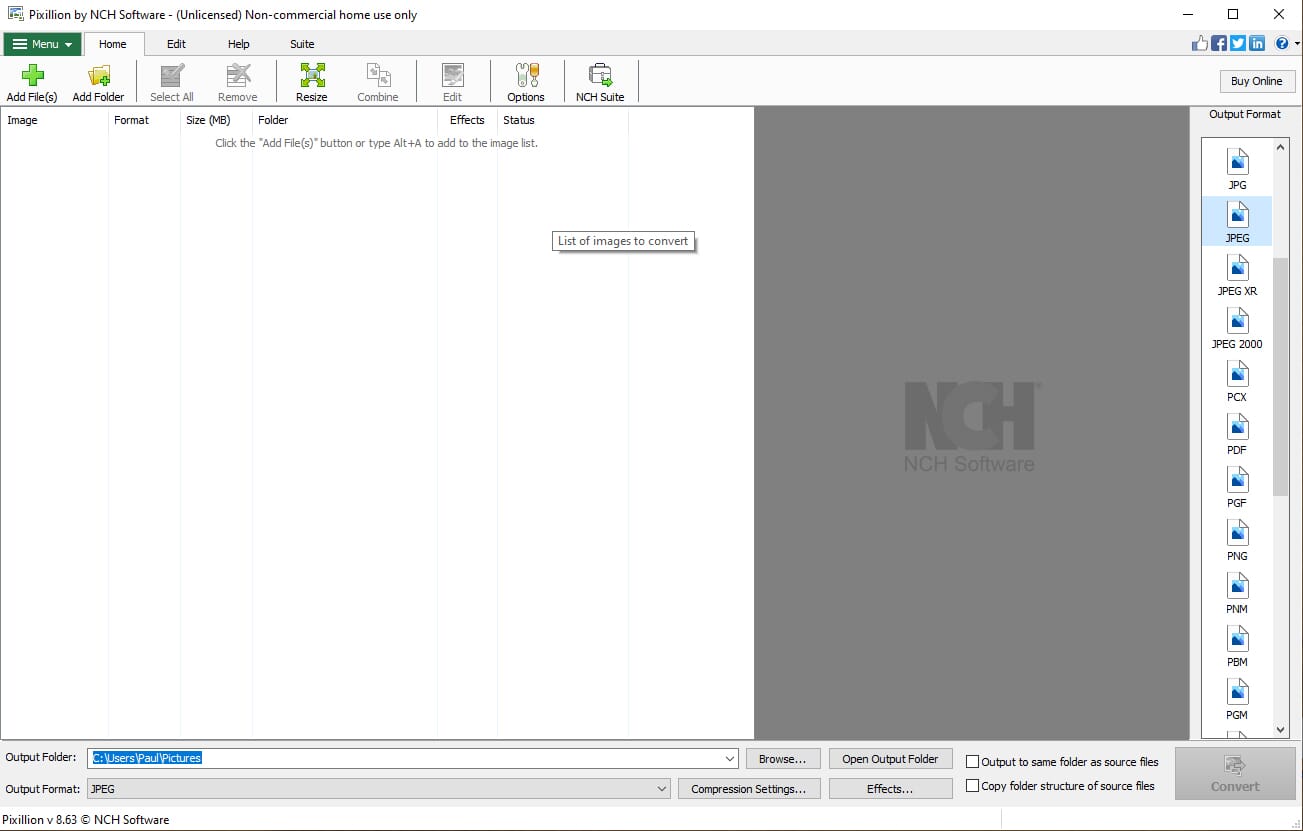
Feature-rich desktop converter with batch processing, image editing, watermarking, and support for 50+ image formats.
Pixillion Image Converter from NCH Software is for users who need more than basic conversion. Beyond HEIC to JPG, it supports 50+ formats and includes editing tools typically found in separate software.
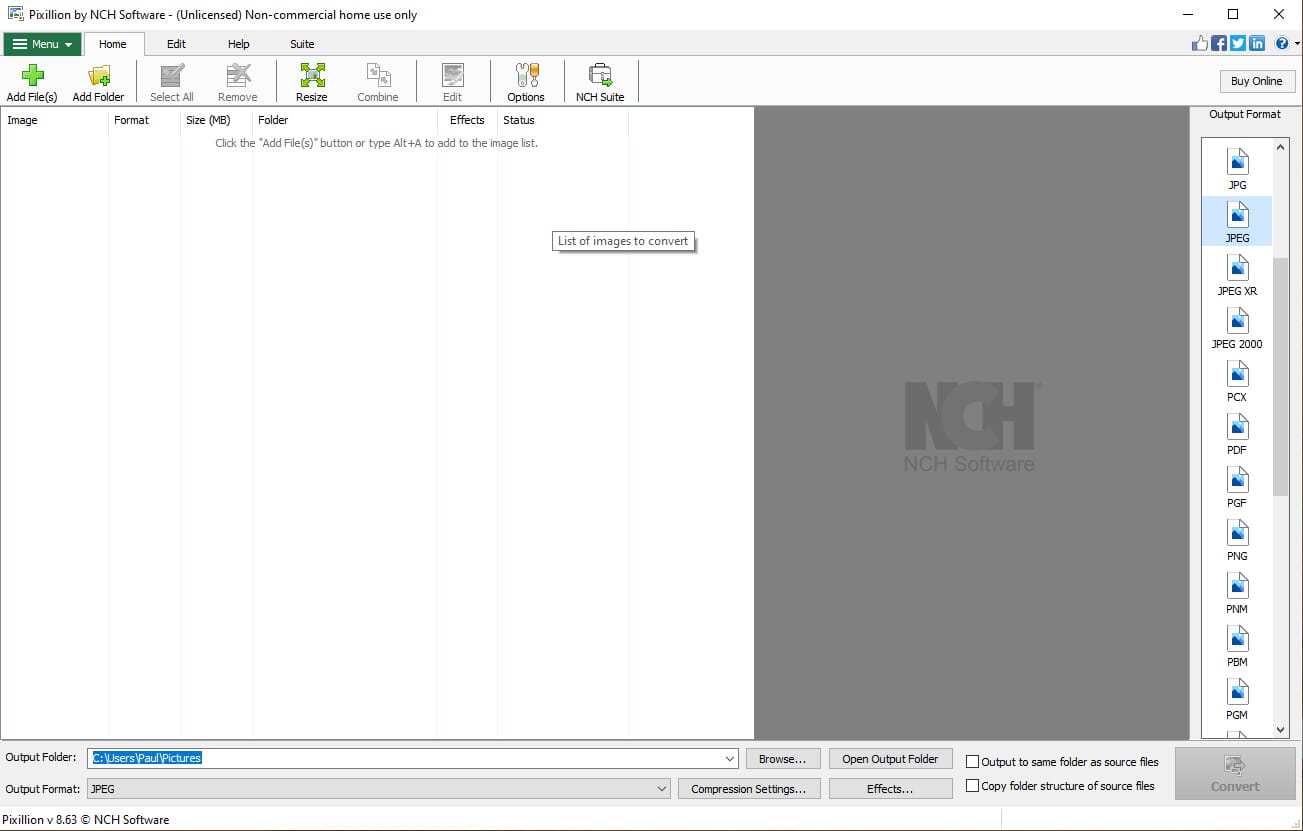
During conversion, you can resize images, rotate them, add watermarks, apply filters, and even adjust colors. This makes Pixillion ideal for photographers who need to prepare images for specific purposes, like resizing for web use while converting from HEIC.
The interface looks a bit dated, but the functionality is solid. The free version works for personal use; commercial use requires a paid license.
5. Apowersoft HEIC Converter
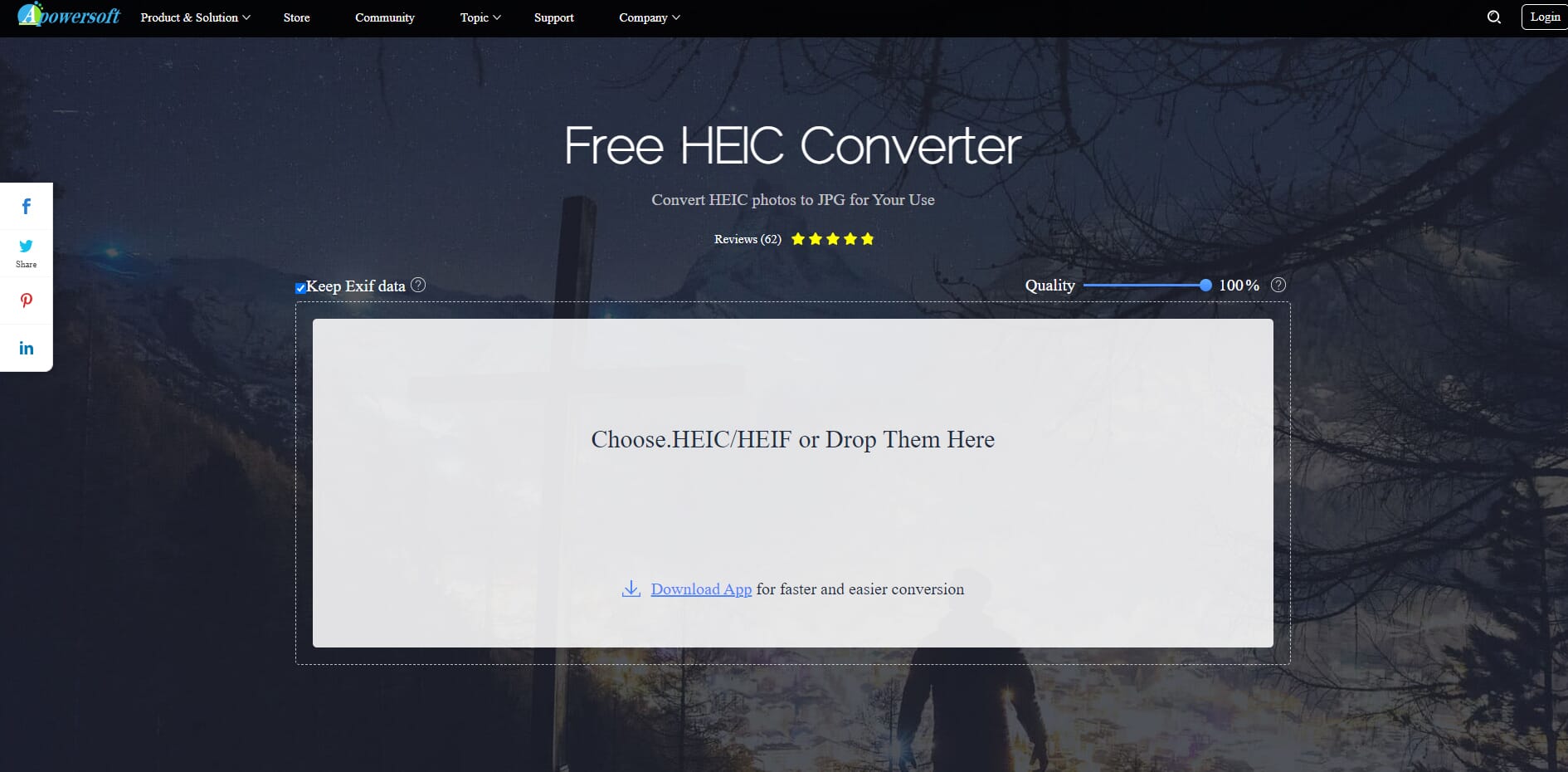
User-friendly online tool for quick HEIC conversions. Supports batch upload with adjustable quality settings.
Apowersoft’s HEIC Converter offers a clean, no-frills approach to HEIC conversion. The web interface is straightforward: drag your files into the upload area, and conversion begins automatically.
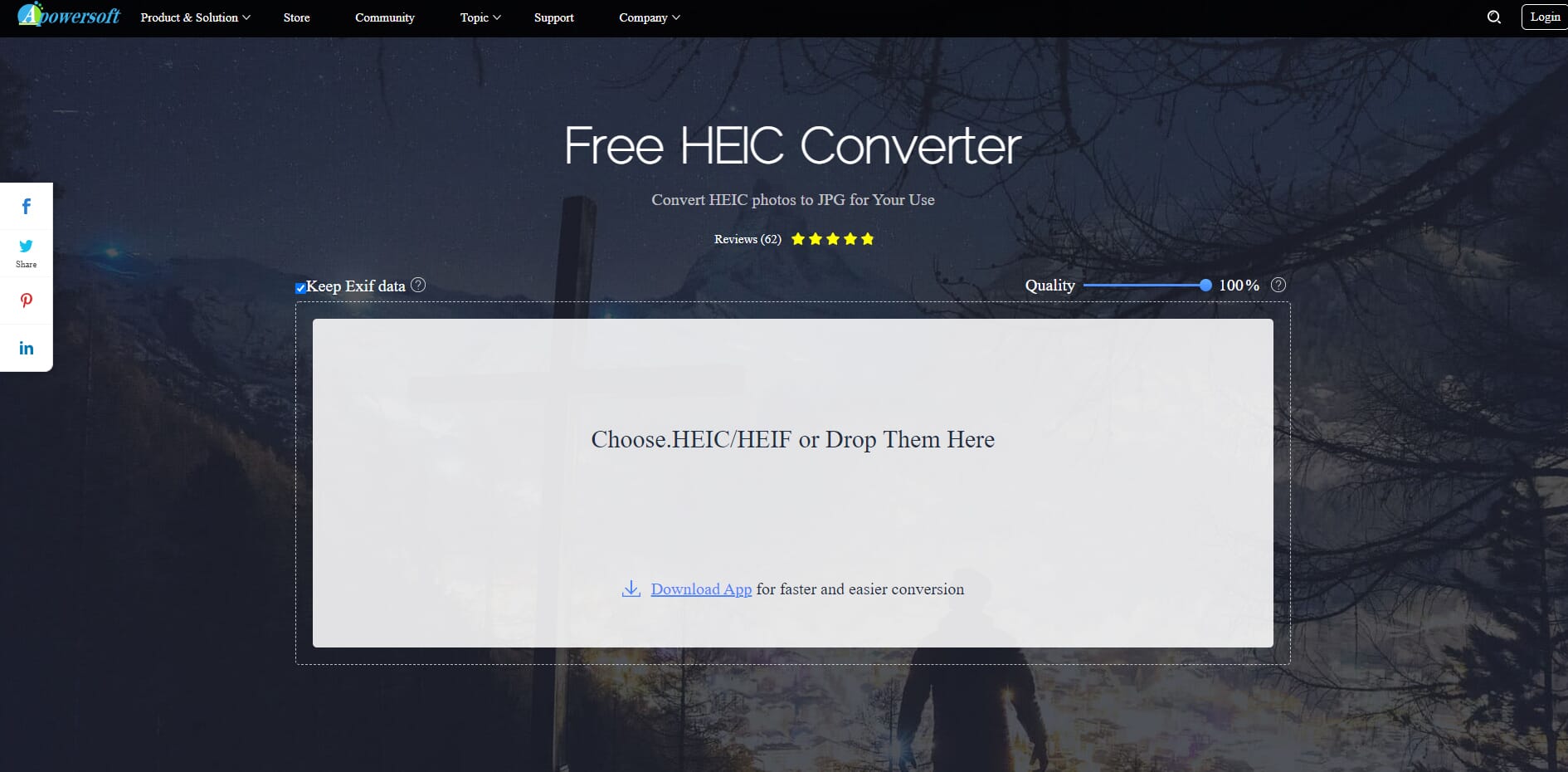
You can upload up to 30 photos per session for batch conversion, adjust the output quality, and choose whether to preserve EXIF data. Once conversion completes, download individual files or grab them all at once. It’s fast and reliable for most conversions, though we’ve occasionally seen it fail on certain files. For those cases, try one of the other options on this list.
6. Ezgif.com
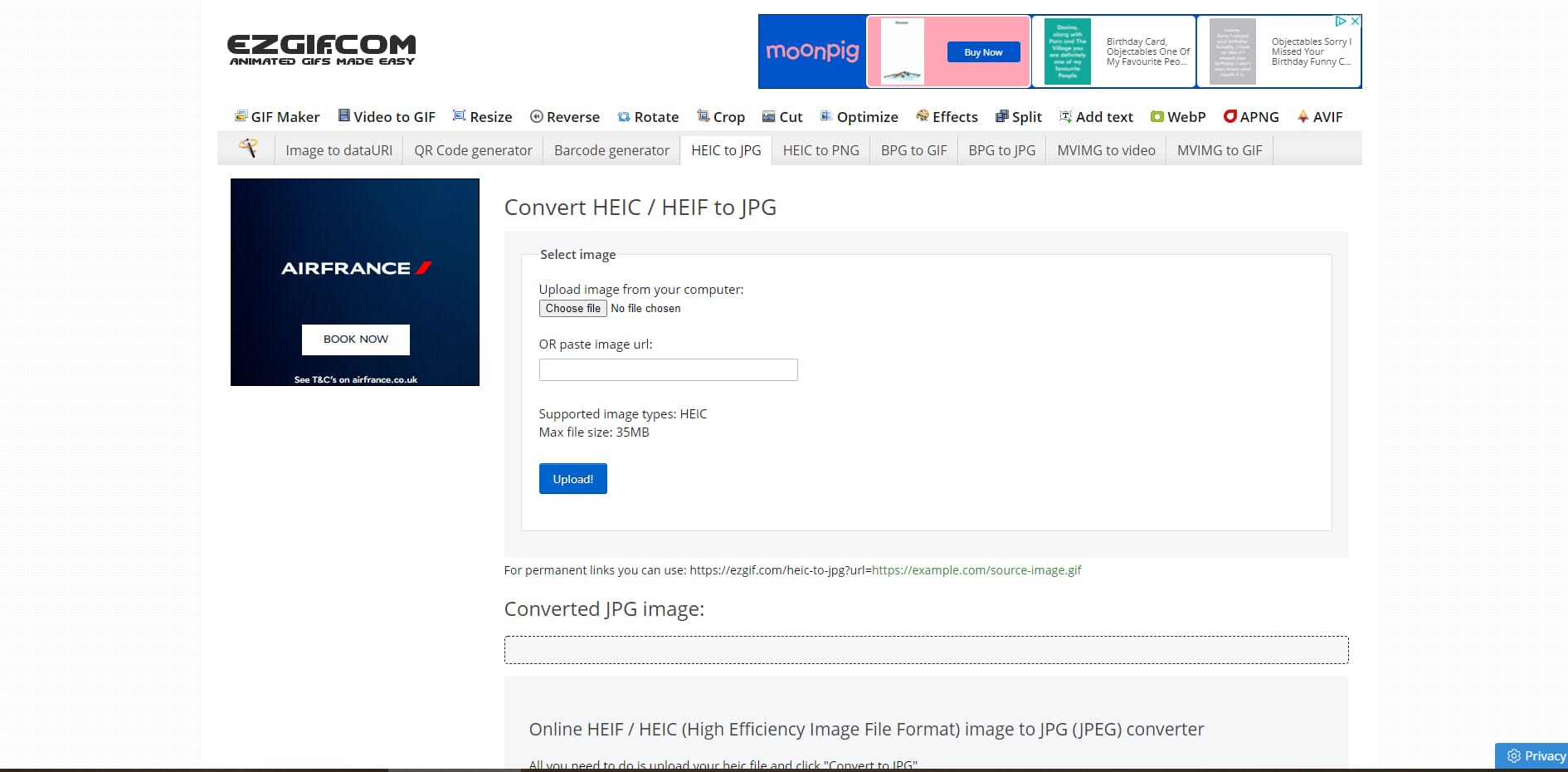
Well-established online converter with built-in image editing. Crop, resize, and rotate your HEIC files before converting.
Ezgif.com started as a GIF maker but has expanded into a versatile online image toolkit. The HEIC converter includes editing tools you won’t find in simpler converters.
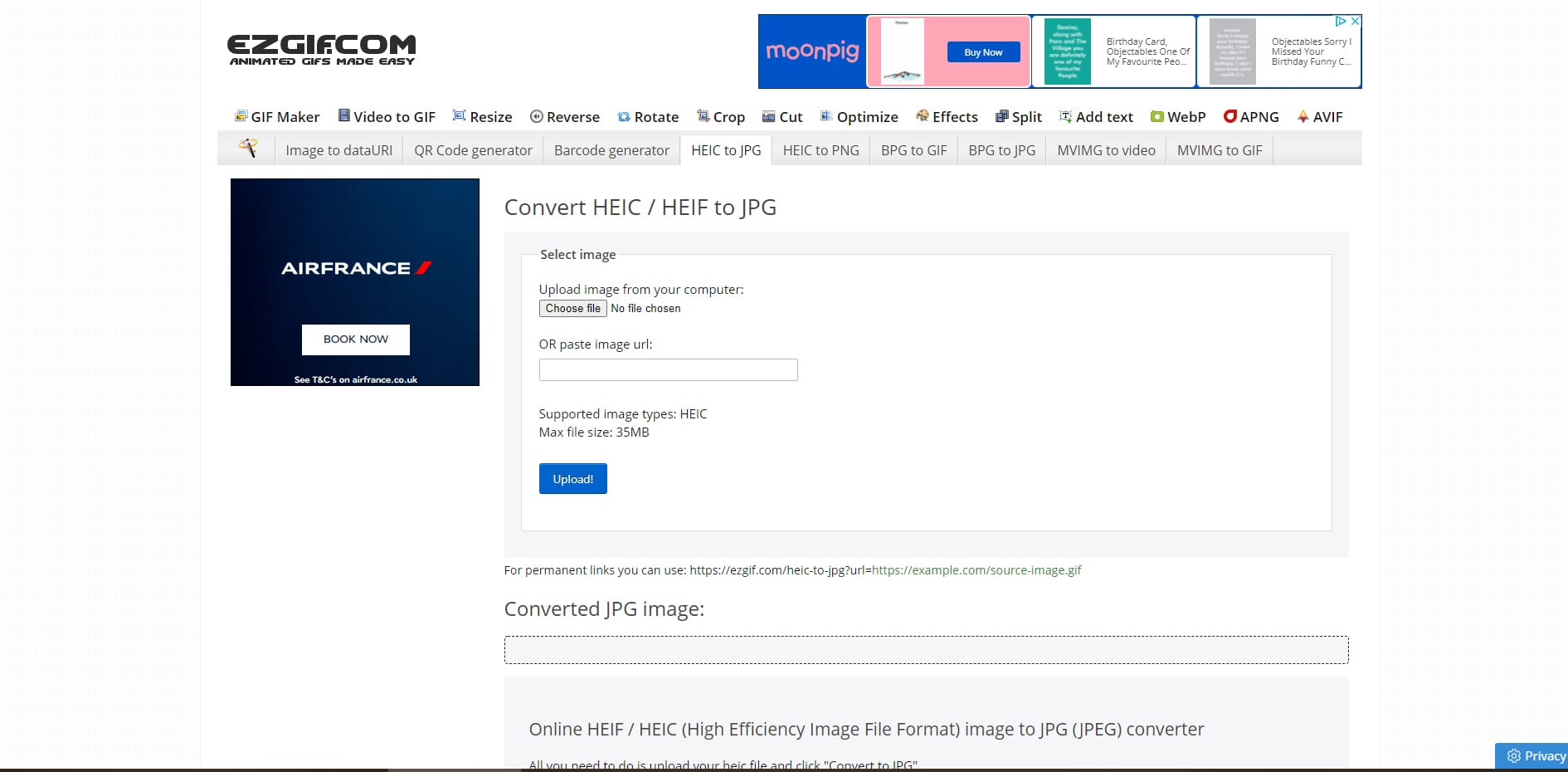
After uploading your HEIC file, you can crop it, resize it, rotate it, or add text, all before conversion. This is handy when you need quick edits without opening a separate photo editor. The downsides are that the interface is cluttered with ads, there’s a 200 MB file size limit, and you can only process one file at a time. For occasional single-file conversions with quick edits, it works well.
7. HEICtoJPG.com
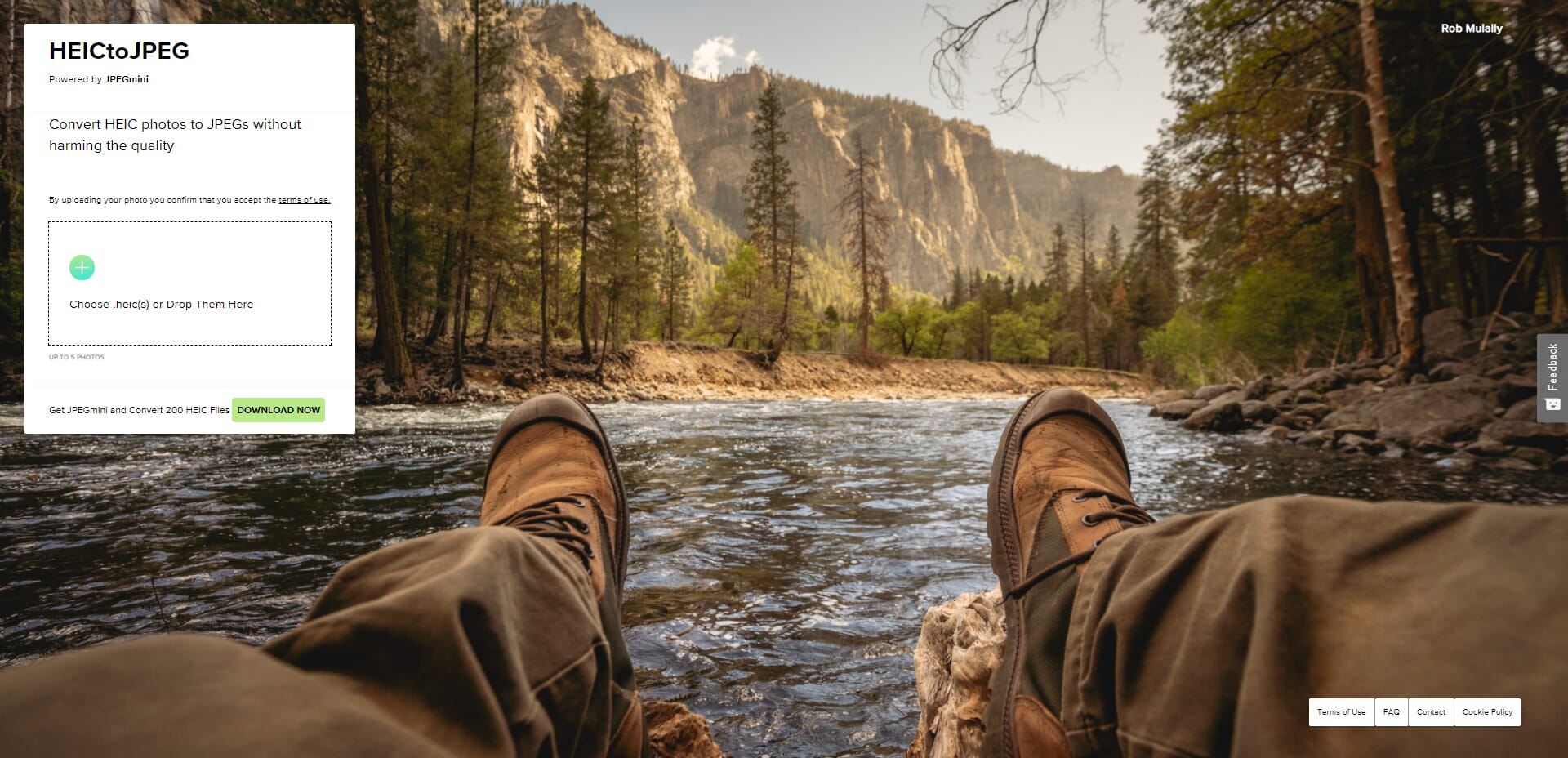
Ultra-simple converter from JPEGmini. Upload up to 5 files, get instant JPG conversions with no settings to configure.
HEICtoJPG.com by JPEGmini is the fastest option when you just need to convert a few files quickly. There are no settings to configure and no accounts to create: just upload and download.
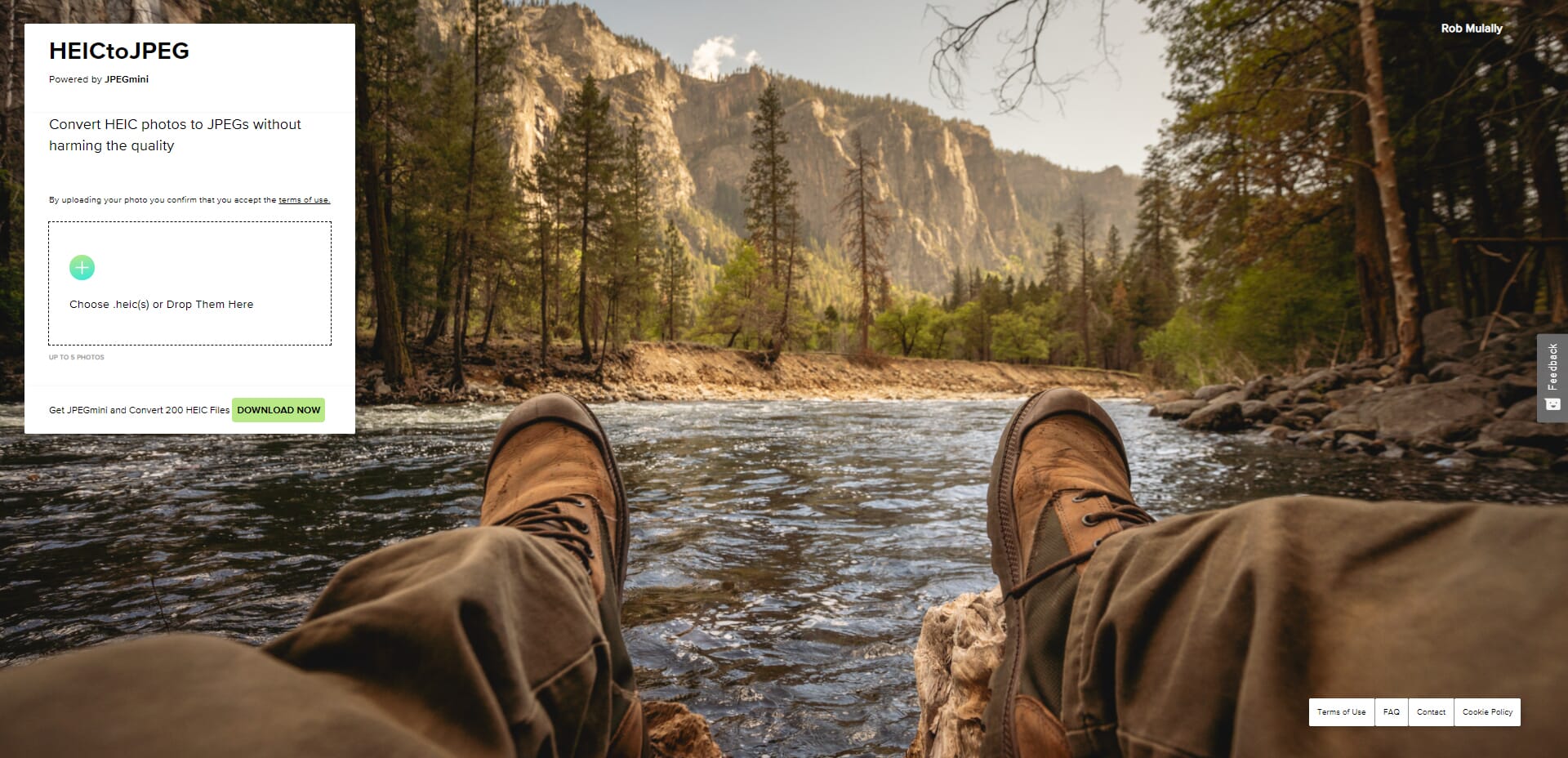
Click the plus button, select up to 200 HEIC files, and watch the progress bars. When done, click each download link. There’s no daily limit, so you can convert as many batches as needed.
The simplicity is both a strength and weakness. You can’t adjust output quality or dimensions, so if you need control over the final result, choose another converter. For quick “just make it a JPG” jobs, this is unbeatable.
8. FonePaw HEIC Converter
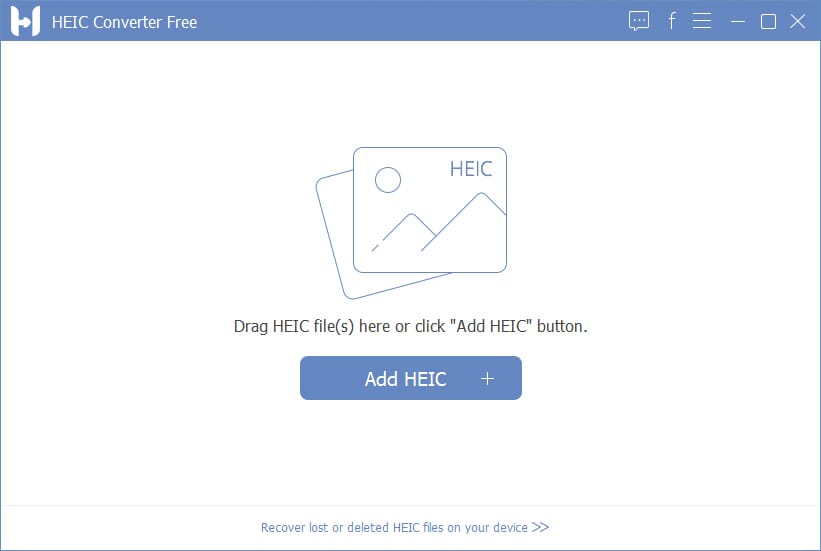
Free desktop converter for Windows and Mac with a modern interface. Supports batch conversion with quality and EXIF options.
FonePaw HEIC Converter is a solid free alternative to iMazing, particularly popular with Mac users who appreciate its clean, modern interface.
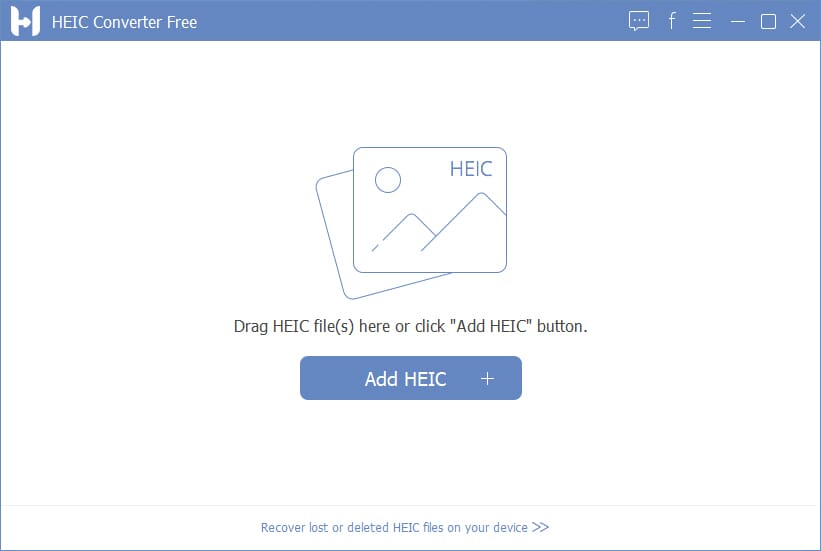
The workflow is familiar: drag files into the window, choose your output format (JPG or PNG), set quality, decide on EXIF preservation, and convert. Batch processing works well, handling hundreds of files without issues. We’ve occasionally seen conversion failures with certain files, but for most users, FonePaw provides a reliable, free solution that looks and feels native on macOS.
Which HEIC Converter Should You Choose?
Here’s a quick guide based on your needs:
- Best overall: iMazing HEIC Converter — Free, fast, reliable batch conversions
- Best online: FreeConvert — No software needed, advanced options
- Best for developers: CloudConvert — API access, cloud storage integration
- Best for editing: NCH Pixillion — Resize, watermark, and convert in one step
- Fastest simple option: HEICtoJPG.com — Upload, convert, done
Remember: if you’re on Windows 11, you may not need a converter at all. Install the free HEIF Image Extensions from the Microsoft Store, and your system will open HEIC files natively. For everyone else, any of these converters will get the job done quickly and reliably.

