


- iOS 27 adds Siri Mode to the iPhone Camera app: point at something, press the Siri shutter button, and Siri uses visual intelligence to tell you what you’re looking at.
- Pull down on the result for richer details and ask follow-up questions — it’s a conversational identification layer, not just a one-shot label.
- Apple’s own demos identified a cricket ball (down to its cork-and-leather construction) and itemized a restaurant receipt to split a bill. For photographers, the obvious wins are wildlife, plant and landmark ID in the field.
- It’s a friendlier front-end for the Visual Intelligence Apple already had buried behind Camera Control — and a direct answer to Google Lens, which has done this for years.
- Expect it on Apple-Intelligence-capable iPhones, in a public beta around July and a full release in the fall. It identifies after you shoot — useful for knowing your subject, not for nailing the shot.
Apple spent its WWDC 2026 keynote sprinkling AI across the iPhone, and one addition is aimed squarely at anyone who shoots in the field: Siri Mode in the Camera app. Press a Siri shutter button while you’re framing a shot and Siri “sees what you see,” then tells you what you’re pointing at — with the option to pull down for details and keep asking questions. “It allows you to get information and take action on what’s in front of you,” Apple said on stage. Here’s exactly how it works, and the use cases photographers should actually try first.
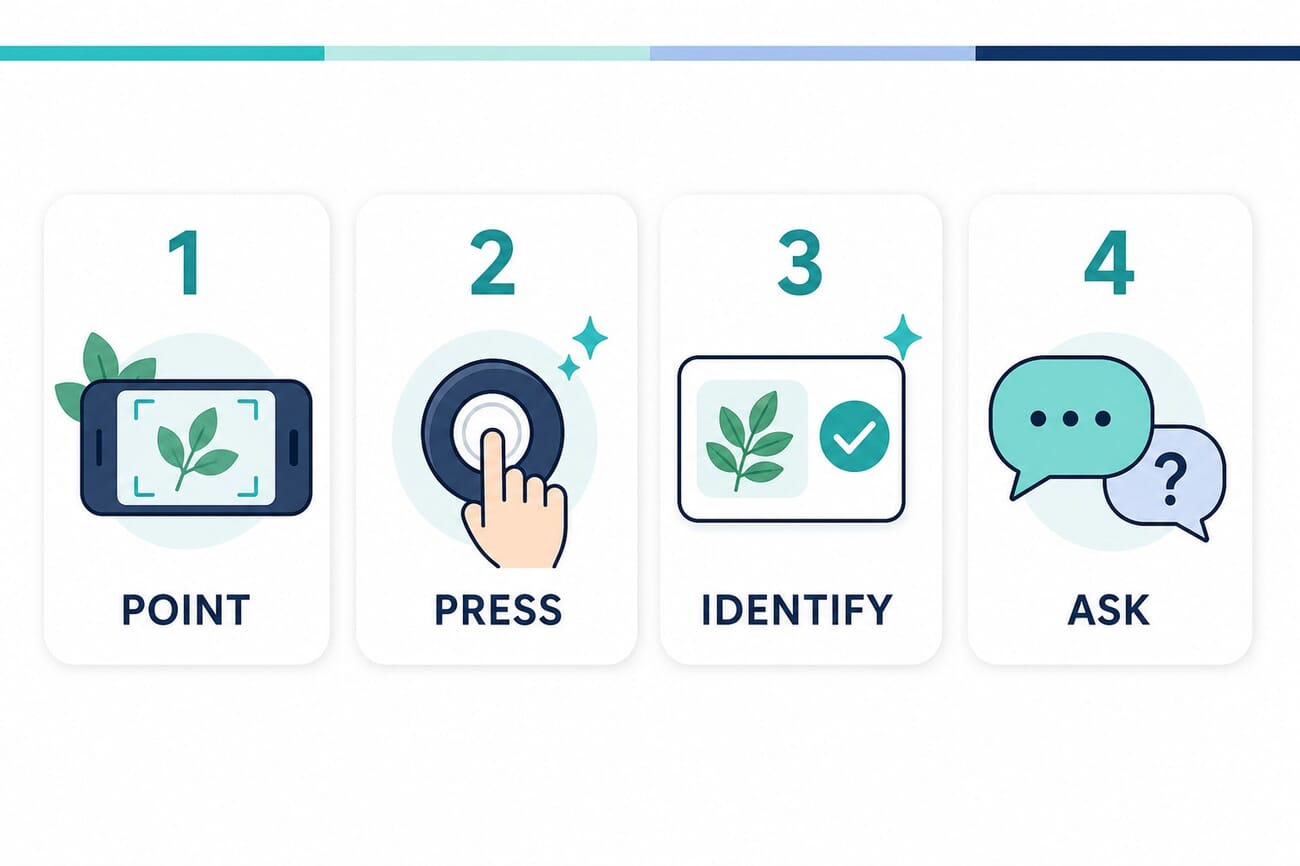
How Siri Camera Mode Works
The feature lives inside the Camera app, so there’s nothing extra to open. The flow Apple demonstrated is short:
- Open the Camera app and point it at your subject, the way you would for any photo.
- Press the Siri shutter button to let Siri see what’s in the frame.
- Read Siri’s response — an identification and a useful summary of what you’re looking at.
- Pull down on the result to expand rich details, and ask follow-up questions in natural language.
In Apple’s pre-recorded demo, someone pointed the camera at a ball and Siri replied: “This appears to be a traditional cricket ball, which is typically made of cork layered with tightly wound string and cased in a leather shell,” then offered more. A second demo pointed the camera at a restaurant receipt; Siri broke out each item and its price so you could tap what you ordered and split the bill with Apple Cash. The throughline is that it’s conversational — you’re not getting a one-word label, you’re getting an answer you can interrogate.
This Isn’t New Tech — It’s Newly Findable
Be clear-eyed about what changed. Apple’s Visual Intelligence already identified plants, animals and landmarks, added events to your calendar, and handed images off to ChatGPT or Google — but it was buried behind a long-press of the Camera Control button that most people never discovered. Siri Mode pulls that capability into the Camera app itself and wraps it in a conversational Siri front-end. It also lands years after Google Lens made point-and-identify normal on Android. The honest framing: this is Apple making an existing, under-used feature obvious and chatty, and finally matching a rival’s table stakes — not inventing subject recognition. That’s still genuinely useful, because a feature you can’t find may as well not exist.
What Photographers Should Try First
Map the demos onto real shooting situations and a few use cases jump out.
Wildlife and bird ID in the field
Point, shoot, and get a species name without putting the camera down to open a separate app. It won’t replace a dedicated birding tool for a tricky warbler, but for a quick “what am I even looking at” while you’re working a long lens, it’s faster than anything you carry now.
Plants, flowers and the details in close-ups
Nature and macro shooters constantly photograph things they can’t name. Siri Mode can ID a flower, a fungus or a leaf on the spot and feed you the context that makes a caption or a field note accurate instead of a guess.
Landmarks and architecture on travel shoots
On a city or travel shoot, point at a building, statue or church and get its name, era and a bit of history — useful for captioning, planning the next angle, or just understanding what you’re framing. It turns scouting into a conversation with your viewfinder.
Signs, menus and translation abroad
The receipt demo hints at the broader strength: text. Pointing at a foreign-language sign, plaque or menu and getting a readable, queryable breakdown is a real travel-photography convenience that goes well beyond naming a subject.
The Honest Caveats
Three things to keep in mind. First, it identifies after the moment — this is a knowledge layer, not a focusing or composition aid, so it helps you understand a subject, not capture it better. Second, AI identification is confidently wrong often enough that you should verify anything you’re going to publish, especially species and landmarks. Third, it’s an Apple Intelligence feature, so expect it to require a recent, Apple-Intelligence-capable iPhone rather than any phone that can run iOS 27, with heavier queries leaning on Apple’s cloud. If your interest is the new generative editing tools or the full slate of iOS 27 photo features, those are separate additions worth a look too.
Frequently Asked Questions
What is Siri Mode in the iPhone Camera app?
A feature in iOS 27 that lets you press a Siri shutter button while framing a photo so Siri can identify what you’re pointing at using visual intelligence, then give you details and answer follow-up questions.
How do I use the Siri camera shutter?
Open the Camera app, point at your subject, and press the Siri shutter button. Read Siri’s identification, then pull down on the result for richer details or ask follow-up questions in plain language.
Is this different from Visual Intelligence?
It’s the same underlying capability, made far easier to reach. Visual Intelligence was accessed by long-pressing Camera Control; Siri Mode brings identification into the Camera app with a conversational Siri interface.
Which iPhones support Siri Camera Mode?
It’s part of Apple Intelligence, so it’s expected to require a recent Apple-Intelligence-capable iPhone rather than every device that can install iOS 27. Apple hasn’t published the exact model list for this specific feature.
When will it be available?
It ships with iOS 27. Developer betas began at WWDC on June 8, 2026, with a public beta expected around July and the general release in the fall.
Is it as good as Google Lens?
Functionally it covers the same ground — identifying plants, animals, landmarks and text. Google Lens has a long head start; Apple’s advantage is tight Camera-app integration and a conversational follow-up flow. For critical IDs, verify with a dedicated tool.
The Bottom Line
Siri Mode won’t make your photos sharper, but it answers a question photographers ask constantly in the field: what is that? By moving Apple’s visual intelligence into the Camera app and making it conversational, it turns subject identification into a one-press habit — great for wildlife, plants, landmarks and foreign text. Treat its answers as a fast first guess rather than gospel, and it’s a genuinely handy addition to the phone you’re already shooting with.
Primary Coverage
- CNET — Apple introduces Siri Mode in your iPhone’s camera – WWDC 2026 demo: Siri shutter button, cricket-ball and receipt examples
- MacRumors — iOS 27 Camera app and Siri Mode – How Siri Mode relates to existing Visual Intelligence
Image Sources
- PhotoWorkout illustrations – The featured image, how-it-works infographic and pin are original PhotoWorkout illustrations (no Apple UI reused)



