

- Google Gemini 3 Pro (codenamed Nano Banana Pro) lets you edit photos with text prompts – relighting, season swaps, object additions, and more.
- Access it free at gemini.google.com/app by selecting the Pro model. Full Nano Banana Pro unlocks at $7.99/mo (AI Plus).
- Use the 5-Part Prompt Formula (Subject, Scene, Style, Lighting, Constraints) for consistent, high-quality results.
- We tested 5 real edits – from portrait relighting to creating images from scratch – with exact prompts you can copy.
- Chain simple edits instead of complex all-in-one prompts for the best results.
AI image editing used to mean expensive software, complex layer masks, and hours of manual work. Google Gemini changed that. With a single text prompt, you can relight a portrait, swap seasons in a landscape, or transform day into night – all inside a free web interface.
In this hands-on guide, we walk through five real edits using Gemini’s Nano Banana Pro image engine. Every prompt is included so you can replicate the results yourself. Whether you want to experiment with creative edits or speed up your photo editing workflow, this tutorial covers everything you need to get started.
When you buy through links on our site, we may earn a commission at no cost to you. We evaluate products independently. Commissions do not affect our evaluations.
What Is Gemini Image Editing?
Google Gemini 3 Pro includes a built-in image generation and editing engine that Google internally calls Nano Banana Pro. Unlike standalone AI art generators, Gemini works as a conversational editor. You upload a photo, describe what you want changed, and it returns a modified version.
There are two modes:
- Image editing – Upload an existing photo and describe the changes you want. Gemini preserves the original composition while applying your edits.
- Text-to-image generation – Describe a scene from scratch and Gemini creates it. No input photo needed.
The editing mode is what makes Gemini stand out for photographers. Tools like Midjourney and DALL-E generate images from scratch, but Gemini can take your actual photo and modify specific elements – lighting, weather, time of day, background objects – while keeping everything else intact.
This puts it in the same category as dedicated AI photo editing tools like Luminar Neo and Photoshop’s Generative Fill, but with a key advantage: it is free to start and requires zero software installation.
How to Access Gemini Image Editing
Getting started takes about 30 seconds:
- Step 1: Go to gemini.google.com/app and sign in with your Google account.
- Step 2: In the model dropdown (bottom-right of the prompt box), select Pro.
- Step 3: Upload a photo using the + button, then type your editing prompt.
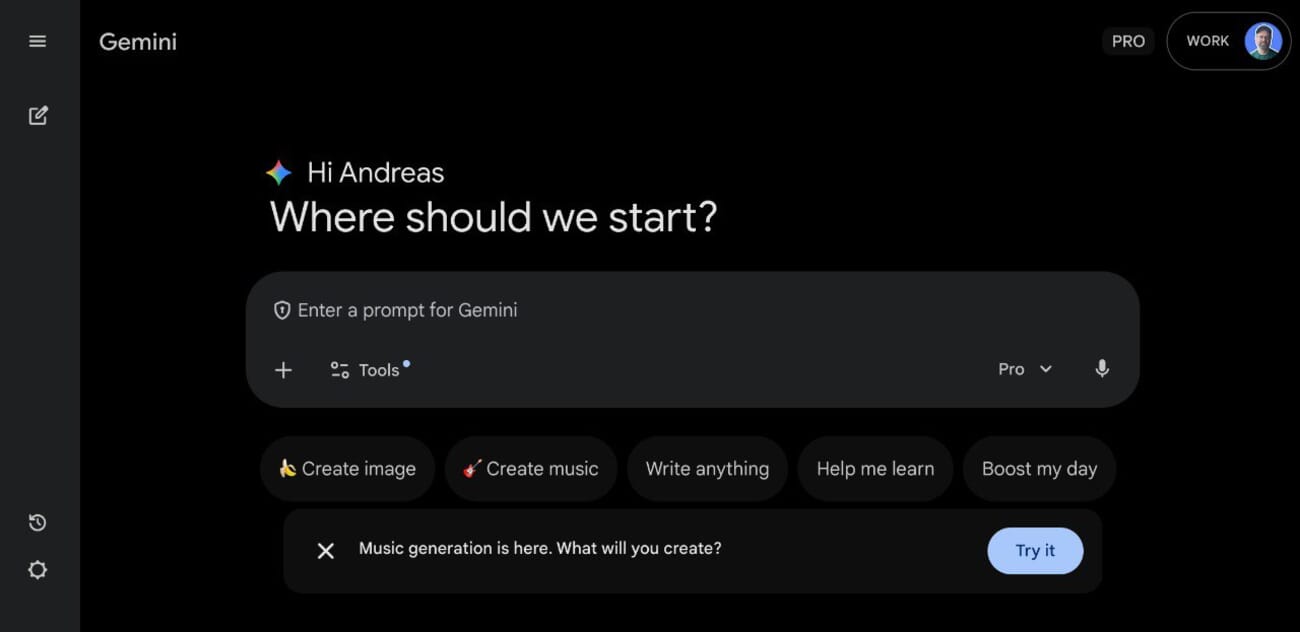
Gemini offers several pricing tiers:
- Free ($0) – Access to Gemini 3 Flash and basic image generation. Limited Nano Banana Pro access.
- AI Plus ($7.99/mo) – Full Nano Banana Pro image generation with enhanced 3.1 Pro. Currently $3.99/mo for the first 2 months.
- AI Pro ($19.99/mo) – Higher usage limits plus Veo 3.1 Fast video generation. Free first month for new users and students.
- AI Ultra ($249.99/mo) – Maximum limits across all features.
For most photographers, the free tier or AI Plus is more than enough. You can see the full pricing breakdown on Google’s subscription page.
The 5-Part Prompt Formula
The difference between mediocre AI edits and impressive results comes down to how you write your prompts. After testing dozens of editing sessions, we developed a 5-part formula that consistently produces the best output:
- Subject – Who or what is the main focus? Be specific about what to preserve versus change.
- Scene / Background – Where and when does this take place? Describe the environment you want.
- Style – What art direction should guide the edit? Think cinematic, documentary, editorial, moody, etc.
- Lighting and Mood – What should the light look like? Warm golden hour, dramatic Rembrandt lighting, cool blue tones?
- Constraints – What must be included and what must be avoided? This prevents unwanted changes.
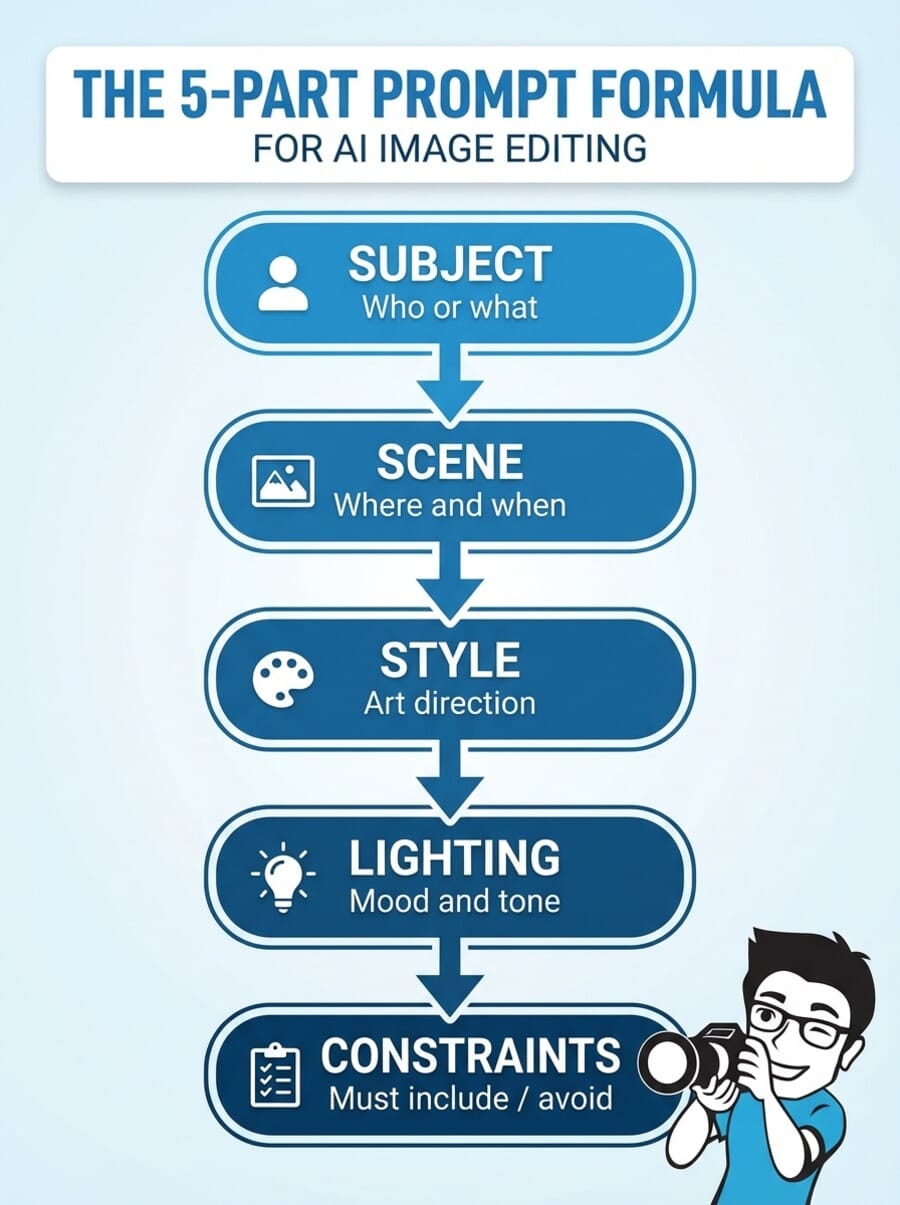
You do not need to include all five parts in every prompt. But the more specific you are, the better Gemini understands your intent. Let us see this formula in action with real examples.
Demo 1: Relighting a Portrait
Our first edit tackles one of the most common photography challenges: fixing flat, unflattering light. We took a standard portrait with even lighting and asked Gemini to apply dramatic Rembrandt-style shadows.
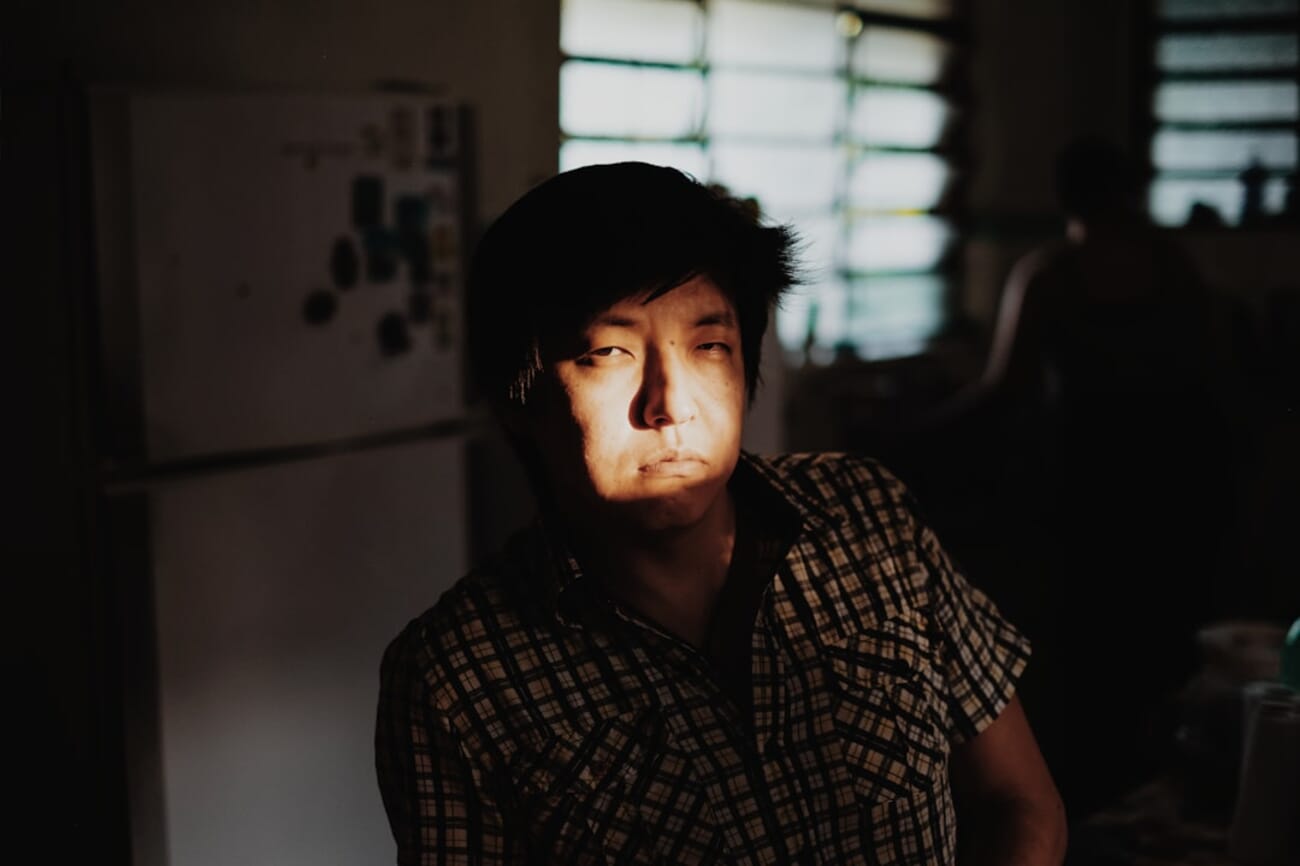
The prompt we used:
Relight this portrait with dramatic Rembrandt-style lighting. Add a strong key light from the upper left creating a triangle of light on the shadow-side cheek. Warm rim light from behind on the right side. Deep shadows on the right side of the face. Keep the subject’s features, expression, and clothing exactly the same. Cinematic mood, golden warm tones. Do not change the background significantly.
Here is what each part of the prompt does:
- Subject: “this portrait” – tells Gemini to preserve the person.
- Style: “Rembrandt-style lighting” – a specific, well-known lighting pattern.
- Lighting: “key light from upper left,” “warm rim light from behind” – precise light placement.
- Constraints: “Keep features, expression, clothing exactly the same” and “do not change the background.”
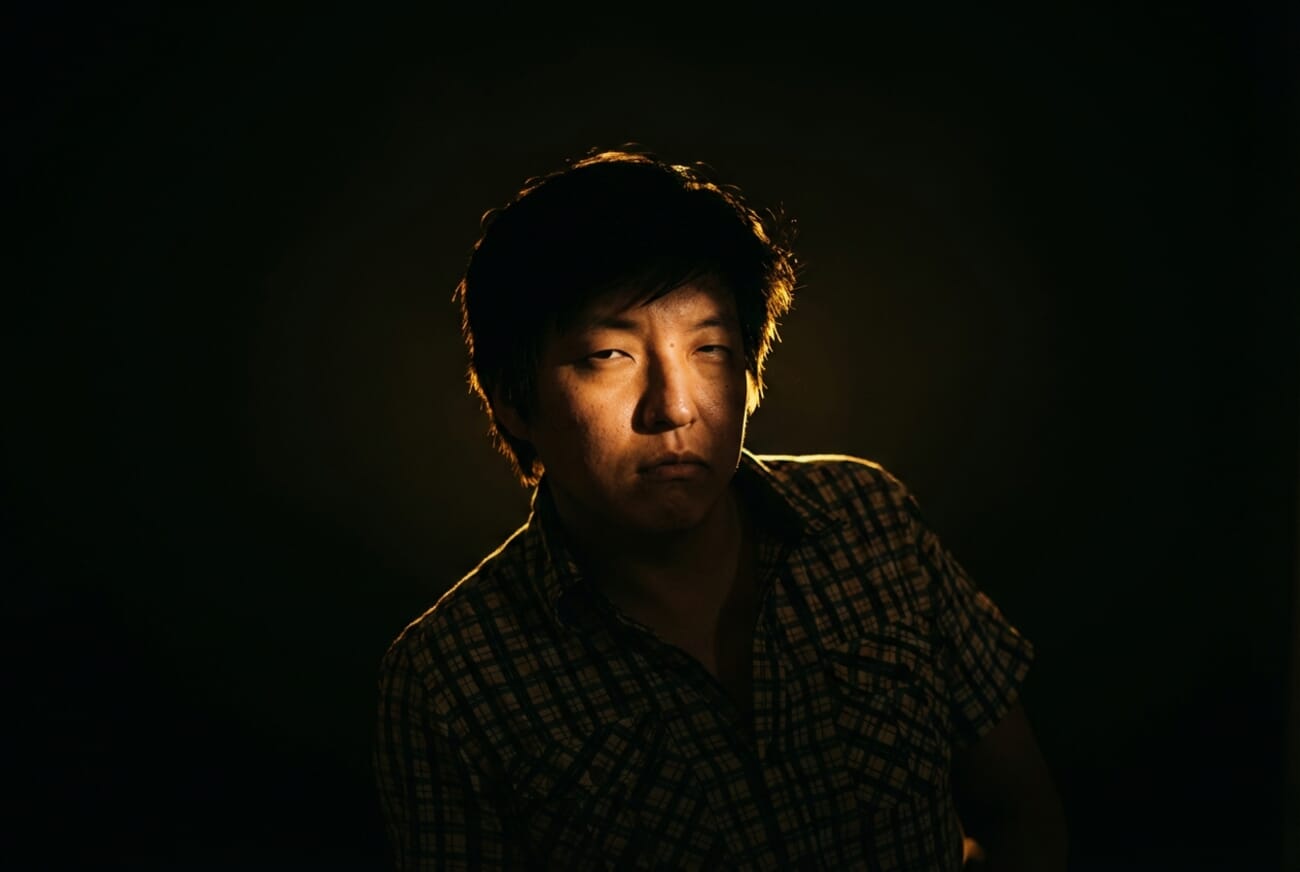
The result adds genuine depth and drama to an otherwise flat portrait. Notice how Gemini added the characteristic triangle of light on the cheek while preserving the subject’s identity. This kind of relighting would typically require re-shooting with studio equipment or significant Photoshop work.
Demo 2: Season and Environment Swap
For landscape photographers, weather and seasons can make or break a shot. What if you could transform an autumn mountain lake into a winter wonderland? That is exactly what we tested next.
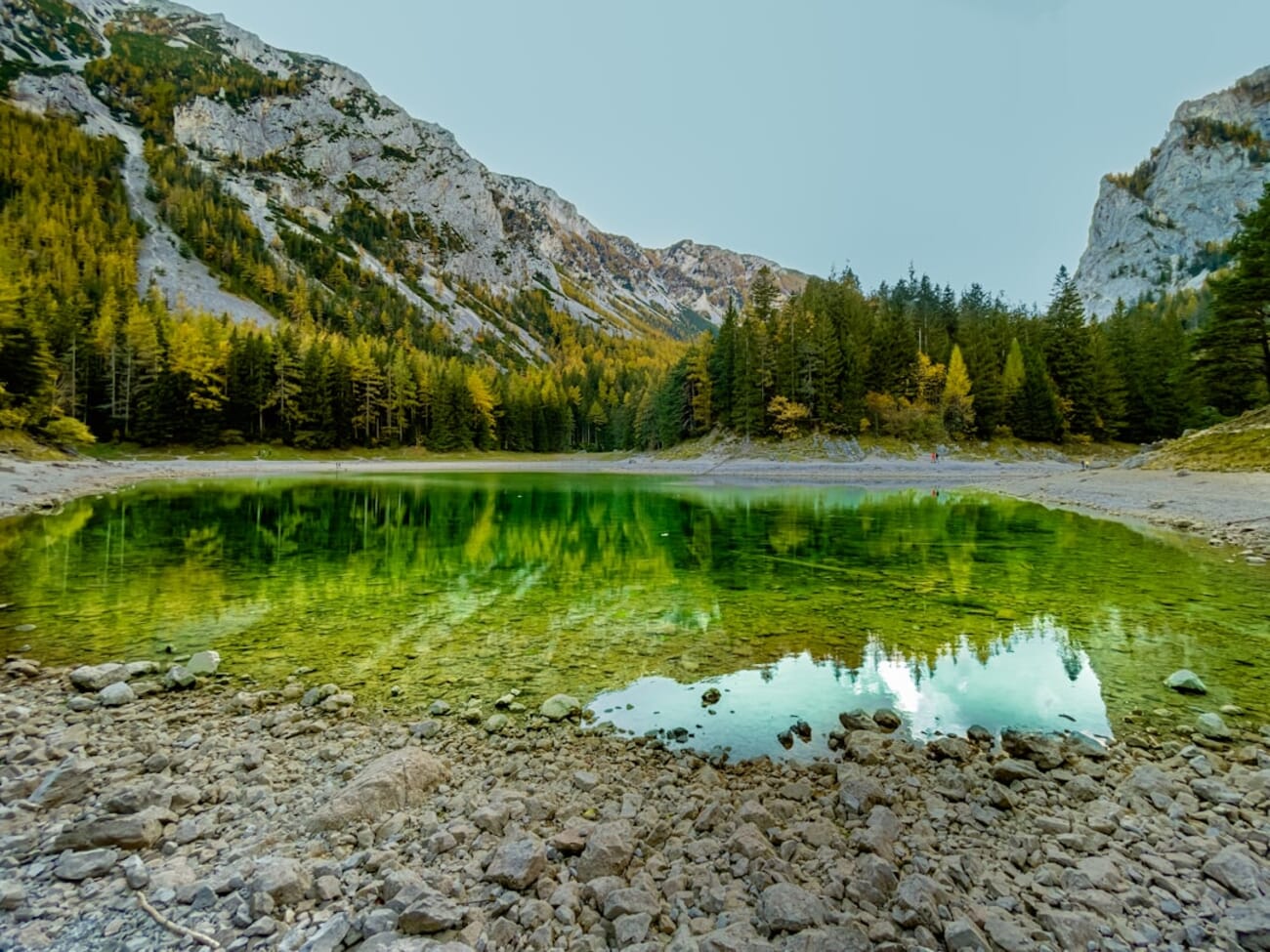
The prompt we used:
Transform this autumn mountain lake scene into deep winter. Cover the mountains and surrounding trees with fresh snow. Make the lake partially frozen with ice along the edges. Replace warm fall colors with cool blue-white winter tones. Add a subtle mist or fog hovering over the water. Overcast sky with soft diffused light. Keep the exact same composition and mountain shapes.
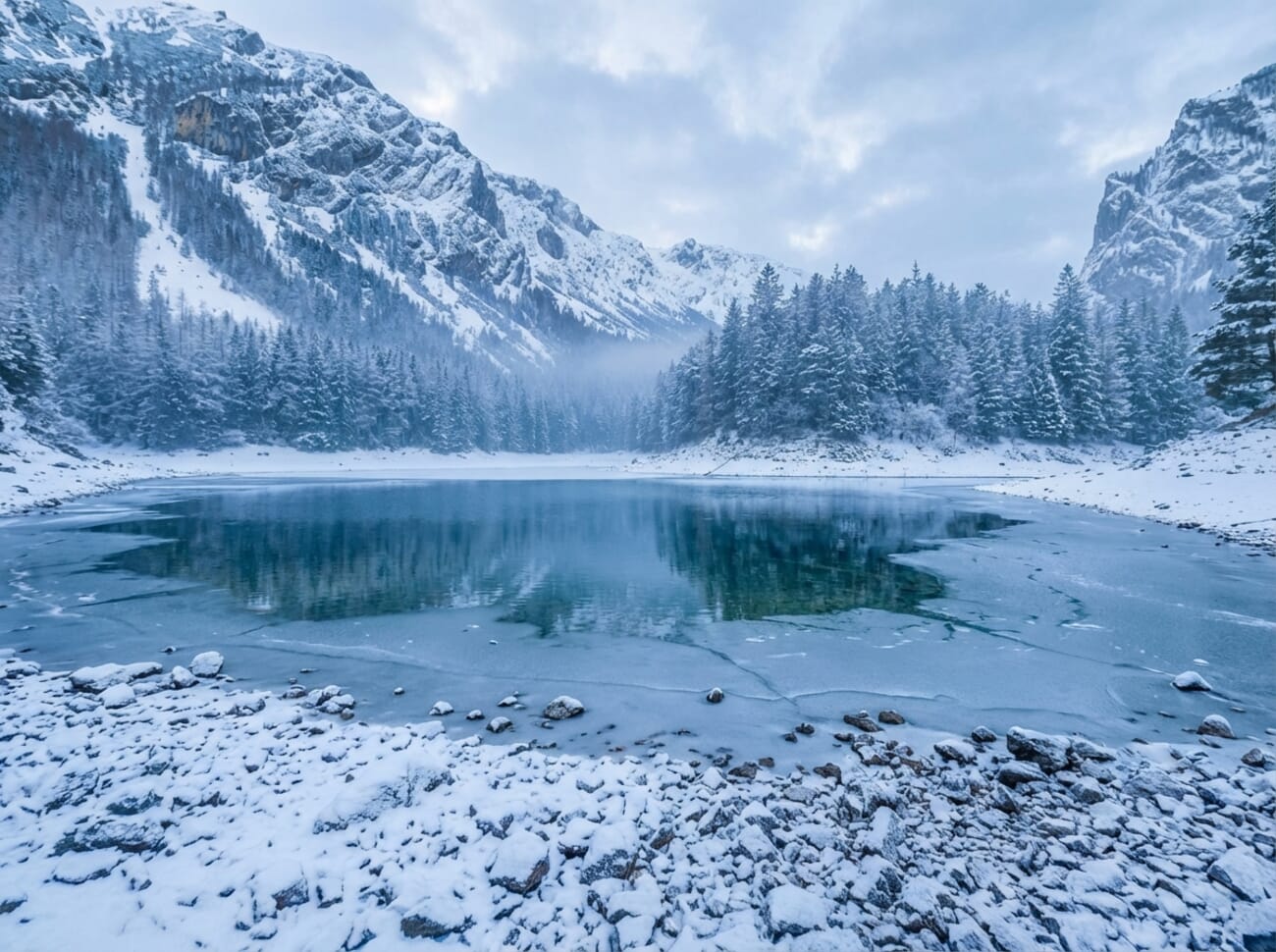
The transformation is dramatic. Gemini correctly identified the mountain contours and tree lines, covering them with snow while keeping the overall composition intact. The frozen lake edges and misty atmosphere add convincing winter atmosphere. For landscape photographers planning future trips, this kind of edit can help visualize how a location might look in different seasons.
Demo 3: Day-to-Night Transformation
Converting a daytime scene to nighttime is one of the more challenging AI edits because it requires the model to understand how light fundamentally changes after dark. We pushed Gemini with a green lake shot, asking for a starry night conversion.
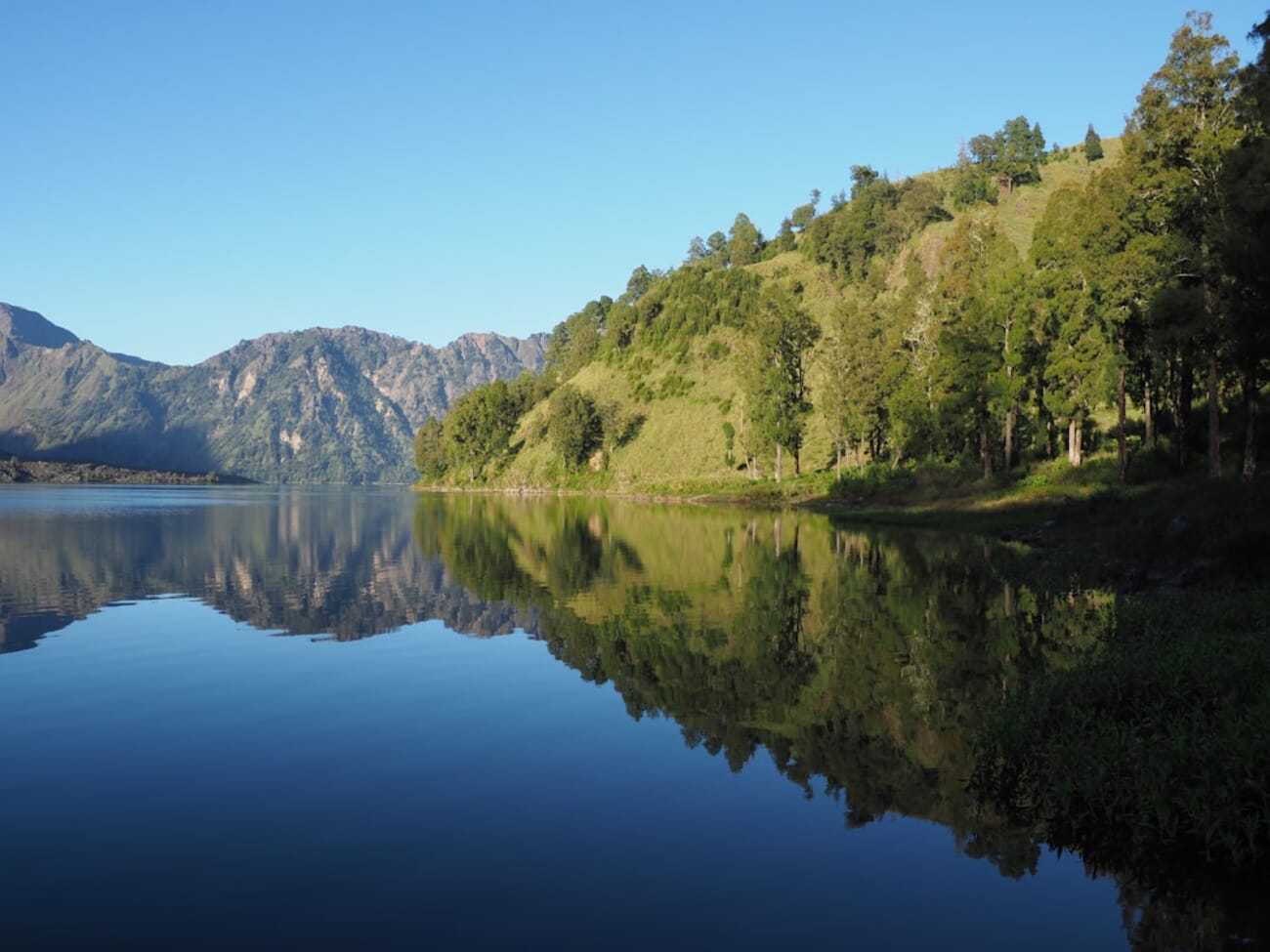
The prompt we used:
Transform this daytime lake scene into a clear starry night. Replace the bright sky with a deep dark blue night sky filled with thousands of visible stars and a subtle Milky Way band. Add moonlight reflecting off the water surface. Convert all vegetation to dark silhouettes. Add cool blue-purple color grading throughout. Keep the same landscape composition and water reflections.
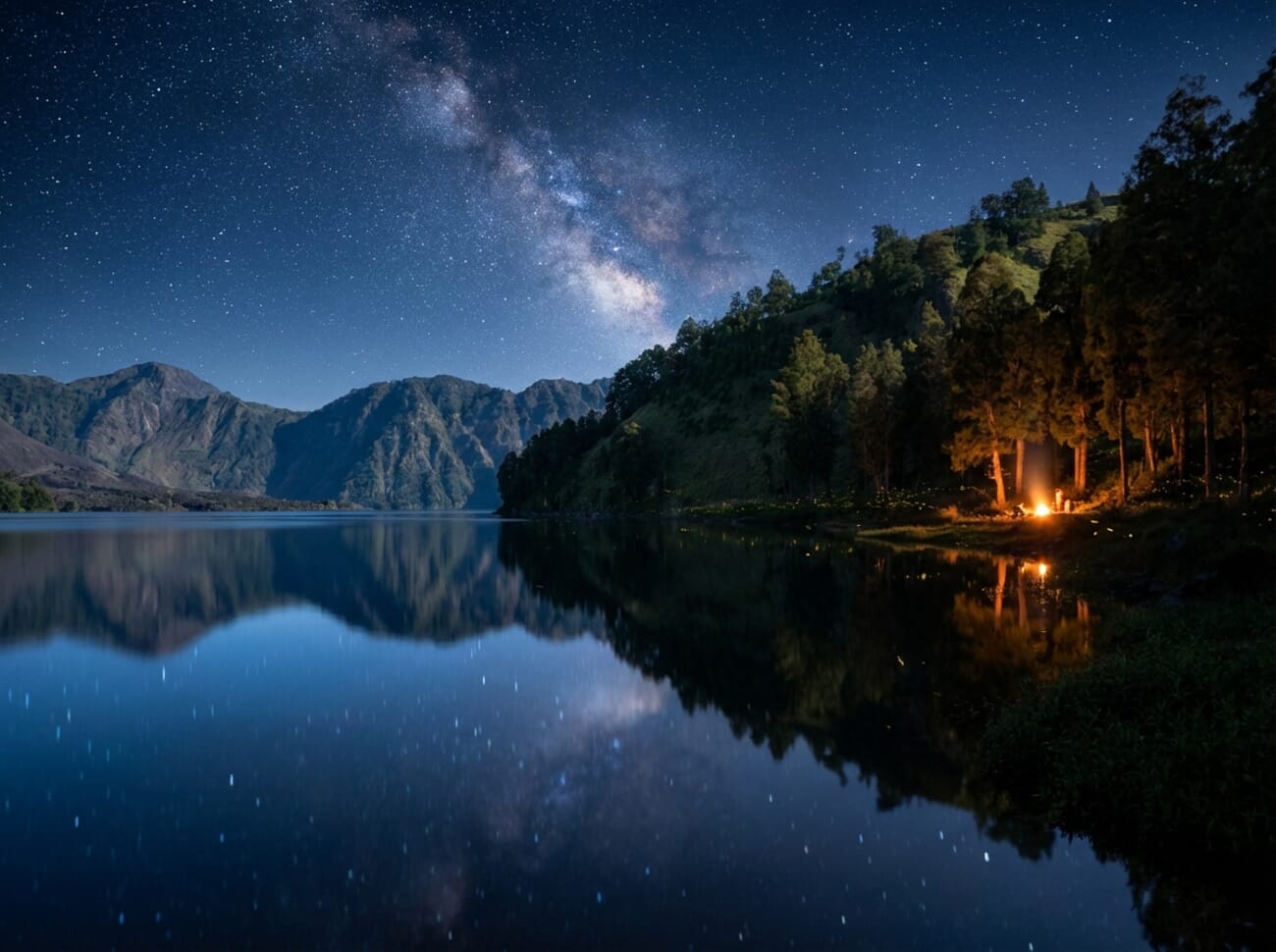
The night sky conversion is particularly impressive. Gemini added realistic star density and a plausible Milky Way arc while converting the vegetation to natural-looking dark silhouettes. The water reflections were maintained but shifted to cooler tones. This technique could be useful for Lightroom users who want to preview how a location might look for astrophotography planning.
Demo 4: Adding Objects to a Scene
Sometimes you want to add elements that were not in the original shot. We started with a simple coffee cup photo and asked Gemini to build a complete cozy morning scene around it.

The prompt we used:
Place this coffee cup in a cozy morning scene. Add a rustic wooden table surface underneath. Include an open book, a small succulent plant, and reading glasses nearby. Warm morning sunlight streaming through a window from the left, creating soft shadows. Shallow depth of field with the coffee cup in sharp focus. Keep the original cup design exactly the same. Hygge aesthetic, warm earth tones.

This type of edit has real practical value for product photographers and social media creators. Instead of building an entire set, you can shoot a clean product image and let Gemini generate the lifestyle context around it. The warm window light and shallow depth of field create a believable scene.
Demo 5: Creating Images From Scratch (Text-to-Image)
Gemini’s text-to-image mode does not require an input photo at all. You simply describe what you want, and it generates the image from scratch. We tested this with a food photography flat lay concept.
The prompt we used:
Create a food photography flat lay: overhead shot of a marble countertop with artfully arranged breakfast items – avocado toast on a ceramic plate, a small bowl of mixed berries, a glass of fresh orange juice, scattered fresh herbs (basil and mint leaves), a linen napkin, and wooden utensils. Soft natural window light from the top. Clean, minimalist food styling. Shot on Canon R5 with 24-70mm f/2.8 lens from directly above. Editorial food photography style for a lifestyle magazine.
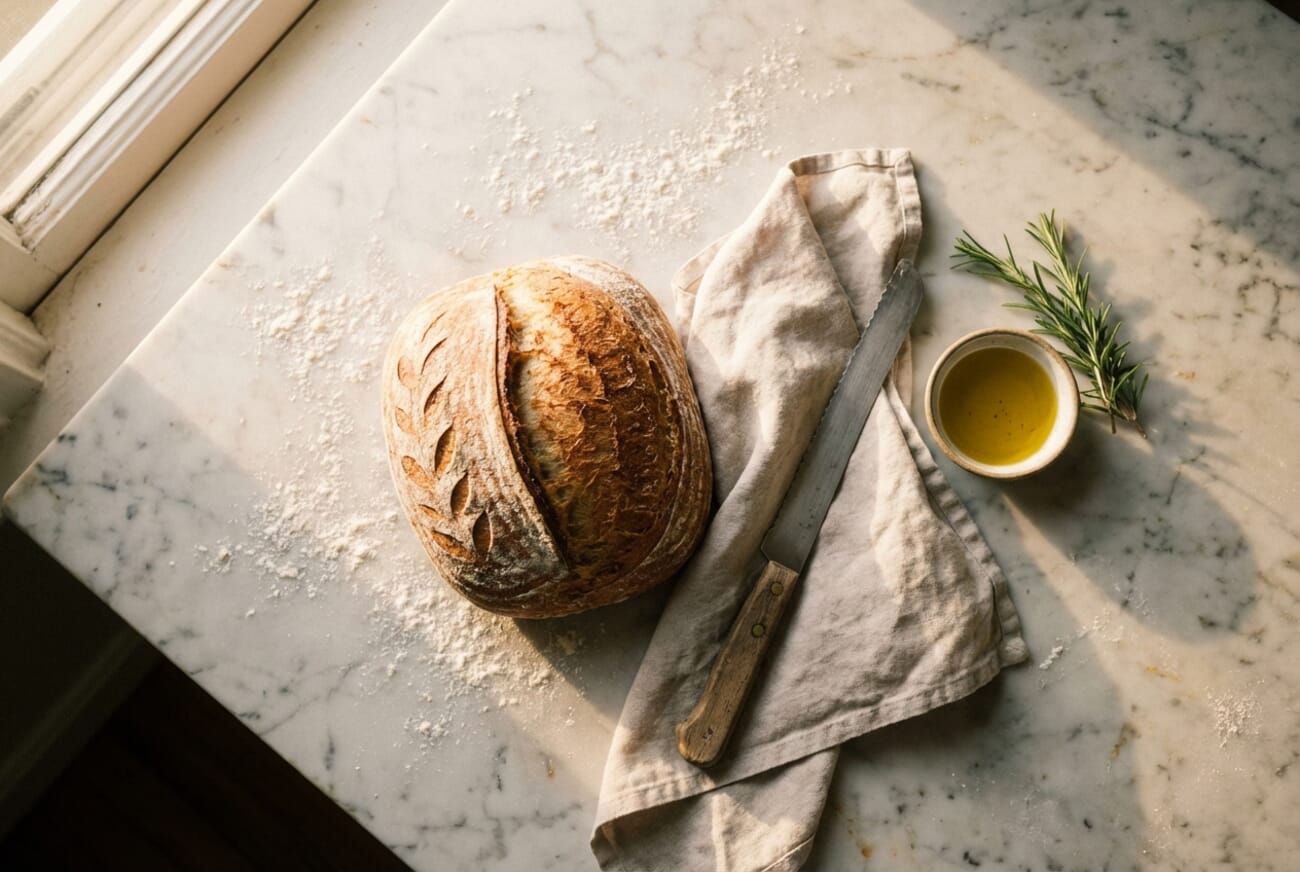
Text-to-image is useful for creating mood boards, testing composition ideas before a shoot, or generating placeholder images for social media content calendars. The quality is not yet at the level of a professional food photographer, but for concept visualization, it is remarkably capable.
Pro Tips for Better Results
After running dozens of editing sessions with Gemini, these strategies consistently improved output quality:
Chain simple edits instead of complex all-in-one prompts. Rather than asking Gemini to relight, change the background, and add objects in a single prompt, break it into steps. Do the relighting first, download the result, re-upload it, then make the next change. Each step builds on a cleaner foundation.
Reduce the plastic look. AI-generated images sometimes have an overly smooth, plastic sheen – especially on skin. Add phrases like “reduce plastic gloss,” “natural skin texture,” or “matte finish on skin” to your prompts. This pushes the output toward more realistic rendering.
Be specific about what to preserve. The more explicitly you tell Gemini what should stay the same, the better. Instead of just saying “edit the lighting,” say “keep the subject’s face, expression, hair, and clothing exactly the same while changing only the lighting direction and color temperature.”
Fix geometry in follow-up prompts. If Gemini warps or distorts elements in the first pass, re-upload the result and ask specifically to “fix the distorted perspective on the left side” or “straighten the horizon line.” Targeted corrections work better than starting over.
Use photography terminology. Gemini responds well to terms like “Rembrandt lighting,” “golden hour,” “shallow depth of field,” “fill light,” and “color temperature.” The more specific your editing vocabulary, the more precise the results.
Reference real photography styles. Mentioning “editorial food photography,” “documentary portrait style,” or “Ansel Adams landscape” gives Gemini a concrete visual direction to follow.
Limitations to Know
Gemini’s image editing is impressive but not perfect. Here are the current limitations to be aware of:
- Text rendering fails. Any text in generated or edited images – signs, labels, book titles – will likely come out as gibberish. Gemini does not reliably produce readable text in images.
- Faces can change subtly. While Gemini generally preserves facial features, small changes to expression, age appearance, or facial proportions can occur, especially with dramatic lighting changes.
- Complex multi-object scenes sometimes fail. Asking Gemini to add many objects simultaneously can produce cluttered or unrealistic results. This is why chaining simple edits works better.
- Occasional server errors. Gemini sometimes returns 503 errors or glitches during peak usage. The simple fix: log out, close the tab, and log back in. This usually resolves it.
- Resolution ceiling. Output images top out around 1024 pixels on the longest side. For high-resolution print work, you will need to upscale the results with a dedicated tool.
Despite these limitations, Gemini is the most accessible AI image editor available today. For creative experimentation, concept visualization, and quick edits, it delivers remarkable value – especially at the free tier. For production-ready editing with full control, traditional tools like Lightroom and Photoshop remain essential, but Gemini is an excellent complement to any photographer’s toolkit.
Is Google Gemini image editing free?
Yes, basic image editing is available on the free tier at gemini.google.com/app. Select the Pro model from the dropdown to access image generation. The free tier has usage limits. For full Nano Banana Pro capabilities and higher limits, the AI Plus plan costs $7.99/mo (currently $3.99/mo for the first 2 months).
Can Gemini edit my existing photos or only generate new ones?
Both. You can upload an existing photo and describe changes (relighting, background swaps, adding objects), or generate entirely new images from text descriptions alone. The upload-and-edit mode is what makes Gemini particularly useful for photographers.
What is Nano Banana Pro in Google Gemini?
Nano Banana Pro is Google’s internal codename for the image generation capability built into Gemini, powered by the Gemini 3 Pro Image model. It handles both text-to-image generation and photo editing. You access it by selecting the Pro model in the Gemini web interface.
How does Gemini compare to Photoshop for AI photo editing?
Gemini is faster and more accessible for creative experiments – you describe changes in plain English with no software to install. However, Photoshop offers pixel-level precision, layers, masking, and much higher resolution output. Gemini works best for concept exploration and quick creative edits, while Photoshop remains the professional choice for production-ready results.
Why does text look like gibberish in Gemini-generated images?
Current AI image models, including Gemini, struggle to render readable text consistently. The models understand visual patterns but do not truly comprehend letter forms. If your image needs readable text (signs, labels, watermarks), add those in a traditional editor like Photoshop or Canva after generating the image.
