

- imagic is a one-person, local-first culling and editing app for Mac and Windows. No photos leave the computer, and there is no subscription.
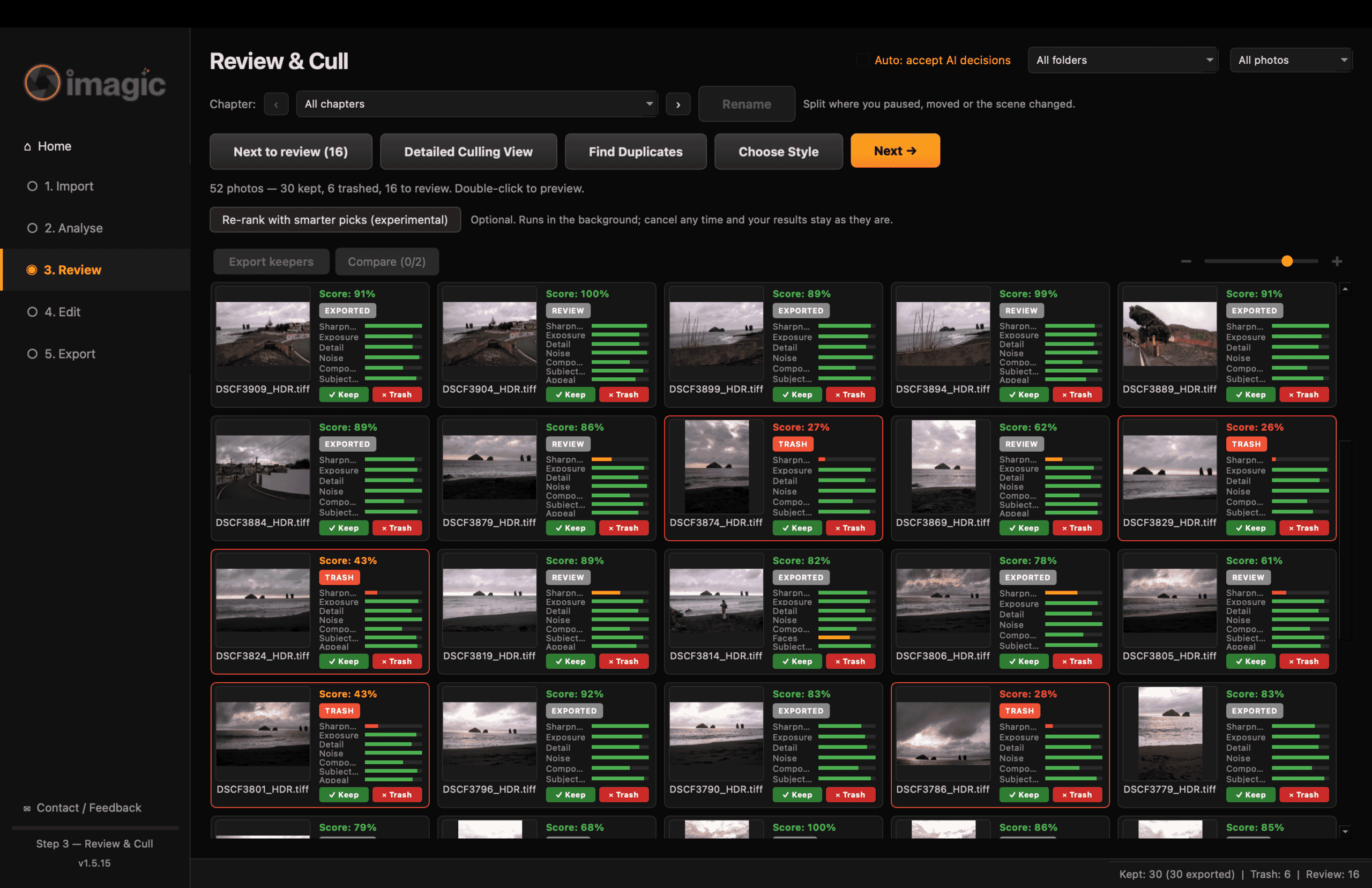
- On a 52-frame set of merged HDR TIFFs it finished analysis in 18 seconds and sorted the set into 30 keepers, 16 to review and 6 rejects. Every reject was genuinely soft.
- The culling is good at removing the unusable and at thinning near-identical frames. It will not tell you which of two sharp, well-exposed frames is the better photo.
- The built-in editor and export are fast and honest: what the preview shows is what the JPEG gets, at about 1.7 seconds per 26 MP frame.
- Version 1.5 still has rough edges. In this test the AI masking backend failed to load, so local adjustments fell back to simpler masks.
- Worth the Lite price for hobbyists and event shooters drowning in frames. Professionals who rely on AfterShoot-style “pick the winner” culling should wait.
When you buy through links on our site, we may earn a commission at no cost to you. We evaluate products independently. Commissions do not affect our evaluations.
What imagic Is
imagic (imagic.ink) is a desktop app that does three things in one window: it imports a folder of RAW or TIFF files, scores and culls them automatically, and lets you edit and export the keepers. It runs entirely on your own machine. The AI models that score, caption and mask your photos are downloaded once and then run on the CPU, and the only network traffic after activation is a licence check, an update check and optional usage statistics that one switch turns off.
It is built and maintained by a single developer, Luke Fenech, and it shows in both directions. Feedback from users turns into fixes within days. It also means a young codebase, a 1.3 GB install, and the occasional feature that does not quite load.
Pricing at the time of writing: Lite at EUR 19, Plus at EUR 49, Max at EUR 99, all one-time. There is a free trial metered at 500 photos.
The Test
The test set was 52 HDR merges from a Fujifilm X-S20, shot across three days in May 2024 and saved as 16-bit TIFFs. Most of them were taken in two bursts on a single evening: a 40-minute walk starting just before 7 pm and a ten-minute stretch at the end of the golden hour. That mix is a fair stress test for a culling tool: several frames of the same scene seconds apart, varied sharpness because of handheld bracketing, and exposure that was already balanced by the merge.
Machine: MacBook Air M2 (15-inch, 2023) with 8 CPU cores and 24 GB of RAM. imagic 1.5.14 on macOS 26, which updated itself to 1.5.15 during the session.
Import and Analysis
Importing the folder took 5 seconds, including 52 thumbnails. The analysis pass, which runs in a separate process so the interface stays responsive, took 18 seconds. Seven of those seconds were the one-off load of the image description model.
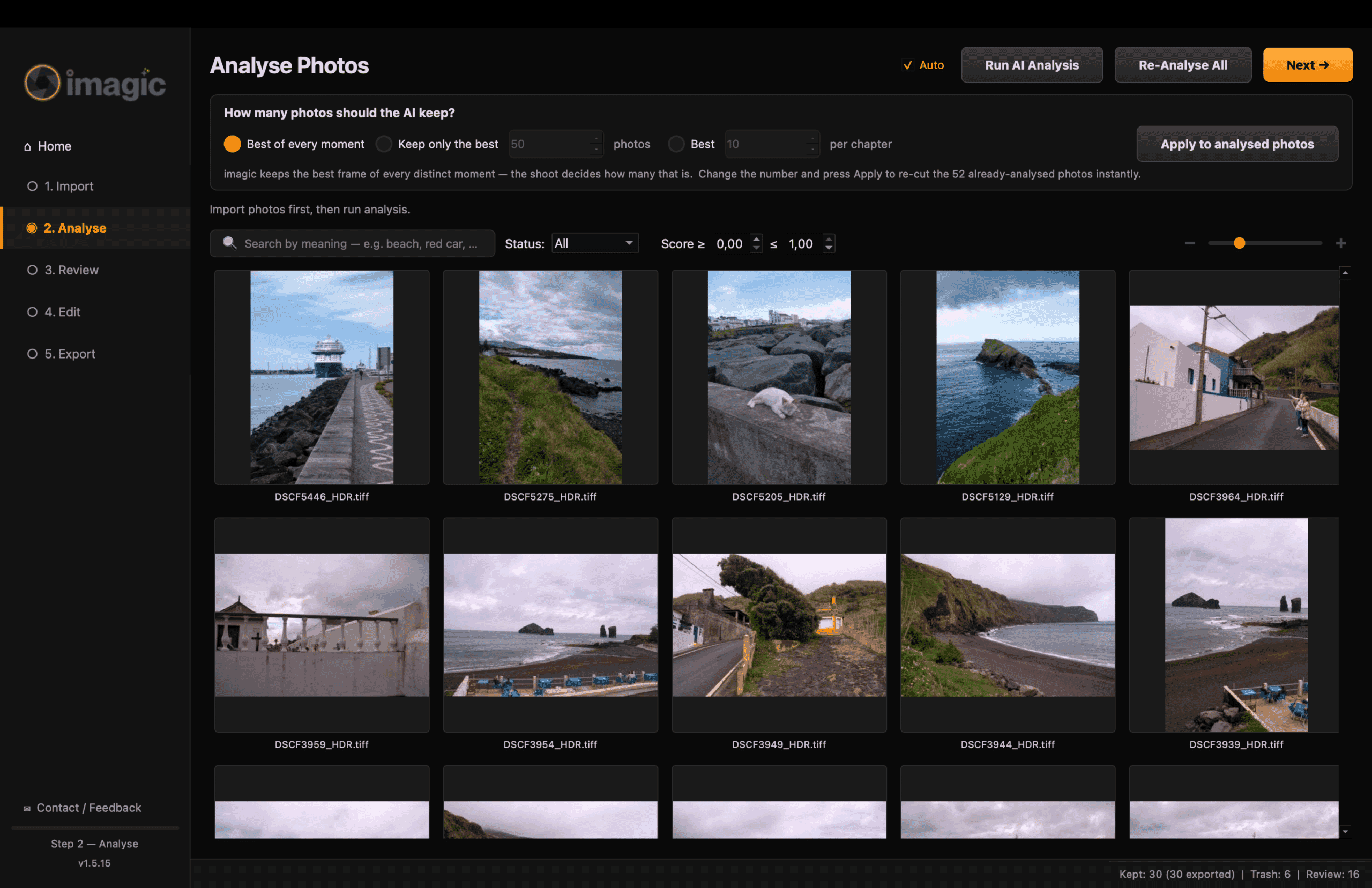
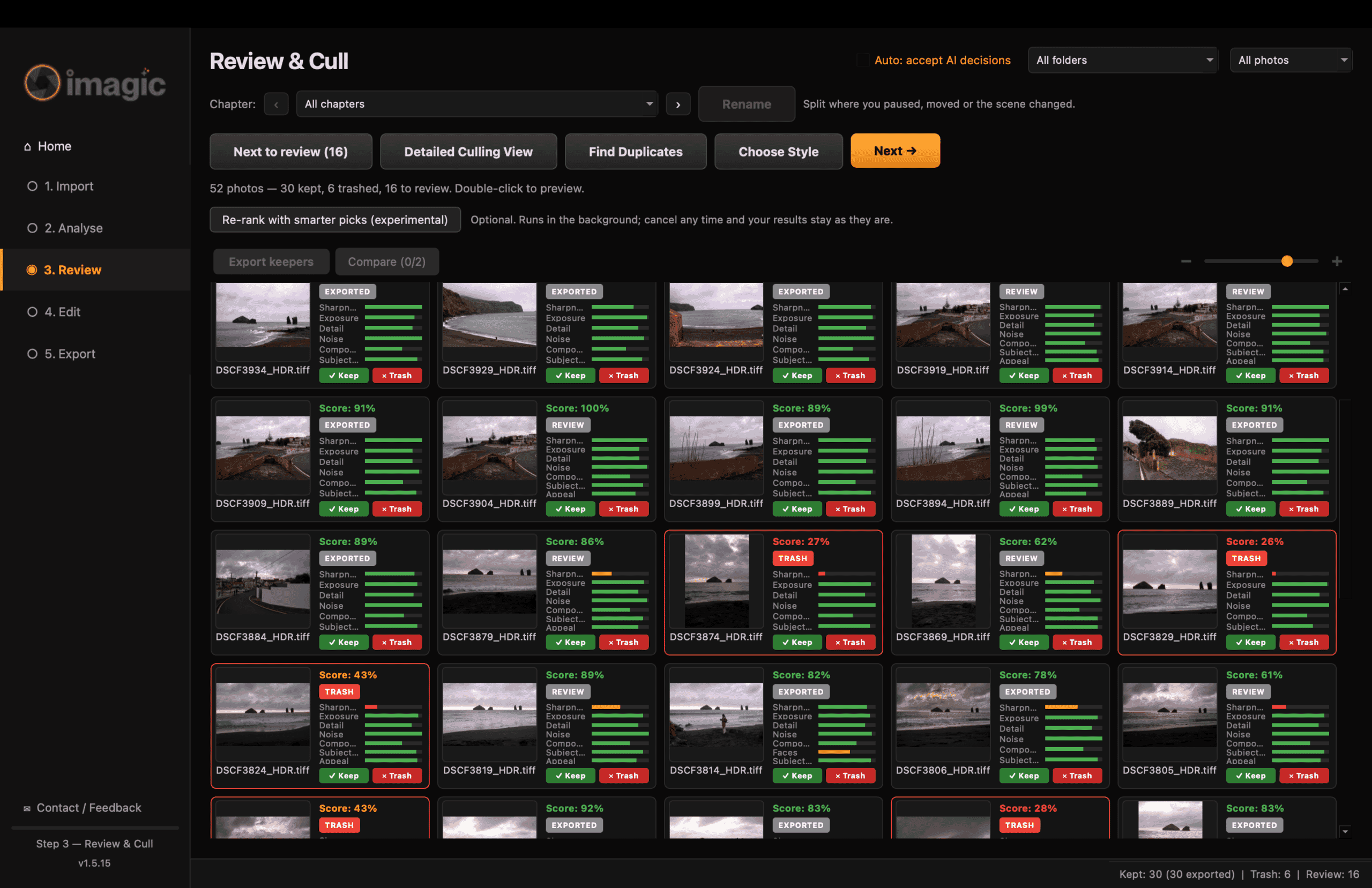
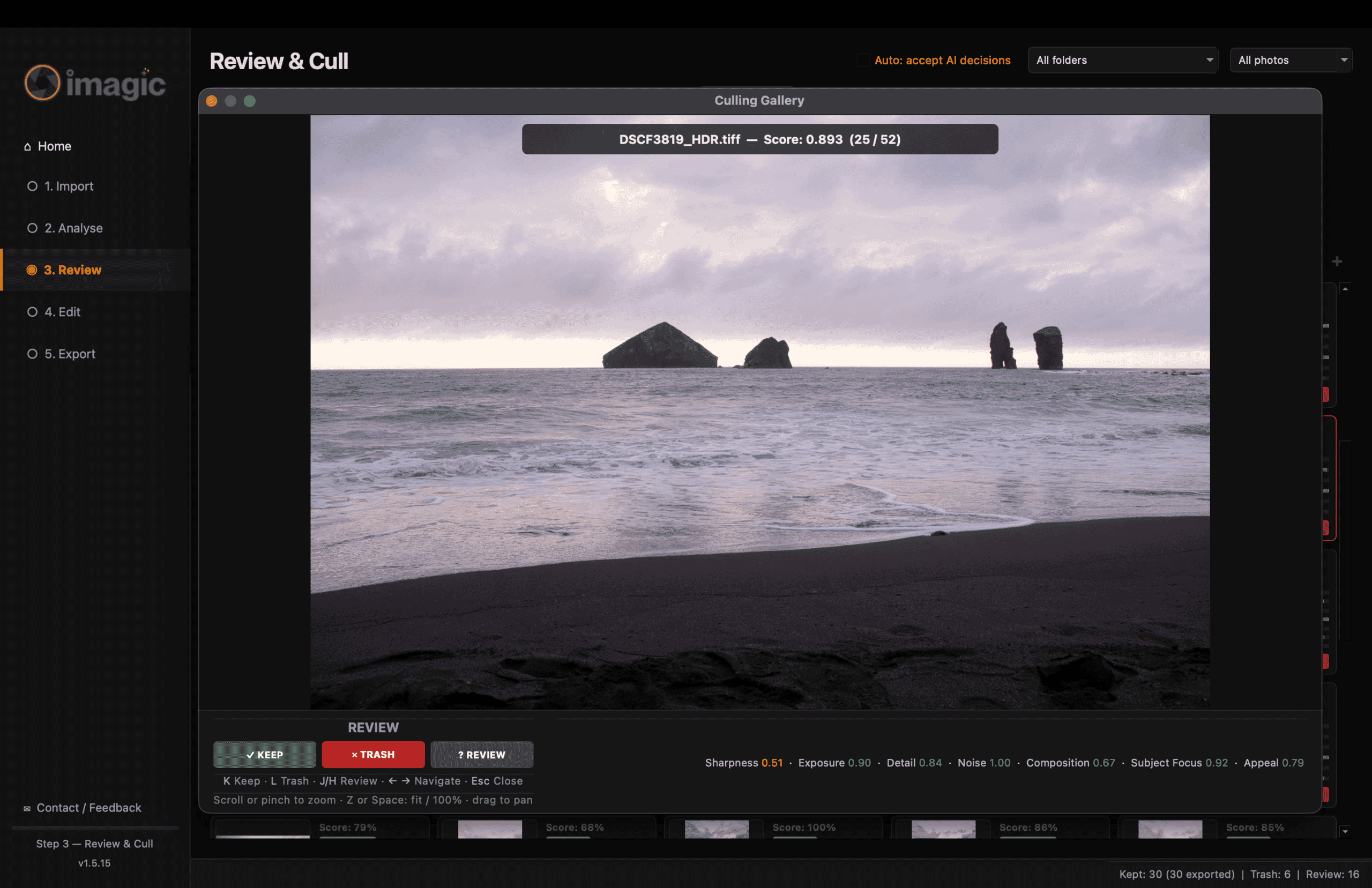
The output is not a single score. Each photo gets a quality figure between 0 and 1, built from sharpness, exposure, detail, noise and composition, and each of those comes with a plain-language verdict (“Very sharp”, “Well exposed”, “Slightly soft”) you can read on the tile. Four frames with people in them were marked “face-aware: sharp face with bokeh background”, which is exactly the case a Laplacian sharpness check would otherwise punish.
On the test set the quality scores ran from 0.26 to 0.95 with an average of 0.77. That is a well-shot set, and the scorer agreed.
How It Culled
imagic does two passes. The first applies fixed thresholds: above 0.50 is a keep candidate, below 0.35 is trash. The second, which it calls a relative cull, groups the shoot into “moments” (frames taken within seconds of each other) and “looks” (similar scenes), then keeps the best of each moment rather than everything that cleared the bar.
The log for this set reads: 45 frames, 36 moments, 14 looks, 30 keepers. The final split was 30 keep, 16 review, 6 trash.
Where it got it right:
- All six rejects were soft. Their sharpness sub-scores ran from 0.08 to 0.25, and opening them confirmed camera shake from handheld bracketing. Nothing sharp was thrown away.
- The 16 “review” frames were mostly near-duplicates of a kept frame. Three shots of the same scene taken three seconds apart scored 0.91, 0.91 and 0.91; imagic kept one and parked two. That is the behaviour you want from a first pass.
- One frame scored 0.56 despite perfect sharpness and exposure because its composition sub-score was low. The Smarter picks pass later agreed with the demotion, scoring the same frame 0.007 on appeal with the verdict “accidental or record shot”.
Where it falls short:
- It never compares two good frames on content. Which of the three 0.91 frames it kept was effectively a coin toss on sub-scores. The optional “Smarter picks” second pass, covered below, is where imagic tries to answer that question.
- Duplicate detection by perceptual hash found no duplicates in 0.4 seconds, which is correct for this set but means the heavy lifting was done by the time-based grouping, not the image comparison.
- Face grouping found no faces to index, even though the sharpness check recognised faces in four frames. The two features use different models, and only one of them seems to have run.
Overall: imagic removed the unusable and thinned the repeats, and it did so in under half a minute with reasons you can read. It did not pick the winners. For a wedding or an event, that first pass is most of the tedium. For a landscape set where every frame is sharp, you will still be making the real choices yourself.
Smarter Picks: The Optional Second Pass
imagic’s default cull is deliberately fast and model-free. The “Smarter picks” option, marked experimental, adds a CLIP vision model that asks a different question of each frame: is this a photograph someone would keep, or a snapshot of a sign? It is off by default because it needs a one-time 609 MB download, and the developer’s own notes say it roughly doubles analysis time.
Run on the test set, the download took just under a minute on a fast connection, the model loaded in 10 seconds, and scoring the frames took about 3 seconds. Each scored frame gets an “Appeal” entry in its reasons with a verdict: “Strong photo”, “Worth a look”, “Looks like a snapshot”, or “Looks like an accidental or record shot”.
What it did well:
- The 0.56 frame that the first pass had parked on composition alone came back with an appeal score of 0.007 and the verdict “accidental or record shot”. That was the right call, and it is the kind of judgment the sharpness and exposure maths cannot make.
- It did not rescue blur. A soft frame that scored 0.74 on appeal stayed in the trash, because the technical score still carries the decision.
- Among the near-duplicates the first pass had parked, it separated “Strong photo” frames (appeal 0.90 to 0.97) from merely adequate ones (0.58 to 0.72), which is a useful second opinion when you are choosing between three similar frames.
The catch: it is a re-rank, not a re-think. On a parked pile of 16 frames it promoted 10 back to keep, which turned a tidy 30-frame selection into 40. If you want it, run it before you export, not after, and treat its verdicts as a filter on your own picks rather than a replacement for them. [Note: in this test it only re-scored frames that had not been exported yet, so it judged the leftovers rather than the full shoot. A clean test would run it on a fresh import.]
Editing
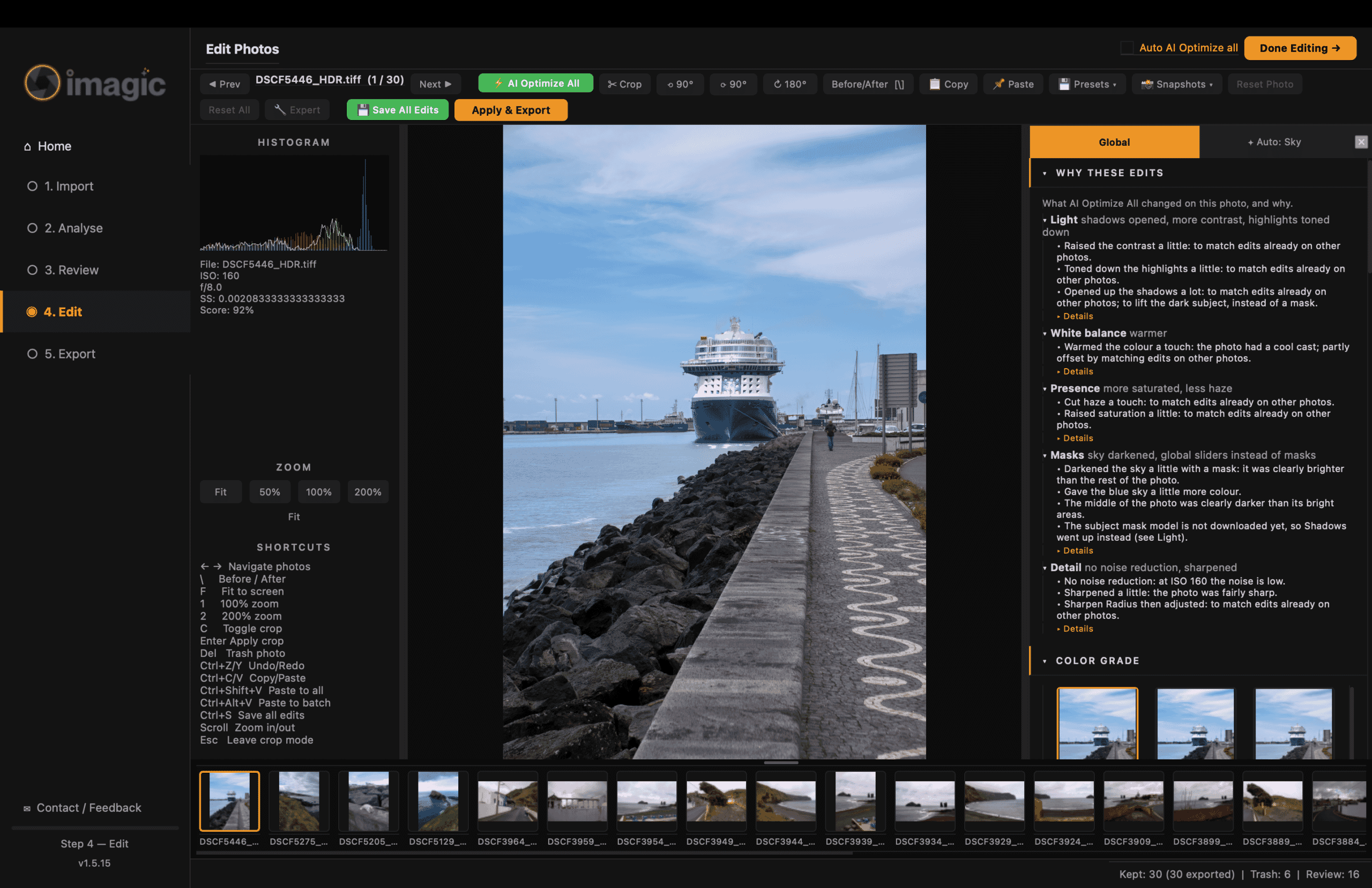
The editor covers the Lightroom basics: white balance, exposure, contrast, highlights and shadows, whites and blacks, texture, clarity, dehaze, vibrance and saturation, a full HSL panel, a tone curve, colour wheels, LUTs, crop, lens correction from the lensfun database, noise reduction, sharpening and masks.
Two frames were edited by hand for the export test. On the strongest frame of the set, a telephoto shot at 55 mm, the adjustments were modest: warmth +4, contrast +24, highlights -23, shadows +50, dehaze +3, saturation +9. Preview updates were immediate at screen size.
The “AI Optimize” batch edit was run on the 30 keepers. The log shows it chose a masked exposure-balance edit on 16 frames and a global edit on 11. It also reported 11 frames where a model was missing, which brings up the one real failure of the session: the AI masking backend did not load. The app logged that the rembg module could not start because a dependency was not shipped in the 1.5.14 build, and fell back to simpler masks. The edits still applied, but the subject and sky selections were coarser than the feature promises. [Report to Luke before publishing; note the fix version if one ships.]
One detail worth praising: the editor explains each automatic edit in plain language in a “Why these edits” panel. On the harbour frame it listed what it changed to light, white balance, presence, masks and detail, and admitted that “the subject mask model is not downloaded yet, so Shadows went up instead”. That is the masking fallback described above, stated to the user rather than hidden.
Export
Export is where imagic is quietly impressive. It renders through the same engine that drew the preview, so the JPEG matches the screen. The first batch of 30 keepers rendered in about 51 seconds, 1.5 to 2 seconds per 26 MP frame, decoding three files ahead while the previous one wrote. JPEGs came out at quality 95 with camera EXIF carried over, 6.6 to 7.9 MB each.
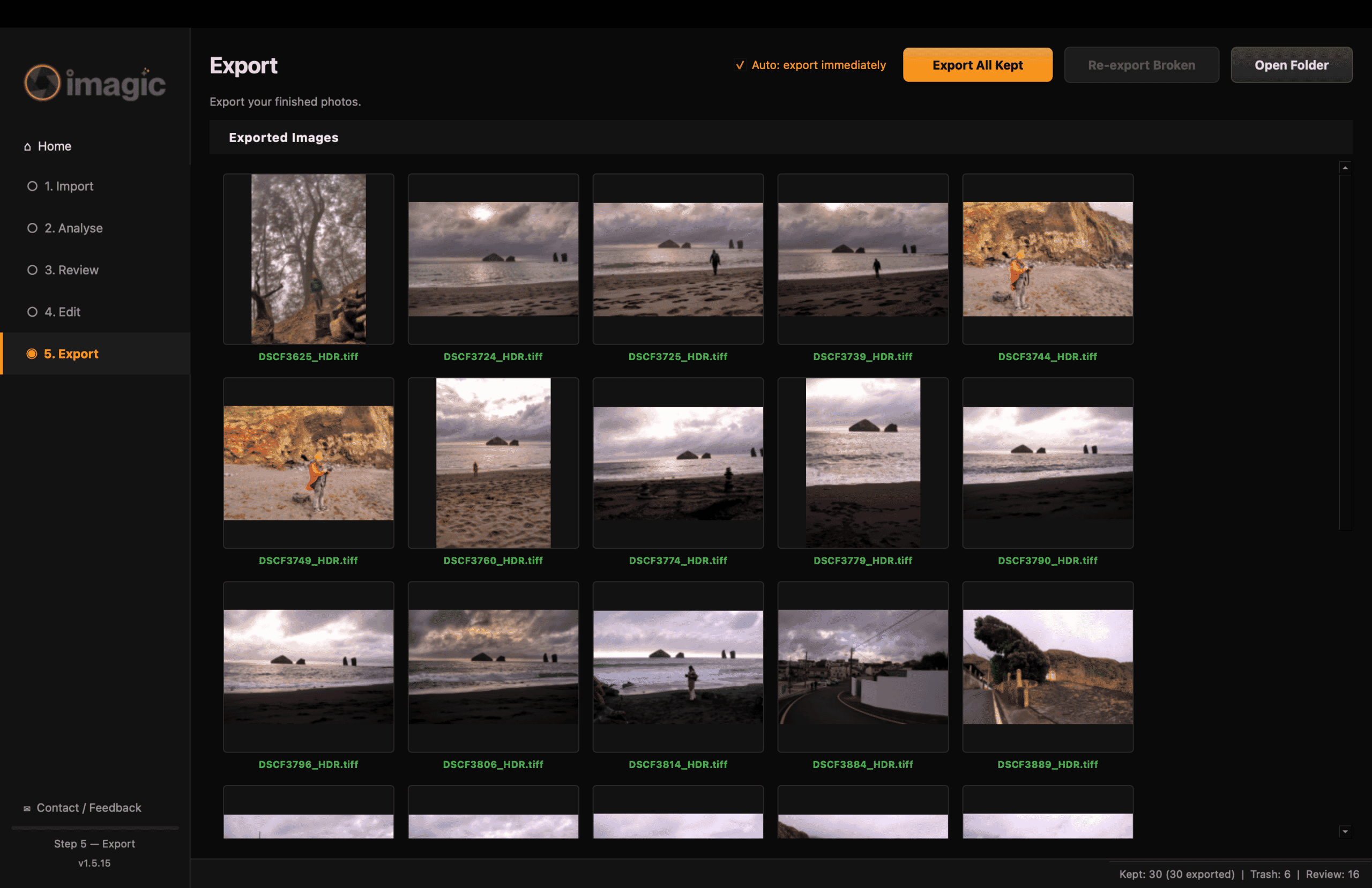
Watermarking, resizing and a file-size cap are available on the export dialog. imagic can also write Adobe Camera Raw XMP sidecars so that Lightroom picks the edits up on import, which turns it into a culling front end for a Lightroom workflow rather than a replacement.
Privacy and Lock-In
Nothing about your photos leaves the machine. The models run locally and the telemetry that is on by default sends counts and crash reports, not file names or images. One switch in settings turns it off.
Your originals are never modified. Edits live in imagic’s own database and, if you ask, in XMP sidecars. Exports are plain JPEG, TIFF or PNG. If you stop using imagic, you lose nothing.
The caveat is the licence. Activation talks to imagic.ink, with an offline grace period, and the whole company is one developer. A one-time purchase is only as permanent as the activation server.
The Automation Angle
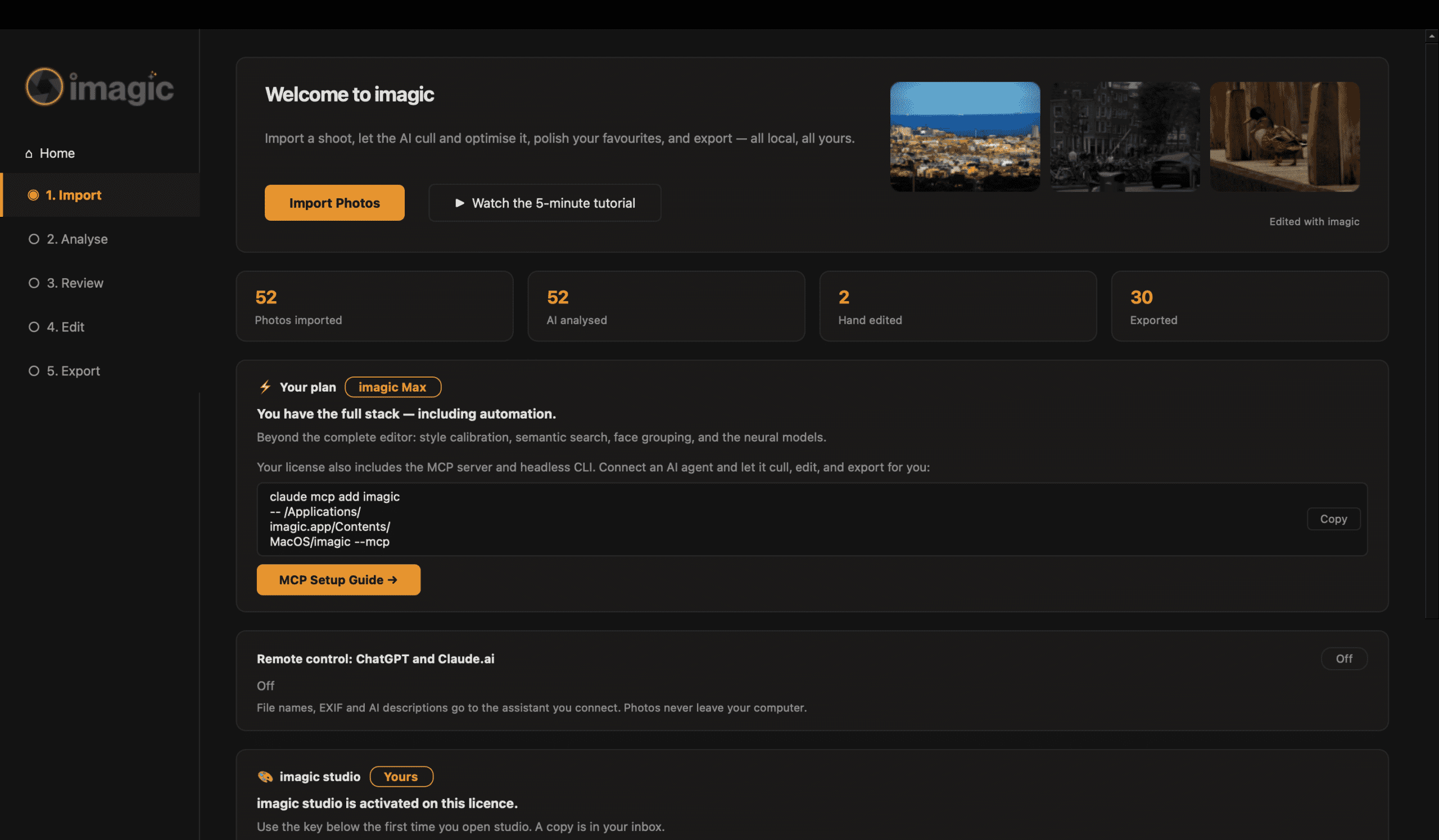
The Max tier adds a command-line mode and an MCP server, which lets an AI assistant such as Claude Desktop or ChatGPT scan, cull, edit and export your library by talking to the app. For most readers this is a curiosity. For anyone already running AI agents on their machine it is a genuine differentiator: no other culling app at this price exposes its whole pipeline to an agent.

Verdict
imagic is a capable, honest, local-first culling and editing tool at a one-time price that most photographers would spend on a single Lightroom month. The automatic cull is a reliable first pass: it removes blur and thins bursts, with reasons shown. It is not a judge of taste, and version 1.5 still ships with the occasional feature that does not load.
Buy Lite if you shoot events, travel or family sets and want the tedium gone without a subscription. Buy Plus if you will use the masks and retouch tools and are willing to report a bug now and then. Skip Max unless you want the MCP server. Professionals who already pay for AfterShoot or Narrative Select will find the culling a step down and the editor a step up.
Rating: 4/5
Frequently Asked Questions
Does imagic replace Lightroom?
For culling and basic editing, it can. For catalogue management, printing and advanced retouching it does not try to. Its XMP export is designed to hand keepers to Lightroom with the edits intact.
Does imagic upload my photos?
No. Scoring, captioning and masking all run on your computer. The app contacts imagic.ink only for licence checks, update checks and optional usage statistics.
How fast is it?
On an M2 MacBook Air, 52 HDR TIFFs were analysed in 18 seconds and 30 of them exported in under a minute. Larger model-based features such as AI captions and perceptual scoring add time and are off by default.
Does it handle RAW files?
Yes. It decodes RAW through LibRaw, with demosaic, highlight recovery and output profile settings exposed in an Expert panel. This test used TIFFs, so RAW decode speed was not measured.
Is there a subscription?
No. Lite, Plus and Max are one-time purchases. The trial is limited to 500 photos.
Official
- imagic: Desktop – Product page, pricing tiers and the 500-photo free trial.
- [Add changelog or docs page if Luke provides one]
Image Sources
- imagic 1.5.15 interface screenshots: PhotoWorkout – All seven screenshots captured by PhotoWorkout during the 2026-11-04 review session on macOS. App interface © Luke Fenech / imagic.
- Featured image: PhotoWorkout – AI-assisted staged composite built from our own imagic 1.5.15 screenshot; the on-screen interface is the real Review and Cull grid from the test session.
- Pin image: stylized PhotoWorkout illustration – AI-generated illustration featuring the PhotoWorkout mascot.
Disclosure: This article contains affiliate links. When you purchase through these links, we may earn a commission at no additional cost to you. This helps support our research and allows us to continue providing free buying guides. All opinions and recommendations are based on our independent research and analysis.