


- Google released AI Edge Gallery for macOS, a free app that runs its Gemma AI models — including the new Gemma 4 12B — locally on your Mac, with no internet connection and no subscription.
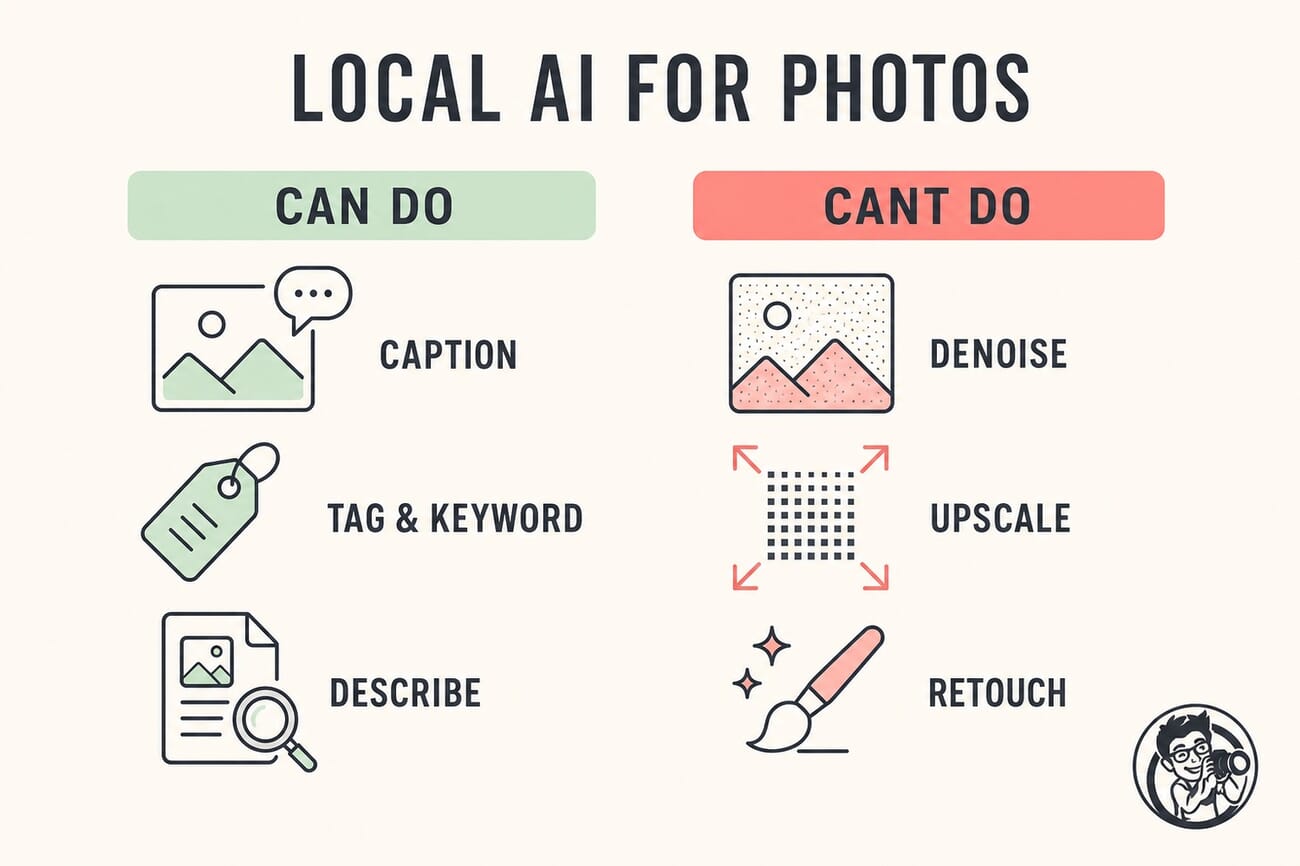
- Gemma 4 is multimodal: it can look at an image and describe it, identify objects, answer questions, and generate text — useful for captioning, keywording, and organizing photos.
- What it is NOT is a photo editor. It won’t denoise, upscale, or retouch pixels — that’s still the job of tools like Topaz or Lightroom. Local AI here is about understanding images, not changing them.
- The real draw for photographers is privacy and cost: your images never leave the Mac, there’s no monthly fee, and it works offline — at the price of being less capable than cloud models.
Most AI tools photographers touch — from AI editors to chatbots — run in the cloud: you send your data to a company’s servers and get a result back. Google just made the other model — AI that runs entirely on your own machine — a lot more accessible on the Mac.
On June 3, Google released AI Edge Gallery for macOS, alongside a new Gemma 4 12B model and a local dictation app called Eloquent. For photographers curious about offline, private AI, it’s worth understanding what this actually does — and, just as importantly, what it doesn’t.
When you buy through links on our site, we may earn a commission at no cost to you. We evaluate products independently. Commissions do not affect our evaluations.
What Google AI Edge Gallery Actually Is
AI Edge Gallery is Google’s app for running AI models locally — on your computer’s own processor, with no server in the loop. It already existed for Android and iOS; the news is that it now runs on macOS too. Out of the box it offers a handful of Google’s own Gemma models, including the newly released Gemma 4 12B.
It’s not the only way to run local AI on a Mac — power users already use tools like Ollama and LM Studio, which run almost any open model. AI Edge Gallery is more curated and beginner-friendly: a simple app, a short list of vetted Google models, and a download-and-go experience. Local models are smaller and less capable than the trillion-parameter giants behind ChatGPT or Gemini, but they run without an internet connection, cost nothing to use, and keep your data on your device.
What Gemma 4 12B Can — and Can’t — Do for Photographers
This is where expectations need calibrating. Gemma 4 is multimodal: you can hand it an image and it can describe the scene, identify objects, read text in the frame, answer questions about it, and produce written output. In a photo context, that translates to genuinely useful tasks:
- Writing a caption or detailed description of a photo
- Generating SEO-friendly alt text for images on a website
- Suggesting keywords and tags for a library
- Sorting or culling by content (“which of these have people in them?”)
- Answering questions about a shot’s composition or contents
What it cannot do is edit the actual pixels. It won’t denoise, sharpen, or upscale a file, retouch a portrait, or change a sky. Those are image-processing jobs handled by dedicated tools, and they use very different technology. Local language-and-vision models like Gemma are about understanding images, not transforming them — a distinction the ‘AI for photographers’ conversation often blurs.
Local vs. Cloud AI: Privacy, Cost, and Latency
Why run AI locally at all when cloud tools are more powerful? Three reasons matter to photographers:
- Privacy. Your images and any prompts never leave your Mac. For client work, sensitive shoots, or anyone uneasy about uploading a photo library to a tech company, that’s a real advantage.
- Cost. No subscription and no per-use API fees. Once the model is downloaded, running it is free.
- Offline + latency. It works on a plane or in the field with no signal, and there’s no network round-trip — though raw speed depends entirely on your Mac’s hardware.
The trade-off is capability: a 12-billion-parameter model on your laptop is sharp, but it won’t match a frontier cloud model on the hardest tasks. For bounded jobs like captioning and tagging, that ceiling rarely matters.
Practical Uses in a Photo Workflow
Concretely, where does this fit? The strongest case is private, bulk metadata work. If you’ve ever faced a folder of thousands of untagged images, a local model can draft keywords and descriptions for the whole set without an upload or a cloud bill — a natural companion to a real photo-organization workflow. Web publishers can batch-generate alt text. And anyone handling confidential images — legal, medical, or NDA client work — gets AI assistance without the photos ever touching a server.
What You Need to Run It
Practically speaking: a modern Apple Silicon Mac (M-series) is strongly recommended, and the 12B model wants a healthy amount of unified memory — 16GB is a reasonable floor, more is better. The app itself is free, and the models download once. If your Mac is older or short on RAM, start with a smaller Gemma model; the gallery offers lighter options that still handle captioning and tagging well.

Where It Fits Alongside Topaz and Lightroom
Think of local AI as a different layer of your toolkit, not a replacement for your editor. Topaz, Lightroom, and Capture One handle the pixel work — denoise, upscale, masking, color. A local Gemma model handles the language-and-understanding layer — describing, tagging, organizing, and answering. The interesting near future is when those layers meet: an on-device assistant that understands your library and helps you manage it, privately and for free. AI Edge Gallery on Mac is an early, accessible step toward that.
Frequently Asked Questions
Can Gemma 4 edit my photos?
No. It can describe, tag, and answer questions about images, but it doesn’t alter pixels. For denoising, upscaling, or retouching you still need a dedicated editor like Topaz or Lightroom.
Is AI Edge Gallery free?
Yes. The app is free and the Gemma models download at no cost. Because it runs locally, there are no usage fees or subscriptions.
Do I need a powerful Mac?
For the 12B model, an Apple Silicon Mac with 16GB+ of unified memory is ideal. Lighter Gemma models in the gallery run on more modest hardware and still handle captioning and tagging.
Is my data really private?
Yes — that’s the main appeal. Everything runs on your Mac, so images and prompts never leave the device or get sent to a server.
The Bottom Line
Google AI Edge Gallery on Mac won’t replace your photo editor, and that’s fine — it was never meant to. What it offers is a free, private, offline way to put a capable vision-and-language model to work on the parts of photography that are about understanding images: captioning, keywording, organizing, and answering questions about your own library. For privacy-minded photographers and anyone tired of subscriptions, that’s a genuinely useful new tool — as long as you know which job it’s for.
Featured image and infographic: PhotoWorkout editorial illustration.
Launch details and model information from primary coverage and Google.
Coverage & Documentation
- 9to5Mac – Google AI Edge Gallery launches on macOS – Launch report
- Google for Developers – Google AI Edge Gallery – Official documentation
- Google DeepMind – Gemma 4 – Model details



