- Choose your medium wisely – paper, canvas, metal, and acrylic each suit different styles and budgets.
- Resolution matters – you need 300 DPI for sharp prints. A 12 MP photo prints well up to 8×10 inches.
- AI upscaling is a game-changer – tools like Topaz Photo AI and Lightroom Super Resolution can double or quadruple your image resolution.
- Calibrate your monitor – what you see on screen rarely matches what comes out of the printer without calibration.
- Online labs beat home printing for most people – professional services offer better quality per dollar.
When you buy through links on our site, we may earn a commission at no cost to you. We evaluate products independently. Commissions do not affect our evaluations.
Why Print Your Photos?
We take more photos than ever, yet most of them never leave our phones. Printing your best images transforms them from forgettable files into something tangible – a framed print on the wall, a photo book on the coffee table, or a canvas above the fireplace.
The good news: printing has never been easier or more affordable. Online labs deliver museum-quality prints to your door, AI tools can upscale old smartphone photos to wall-size, and even your iPhone can order prints in a few taps. This guide covers everything you need to know to get great prints in 2026 – from choosing the right paper to managing color accuracy.
Choosing Your Print Medium
The surface you print on affects the look and feel of your image just as much as the photo itself. Here are the main options:
- Photo paper – The classic choice. Available in glossy, matte, lustre, and fine art finishes. Best for framed prints and portfolios. See our guide to the best inkjet photo paper.
- Canvas – Gallery-wrapped canvas gives photos a painterly, textured quality. Great for large wall art. No glass needed. Check our best canvas printing services roundup.
- Metal (aluminum) – Vibrant colors with a modern, sleek finish. Extremely durable and water-resistant. Best for bold, saturated images.
- Acrylic – Your photo is printed and mounted behind polished acrylic glass. Creates stunning depth and luminosity. Premium option for showcase pieces.
- Wood – The image is printed directly onto birch or bamboo panels. Gives a warm, rustic look. Works well for nature and landscape photography.
For most photographers, photo paper is the starting point – it is the most versatile, affordable, and widely available. Canvas and metal are excellent for statement wall pieces.
Paper Types Explained
Choosing the right paper finish changes the entire character of your print. Here is what each type offers:
- Glossy – High shine, vivid colors, deep blacks. Shows fingerprints and glare easily. Best for: vibrant landscapes, commercial work, and images behind glass.
- Matte – No glare or reflections. Slightly muted colors with a sophisticated look. Best for: black and white photography, portraits, fine art.
- Lustre/Satin – A middle ground between glossy and matte. Slight sheen without harsh reflections. The go-to choice for professional portrait and wedding photographers.
- Fine art / Cotton rag – Made from 100% cotton. Museum-quality texture with exceptional tonal range. Best for: gallery exhibitions, archival prints, and fine art sales. See our best fine art paper guide.
- Metallic – A pearlescent surface that creates a 3D-like depth effect. Colors appear to glow. Best for: bold landscapes, automotive photography, and modern interiors.
Quick tip: If you are unsure, start with lustre paper – it works well for almost any subject and is forgiving with fingerprints and glare.
Print at Home vs. Online Services
Both approaches have their place. Here is a straightforward comparison:
Home Printing
- Pros: Instant results, full creative control, great for small prints and test prints, ability to experiment with different papers.
- Cons: High upfront cost ($300-800 for a quality photo printer), expensive ink, limited to smaller sizes (typically up to 13×19 inches), requires color management knowledge.
- Best for: Photographers who print frequently, want immediate results, or need precise color control.
Check our roundup of the best inkjet printers for photos if you want to go this route.
Online Print Services
- Pros: Professional quality, wide range of sizes and materials, no equipment investment, often cheaper per print.
- Cons: Shipping wait time (3-7 days), less control over exact output, harder to do test prints.
- Best for: Most people – especially for large prints, canvas, metal, and gift products.
Best Online Print Services
Here are five reliable print services, each with different strengths:
- Nations Photo Lab – Excellent color accuracy, fast turnaround, and professional-grade paper options. A favorite among wedding and portrait photographers. Prints start around $0.29 for 4×6.
- WHCC (White House Custom Colour) – Premium professional lab trusted by high-end photographers. Superb quality and consistency. Higher pricing but worth it for client work.
- Mpix – The consumer-facing arm of Miller’s Professional Imaging. Great balance of quality and affordability. Prints from $0.33 for 4×6.
- Shutterfly – Best for photo gifts, books, and cards. Good quality, frequent sales and coupons. Not the sharpest for fine art, but great value for everyday printing.
- Printful – Print-on-demand service ideal if you sell prints online. Integrates with Etsy, Shopify, and more. Good canvas and poster quality.
For photo books, services like Artifact Uprising and Shutterfly offer beautifully bound options.
Preparing Your Photos for Print
The number one reason prints look bad is insufficient resolution. Understanding a few basics will save you from blurry disappointments.
Resolution and DPI
DPI (dots per inch) determines print sharpness. The standard for high-quality prints is 300 DPI. Here is a quick reference for common print sizes:
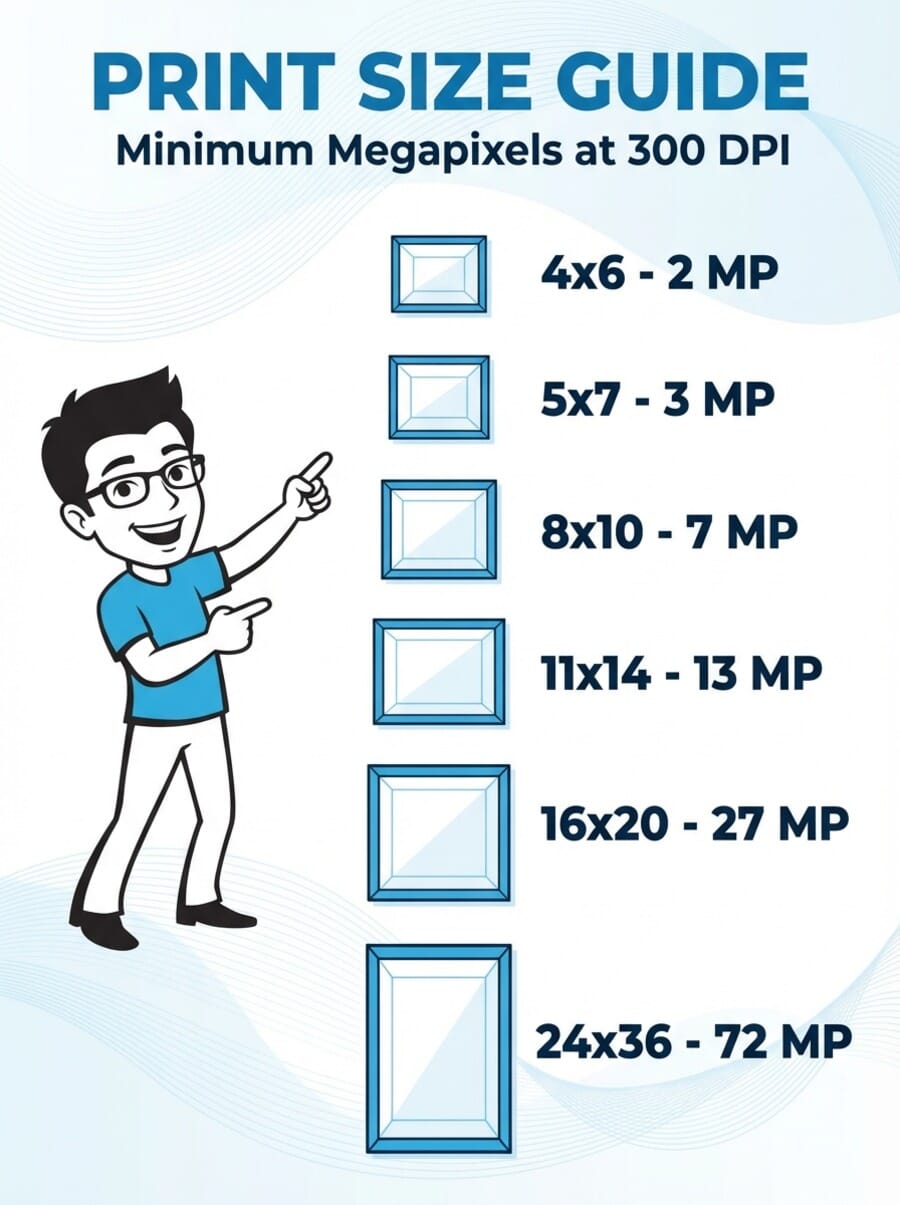
- 4×6 inches – 2 megapixels minimum (1200×1800 pixels)
- 8×10 inches – 7 megapixels minimum (2400×3000 pixels)
- 16×20 inches – 27 megapixels minimum (4800×6000 pixels)
- 24×36 inches – 72 megapixels minimum (7200×10800 pixels)
Most modern cameras (24+ MP) can comfortably print up to 16×20 at 300 DPI. For a deeper dive, read our print resolution guide.
File Formats
- TIFF – Lossless, no compression artifacts. The gold standard for print files. Large file sizes.
- JPEG (quality 90-100%) – Excellent for most print services. Much smaller files with negligible quality loss at high settings.
- PNG – Lossless but designed for screen use. Most labs accept it, but TIFF is preferred for print.
Pro tip: Export at JPEG quality 95% for the best balance of file size and quality. Most print labs cannot distinguish it from TIFF.
Color Management Basics
The most common printing complaint is “my prints do not match my screen.” This is almost always a color management issue. Here is how to fix it:
1. Calibrate Your Monitor
Your monitor likely displays colors inaccurately out of the box. A hardware calibrator (like the Calibrite ColorChecker Display or X-Rite i1Display) creates a custom ICC profile for accurate colors. This is the single most impactful step you can take. See our best monitor calibrators guide.
2. Soft Proof Before Printing
Soft proofing in Lightroom or Photoshop simulates how your photo will look when printed on a specific paper. It uses the printer/paper ICC profile to show you an on-screen preview. This lets you adjust brightness and saturation before wasting ink and paper.
3. Use the Right Color Space
Export in sRGB for online print services (they expect it). Use Adobe RGB when printing at home on a wide-gamut printer with ICC profiles set up. When in doubt, sRGB is the safe choice.
How to Enlarge Photos with AI
Want to print a favorite photo larger than its resolution allows? AI upscaling tools can intelligently add detail and resolution. Here are the best options in 2026:
Topaz Photo AI
Topaz Photo AI combines upscaling (formerly Gigapixel AI), denoising, and sharpening into one app. It can upscale images up to 6x their original resolution while adding realistic detail. One-time purchase of $199.
Best for: Dedicated upscaling with the highest quality results. Handles old scans and low-res smartphone photos particularly well.
Lightroom Super Resolution
Adobe Lightroom includes a built-in Super Resolution feature that doubles the linear resolution (4x the pixel count) of any photo. Right-click any image, choose “Enhance,” and select Super Resolution.
Best for: Quick upscaling within your existing Lightroom workflow. Included with the Photography Plan ($9.99/month).
Upscayl (Free and Open Source)
Upscayl is a free, open-source AI upscaler for Windows, Mac, and Linux. It uses Real-ESRGAN models and delivers surprisingly good results for a free tool. Available at upscayl.org.
Best for: Budget-conscious photographers who want free upscaling without subscriptions.
For more on preparing images for large prints, see our guide on how to digitize images for large prints.
Printing from Your Phone
You do not need a computer to get great prints. Modern smartphones make ordering prints simple:
iPhone
- Apple Photos – Open the Photos app, select images, tap the share icon, and choose “Order Prints” (available through the Shutterfly integration) or create photo books directly in the app.
- AirPrint – Print directly to any AirPrint-compatible printer on your Wi-Fi network. Open a photo, tap Share, then Print.
Android
- Google Photos – Tap any photo, hit the three-dot menu, and select “Order photo.” Google partners with CVS, Walmart, and other retailers for pickup or delivery.
- Default Print Service – Android has built-in print support. Open any image, tap Share, then Print to send to a connected printer.
Tip: For the best results from phone photos, make sure you are shooting in the highest resolution mode. On iPhone, enable ProRAW or HEIF Max. On Android Pixels, use the 50 MP full-resolution mode.
Step-by-Step: Print from Lightroom
Lightroom Classic has a dedicated Print module that gives you precise control. Here is the quick workflow:
- Select your photo in the Library or Develop module.
- Switch to the Print module (top right).
- Choose a layout template (single image, contact sheet, or custom).
- Set your paper size under Page Setup.
- In the right panel, set Print Resolution to 300 ppi.
- Enable Print Sharpening (Low or Standard for most papers).
- Under Color Management, select your printer/paper ICC profile.
- Click Print (or Print to File for a JPEG/TIFF to send to a lab).
For a detailed walkthrough with screenshots, read our full Lightroom printing guide.
Common Printing Mistakes to Avoid
- Printing at too low a resolution – If your image is under 200 DPI at print size, it will look soft or pixelated. Always check resolution before ordering.
- Skipping monitor calibration – An uncalibrated monitor can be dramatically off on brightness and color. Your prints will never match what you see.
- Using the wrong color space – Sending Adobe RGB files to a lab that expects sRGB can produce muted, desaturated prints.
- Over-sharpening – What looks crisp on screen can look harsh and crunchy in print. Apply moderate sharpening and use Lightroom print sharpening instead.
- Ignoring paper selection – Printing a dark, moody image on glossy paper or a vibrant landscape on heavy matte paper can diminish the impact.
- Not leaving bleed margins – If you want borderless prints, extend your image slightly past the trim line (usually 1/8 inch on each side).
What DPI should I use for photo prints?
300 DPI is the standard for high-quality photo prints. For very large prints viewed from a distance (like a 24×36 poster on a wall), you can get away with 200-250 DPI since viewers stand farther back.
Should I send JPEG or TIFF files to a print lab?
Either works. TIFF is technically lossless, but a high-quality JPEG (95%+) is virtually indistinguishable in print and much faster to upload. Most professional labs accept both formats.
Can I print large photos from my smartphone?
Yes. Modern flagship phones (iPhone 16 Pro, Samsung Galaxy S25 Ultra, Google Pixel 9 Pro) shoot at 48-200 megapixels, which is enough for prints up to 16×20 or larger. For older phone photos, AI upscaling tools like Topaz Photo AI can help.
Should I choose matte or glossy paper?
Glossy paper produces more vivid colors and deeper blacks, but shows fingerprints and glare. Matte paper has a sophisticated, glare-free look that works beautifully for portraits and black-and-white images. Lustre (satin) paper is a popular compromise that offers the best of both.
Why do my prints come out too dark?
This is usually because your monitor brightness is set too high. When your screen is brighter than the print, the print looks dark by comparison. Calibrating your monitor with a hardware calibrator fixes this by setting accurate brightness levels (usually around 120 cd/m2 for print work).
How long do photo prints last?
With archival-quality inks and papers, modern inkjet prints can last 100+ years when stored properly (away from direct sunlight and humidity). Pigment-based inks last longer than dye-based inks. Museum-quality prints on cotton rag paper have the longest lifespan.