


- Excire Foto 2027 is our top pick for Mac photo organizing — class-leading on-device AI search, now with AI text search, a World Map view and faster culling, no subscription. Use code PHOTOWORKOUT for 15% off.
- Apple Photos is the best free, built-in choice for most Mac users — good AI search and face recognition with zero setup or cost.
- Adobe Lightroom Classic is the professional standard for cataloging and editing if you’re in the Adobe ecosystem; Capture One is the premium RAW alternative.
- Luminar Neo is Skylum’s current AI editor (successor to the discontinued Luminar 4 and Luminar AI) and doubles as a capable organizer.
- Pick by workflow: dedicated AI search (Excire), free and simple (Apple Photos), pro cataloging (Lightroom/Capture One), or AI editing plus organizing (Luminar Neo).
Streamline Your Photo Collection: The Best Mac Software
Photography mastery encompasses both capturing and organizing great images. Many photographers overlook the importance of efficient file management. Here, we highlight top-rated Mac programs that can simplify photo organization.
The Best Mac Photo Organizers:
- Excire Foto: A versatile, AI-powered program available for Mac and Windows. It helps analyze photos for keywords, metadata, and duplicates. Features facial recognition and advanced keyword tools for efficient search and organization.
- Adobe Photoshop Lightroom Classic
- Mylio Photos
- Luminar Neo
- Capture One Pro
- ACDSee Photo Studio (for Mac)
- CyberLink PhotoDirector 365
- AfterShot Pro
- Apple Photos
- Adobe Bridge
- DigiKam
When you buy through links on our site, we may earn a commission at no cost to you. We evaluate products independently. Commissions do not affect our evaluations.
Introduction
It’s difficult to master photography. Learning your way around the camera is one thing, and finding out how to take great images can take years of practice. One challenge that photographers don’t usually foresee is actually housing and organizing all of their files.
However, keeping track of your images doesn’t have to be a major obstacle to overcome. Check out these programs available for Mac designed to simplify your photographic life.
The Best Mac Photo Organizers
Regardless of your budget, there’s Mac photo management software out there that’ll fit your needs. We’ve included paid and free programs of varying difficulty levels on our list.

Excire Foto 2027 packs class-leading on-device AI search — and the 2027 update adds AI text search (it reads the words inside your photos), a World Map view and faster culling — so you can find any shot by face, keyword, place or even the text in it. Use code PHOTOWORKOUT for 15% off.

Lightroom Classic has a plethora of photo management tools including Collection creation and excellent folder hierarchy organization.

Mylio Photos has a great set of tools, a simple import system, and advanced facial recognition tools.

Capture One Pro is a professional program that offers advanced editing, workflow customization, and an excellent management suite.

Apple Photos is instantly ready to go and is a great no-fuss option if you don’t want to commit to paid software.
1. Excire Foto 2027
Excire Foto 2027 packs class-leading on-device AI search — and the 2027 update adds AI text search (it reads the words inside your photos), a World Map view and faster culling — so you can find any shot by face, keyword, place or even the text in it. Use code PHOTOWORKOUT for 15% off.
Pay only once, no recurring payments.
Excire Foto is a great program and is available for both Mac and Windows devices. As we explain in our Excire review, it is a powerful organization option thanks to its versatility, advanced tools, and use of AI technology.
The software uses AI in numerous ways. For example, it automatically analyzes photos for keywords, metadata, and other parameters to help with organization. This is also used to find duplicate images so you can reduce your catalog size and eliminate redundant photos. We also like that you can work with facial recognition tools to find photos of specific people – this should be helpful for portrait and event photographers or even those who want to create family photobooks.
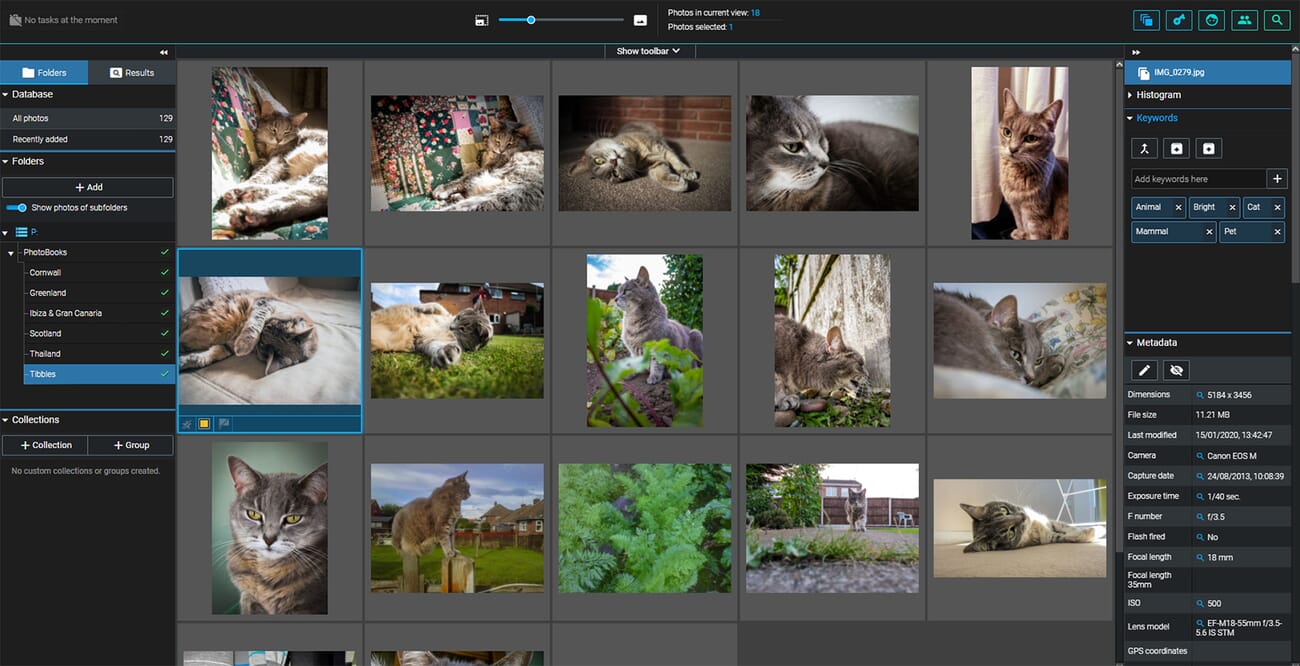
Mac users can also benefit from the advanced keyword tools. You can add multiple keywords to your images, then use the search function to find specific files. You can also use star ratings, colors, and flags to further organize your collection.
Excire Foto may take a while to get used to, but the interface is relatively simple, and once you understand where the various tools are located, it becomes incredibly intuitive. For large photo collections of either professional or casual snaps, Excire Foto is certainly one of the best photo management programs you can buy.
2. Adobe Photoshop Lightroom Classic
Lightroom Classic has a plethora of photo management tools including Collection creation and excellent folder hierarchy organization.
LrC and LR are part of the creative cloud photography plan.
Adobe is a leader in the world of creative technology, so it shouldn’t come as much of a surprise that Lightroom is one of the best photo management programs for Macs. It can be a little overwhelming for beginners, and it’s not always the most intuitive program to use. However, once you know your way around Lightroom’s file management features, you’ll find that the catalog system can handle the organizational needs of any professional photographer.
Lightroom has a complete photo management suite together with various powerful editing tools. You must first import folders from your Mac and add them to your Lightroom catalog. From there, the folders and files within will be fully manageable. You can change the folder hierarchy, move images, create new folders, and more.
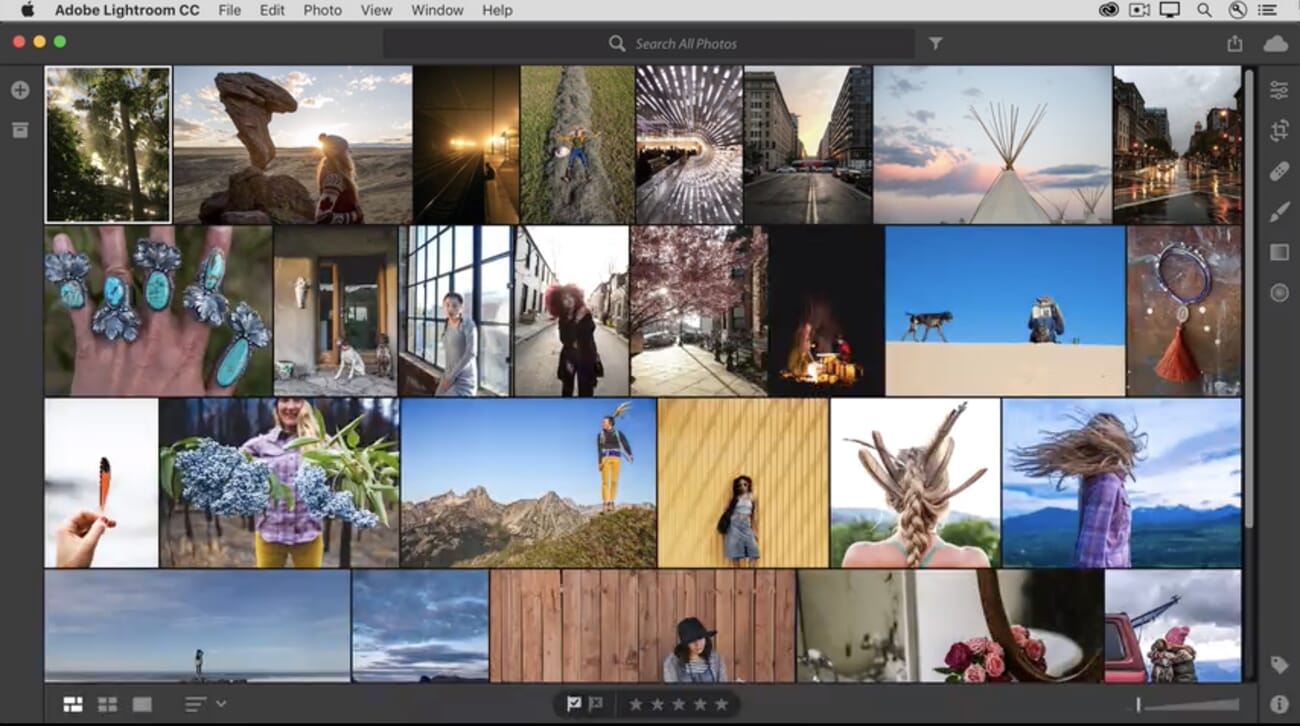
However, these are just the basic features. Lightroom Classic also has excellent index, rating, and search tools. For those with large photo collections spanning multiple years and categories, this is vital. You can edit the metadata completely for each photo (including parameters like the title and the caption). Furthermore, keywords can be added that are then searchable. Photos can also be filtered by other features like star ratings and color labels. All of these parameters can then be used to quickly find the photos you want to edit or export.
Lightroom also has an interesting “Collection” tool. This is used to create virtual folders that do not impact the underlying folder hierarchy you have created. You can include photos from various folders in your Collections. This feature is useful if you want to group images with a specific theme (e.g., sunsets).
Recent LrC Updates
Also Worth Trying: Topaz Photo AI
Topaz Photo AI uses machine learning to sharpen, denoise, and upscale photos in a single click. It’s particularly strong for batch AI enhancement — the AI models were trained on millions of real photographs and produce noticeably better results than traditional filters. Available as a standalone app or Lightroom/Photoshop plugin ($199/year or $39/month).
3. Mylio Photos
Mylio Photos has a great set of tools, a simple import system, and advanced facial recognition tools.
Premium features are priced at $9.99/mo.
Mylio Photos stands out from the crowd. Unlike many competitors, Mylio is aware of photographers’ growing needs not just to organize but to consolidate images.
Using a peer-to-peer connection on a shared network, Mylio Photos brings photographs from multiple devices into one spot. What’s more, you can access all of those photographs through any device connected to your Mylio account. Changes you make to a photograph on one device sync with all your other devices.
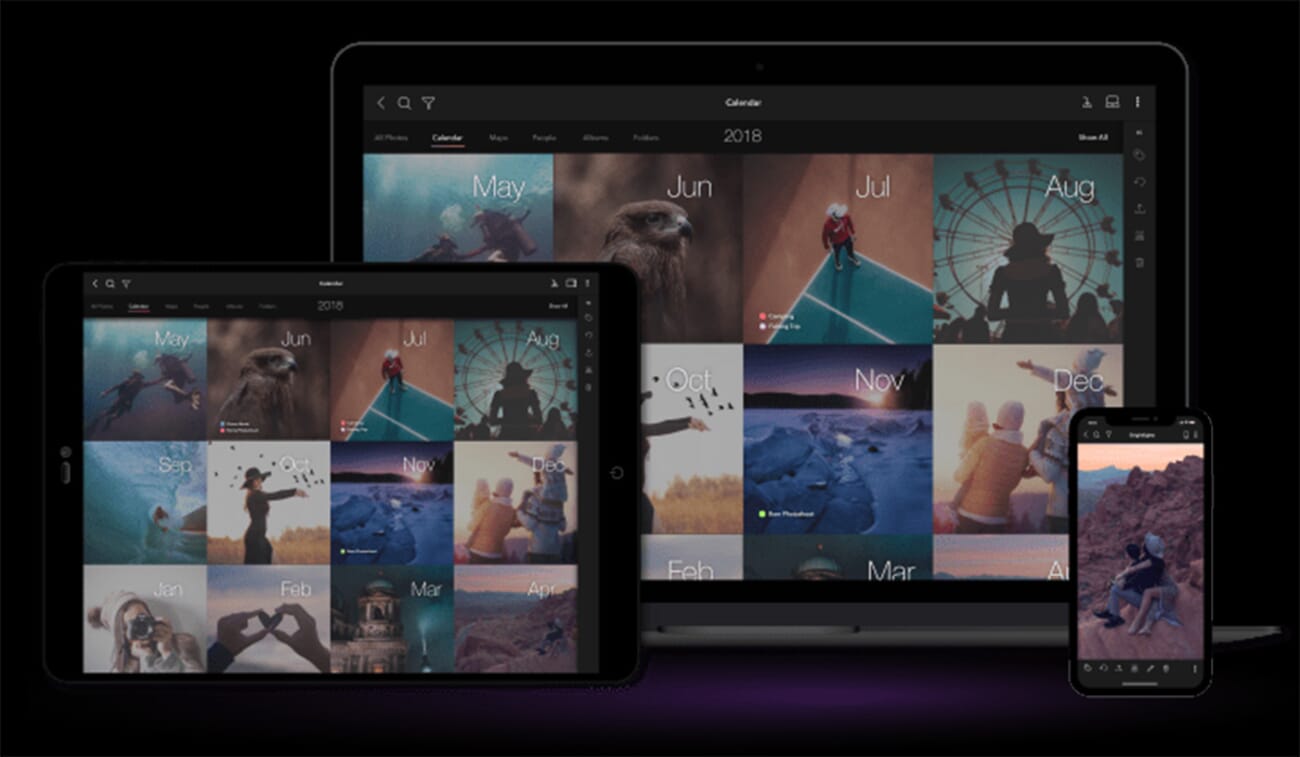
Mylio allows you to import any existing folder structures you may have. But the software also makes it easy to start organizing from scratch. Mylio Photos offers the option to find photos based on dates, places, and even people. Thanks to a handy facial recognition feature, you can tag pictures of your friends and family.
You can start using the program for free, but you’ll be limited to three devices and 25,000 individual images. To upgrade to unlimited storage and unlock features like RAW image editing, you’ll have to pay for a $9.99/month subscription.
4. Luminar Neo

Luminar Neo has a user-friendly interface that is easy to understand and offers simple but effective photo management.
Special yearly prices/offers are common.
Luminar Neo is the next evolution of Skylum’s main photo editing software and is the successor to the now-discontinued Luminar 4 and Luminar AI, and is Skylum’s current flagship product (with strong photo-management capabilities). In our experience with Luminar Neo, we found it isn’t as comprehensive as a program like Lightroom, but the ease of use and minimalistic design make it a great choice for those who are still learning the basics.
With Luminar Neo, you can add folders from your Mac storage drive. The folder hierarchy can then be adjusted; you can create new folders, add subfolders, and do some quick renaming. The main preview screen includes a host of sorting features, and you can see metadata for each photo (including the camera model and lens used).
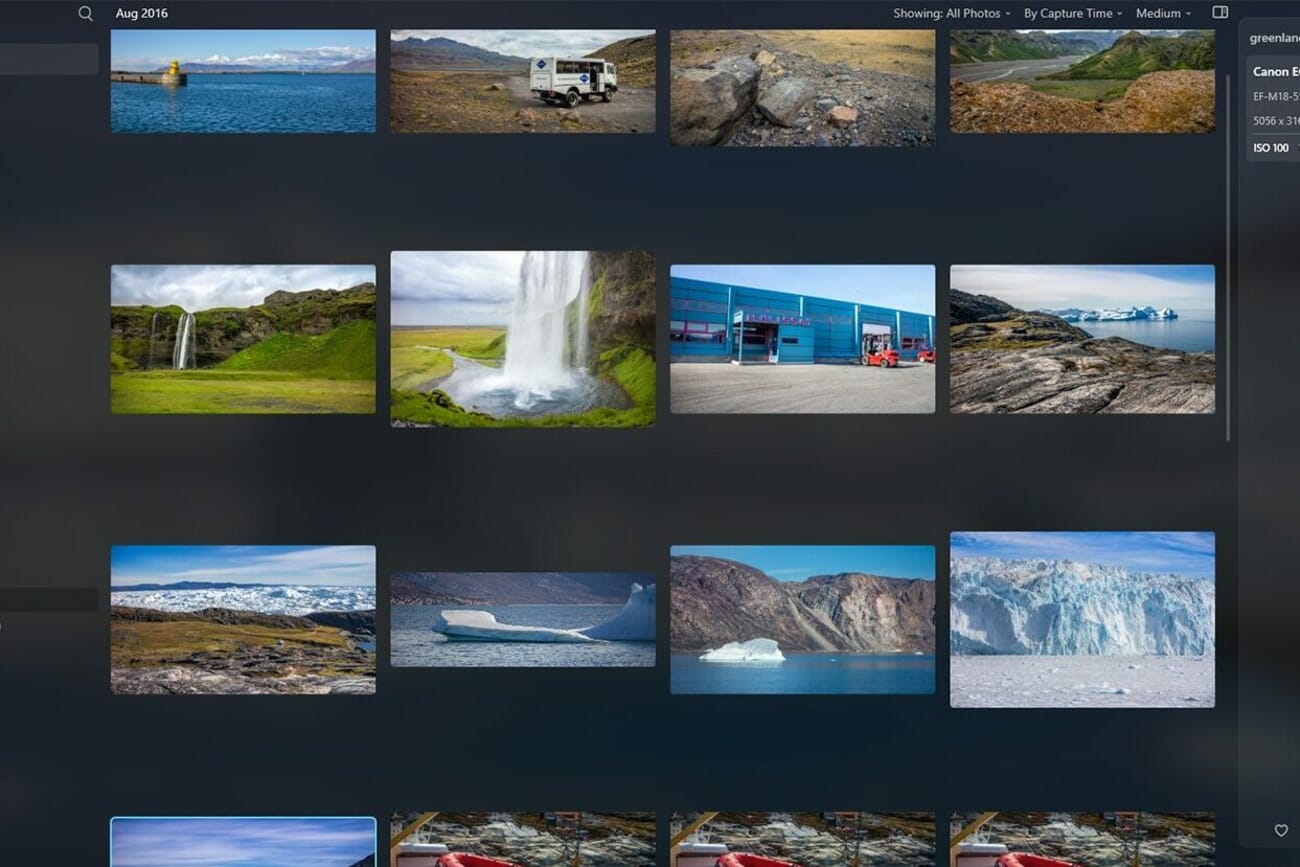
Sorting parameters include the type of photo (e.g., flagged files), the sorting method (e.g., capture time), and the thumbnail preview size. We also like that if you right-click on a thumbnail, you can select the —Go to images from the same capture date— option; for photographers with lots of photos, this is a very effective feature.
Although Luminar Neo doesn’t have a huge range of advanced management tools like some other programs, it is a solid choice and is certainly a great pick for those who want simple organization tools together with powerful photo editing.
5. Capture One Pro
Capture One Pro is a professional program that offers advanced editing, workflow customization, and an excellent management suite.
*$299 USD one-time payment does not include future updates
Capture One Pro is an excellent Photoshop and Lightroom alternative packed into one convenient program. A popular choice among professional photographers, it’s great at storing and organizing images and it’s an effective standalone image editor.
Capture One organizes photographs into catalogs (larger, permanent collections) and sessions (distinct photoshoots). Capture One also prides itself on its ability to quickly import images while tethered to a camera. The capture and organizational strategy are clearly oriented towards professionals juggling assignments. However, it’s relatively easy to adjust the Capture One formula to fit whatever your needs may be.
Since the software often runs with active shoots, managing images is easy via keyboard shortcuts. Keywords applicable to individual images or entire sessions are also included, making it easy to pull up a specific type of image. From there, you can set up Smart Albums, which automatically collect photos with certain attributes.

The workflow is also pretty customizable. Despite having some of the most varied and advanced tools on our list, Capture One users are controlling what’s hidden and what’s visible. You can even pin your favorite tools to the top of the window for instantaneous access while you browse and adjust.
If Capture One seems like the software that best suits you, be sure to download the free trial.
6. ACDSee Photo Studio (for Mac)

ACDSee is customizable and has superb search functionality so you can quickly find specific images.
The best thing ACDSee Photo Studio has going for it is its customizability. If you need things to look and function a certain way, the flexibility in ACDSee’s appearance and controls might be for you. What’s more, you can toggle between databases to separate personal and professional collections.
You can organize your workspace to fit your needs by moving, stacking, docking, or hiding individual tool modules. All of the information and options your library has to offer can be contained in one window, or you can focus on one aspect at a time. It’s really all about finding the workflow that works best for you.
There’s also a Manage Mode that allows you to find, move, and sort through files directly on your computer. Even keyboard shortcut configurations are customizable to make navigation as intuitive as possible, which we found very helpful when reviewing ACDSee Photo Studio.
As if that weren’t enough, ACDSee can save searches to easily reach images that meet certain criteria. With the most recent release, ACDSee has also improved its keyword management. Aside from the program’s pre-loaded keyword sets, users may create their own custom sets of related keyword categories.

Finally, ACDSee can automate some metadata management and photo backups. For instance, it’s possible to geotag images and organize them based on picture location. Through Manage Mode, you can back files up to iCloud to ensure shots are safe and secure. What more could you want?
Recent ACDSee Photo Studio Updates
7. CyberLink PhotoDirector 365

PhotoDirector 365 has some useful AI tools such as enhanced facial recognition and powerful sorting capabilities.
CyberLink PhotoDirector 365 doesn’t spend much time bragging about its library capabilities. Admittedly, it is a bit clunkier than some other Mac photo management software. That being said, after performing some hands-on tests with PhotoDirector, we think there’s a case to be made for this software.
Though it doesn’t offer the slickest interface around, it’s got all the essentials its competitors provide. There’s easy access to your folder hierarchy, the ability to create new albums, and a few select smart collections for easy photo access.
But the real draw of PhotoDirector lies in its advanced AI features.
Unlike Luminar, these features aren’t solely dedicated to AI editing (although there are some features that can enhance your shots). Most notably, PhotoDirector has included AI facial recognition that works in line with managing your photos.

In short, it can auto-detect faces present in select photos. Once the program has identified and tagged a face, you can sort through photographs based on the individuals present. A “faces” tab allows you to sort through your models after upload. For prolific portrait photographers, this is a godsend.
CyberLink PhotoDirector Recent Updates
8. AfterShot Pro

⚠️ Note: Corel discontinued AfterShot Pro in 2023. It may still work but receives no updates. Consider alternatives like Excire Foto or DigiKam.
⚠️ Update (2026): Corel discontinued AfterShot Pro in 2023. While existing licenses still work, the software no longer receives updates or new camera support. We recommend considering Excire Foto or DigiKam as alternatives.
AfterShot Pro was Corel’s answer to the user’s increasing need for a photo management solution. In the past, Corel neglected Mac users — its most popular product, PaintShop Pro, remains a Windows exclusive.
One impressive element? Accessing and viewing images is fairly easy. In fact, you don’t even have to import shots or add them to your library to view.
You can simply take a look at the files on an outside folder or a connected network or device by browsing through the Directory View. This can really cut down on clutter over time, allowing you to only bring in the files that you need or want.
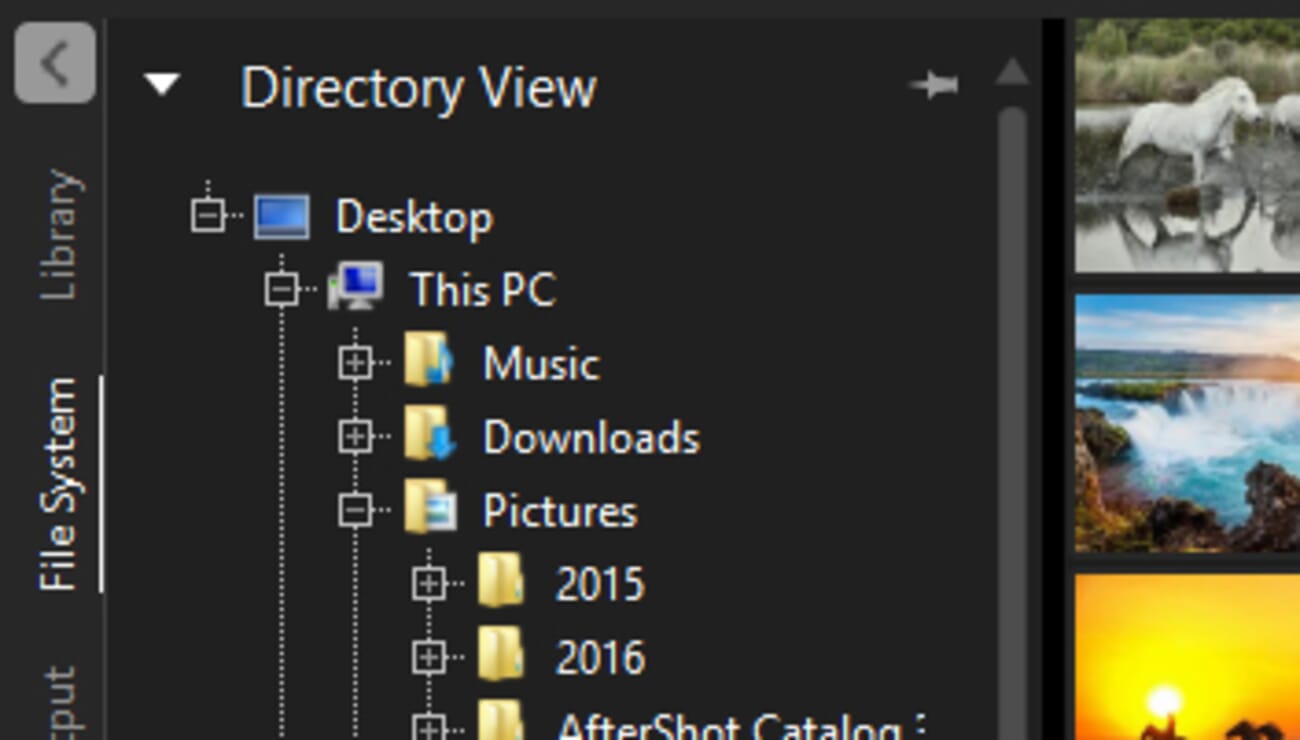
The software itself also takes up considerably less room on your hard drive than programs like Lightroom. If you’re working with a limited amount of storage space and have a budget for how much your photo library can take up, AfterShot may be a smart choice.
However, any room that this system might save gets muddled by the program’s somewhat unnecessary “versions.” In short, whenever a master file is altered, a new version of the file is stacked on top of the original. While other programs also do this, AfterShot’s presentation of individual edits can be confusing.
For some, having every little aspect on immediate display is a bit much. For others, having everything spelled out makes it easier to find exactly what they want when they want it. AfterShot isn’t our first choice for organizational purposes, but it is a way of looking at things if other programs are leaving you confused.
Free Mac Photo Organizer Options
There are a few free Mac photo organizers worth looking a close look at. Though they face some limitations compared to their costlier counterparts, they all have the power to get your files in order.
9. Apple Photos
Apple Photos is instantly ready to go and is a great no-fuss option if you don’t want to commit to paid software.
iCloud sync is free up to 5GB
Sometimes the best options are the easiest and most obvious. If you’ve ever owned an Apple product, you’re probably already somewhat familiar with Mac’s Photos app. It’s pre-installed on every Apple smartphone and computer, so getting started is hardly a hassle.

In some regards, Apple’s photo management software is rudimentary. That being said, it’s received a bit of a makeover with some of the most recent Apple updates. For instance, the application can now use smart curation to make personalized albums, from day trips to pet pictures. You can also search for specific people and places as the program uses facial recognition and GPS info to organize your shots.
But not everyone needs all of those extra frills. At its core, the Photo app provides a clean means to scroll through images chronologically. You can create albums and apply basic edits as well, though these features are rather limited compared to our other entries.
One word of warning: The app is better suited for your iPhone than it is your MacBook. While it’s an easy, automated option on the go, it’s not the best choice when you have storage space to play with. One particularly inconvenient feature is the app’s compression of its library files. On a phone, it’s an excellent storage-saving trick. However, it makes accessing the original source files on a computer unnecessarily difficult.
10. Adobe Bridge

Adobe Bridge is free, comprehensive, and works well with other software like Adobe Photoshop.
Adobe Bridge is great for getting started if you’re new to organizing images. Essentially, it’s a file browser with RAW capabilities. Bridge reads the image files that are already living on your hard drive and presents them in a way that makes them easier to organize. Any moves or changes you make to your file’s location in Bridge are applied to the folder hierarchies on the drive.
Of course, it doesn’t have all the advanced editing and organizing features of Lightroom. But for some, this is an advantage. Lightroom can often be overwhelming to newcomers, while Bridge is much more straightforward.
Unlike most of Adobe’s software, Bridge is available at no cost to you. You don’t need to get a cloud subscription or buy additional software to begin organizing. This makes Bridge one of the most accessible Mac photo management programs available.
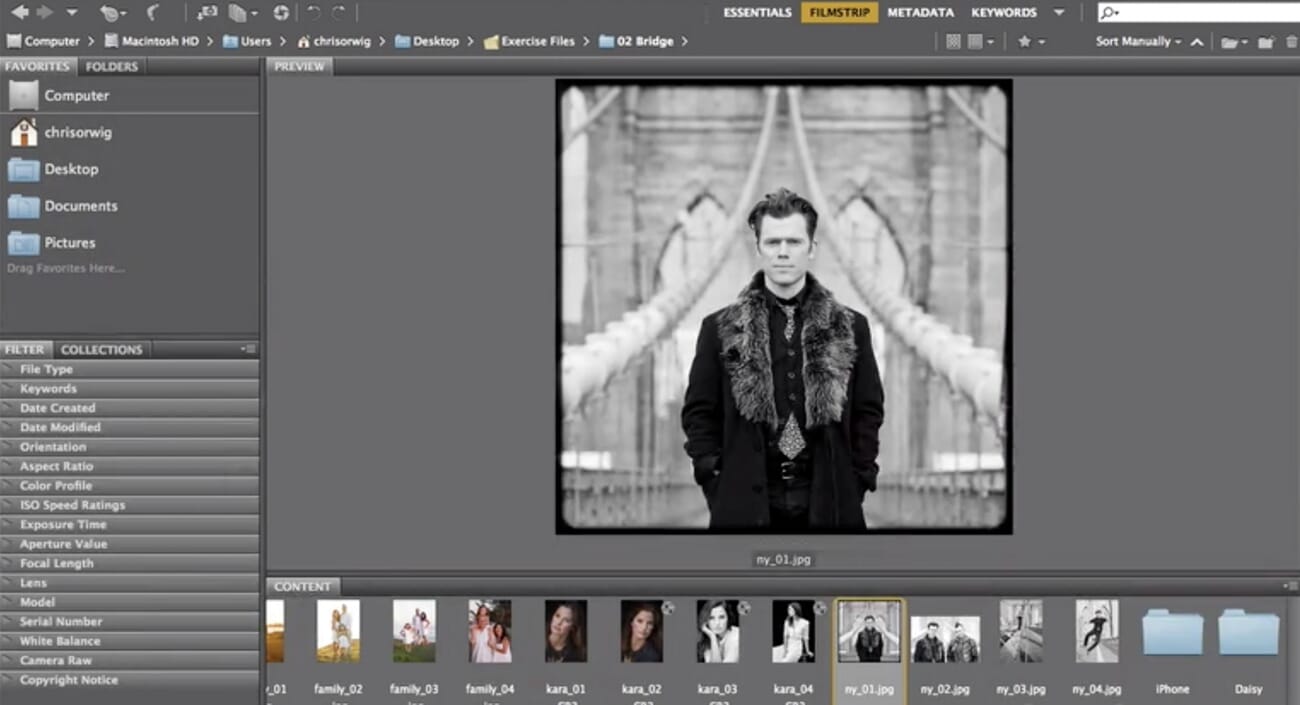
A good rule of thumb? If you’re just starting to organize, give Bridge a try. If you like the format but find that the program isn’t enough to accommodate your needs, upgrade to Lightroom.
11. DigiKam
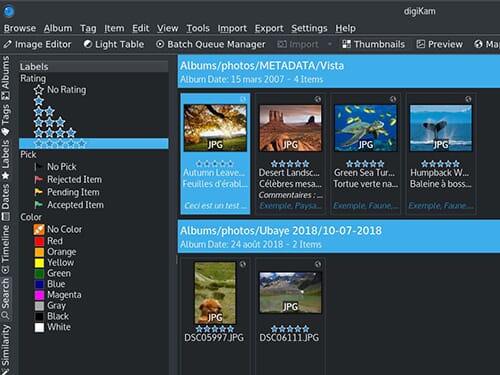
DigiKam offers consistent performance and great navigation tools for large photo collections.
DigiKam may not be the most glamorous option available, but it is reliable, free, and open-source. Anyone can contribute to the code or design, meaning that the capabilities of this tool are perpetually evolving. This potential, in our opinion, more than makes up for any of the clunkiness of DigiKam’s design.
Aside from being an adept editor, the software is well equipped with everything a digital organizer should have. There’s an album directory that directly reflects the folder hierarchy on your disk. A tag manager helps to organize the properties of your images, making them easier to access. A particularly complex search feature further aids in navigating large collections.
One aspect that DigiKam has over other free editing options is its ability to process all the major RAW image formats. Almost every other program out there requires that you pay a premium to do this. It’s one of the many features that make DigiKam a great option for serious photographers who would rather spend their cash on gear than on software.
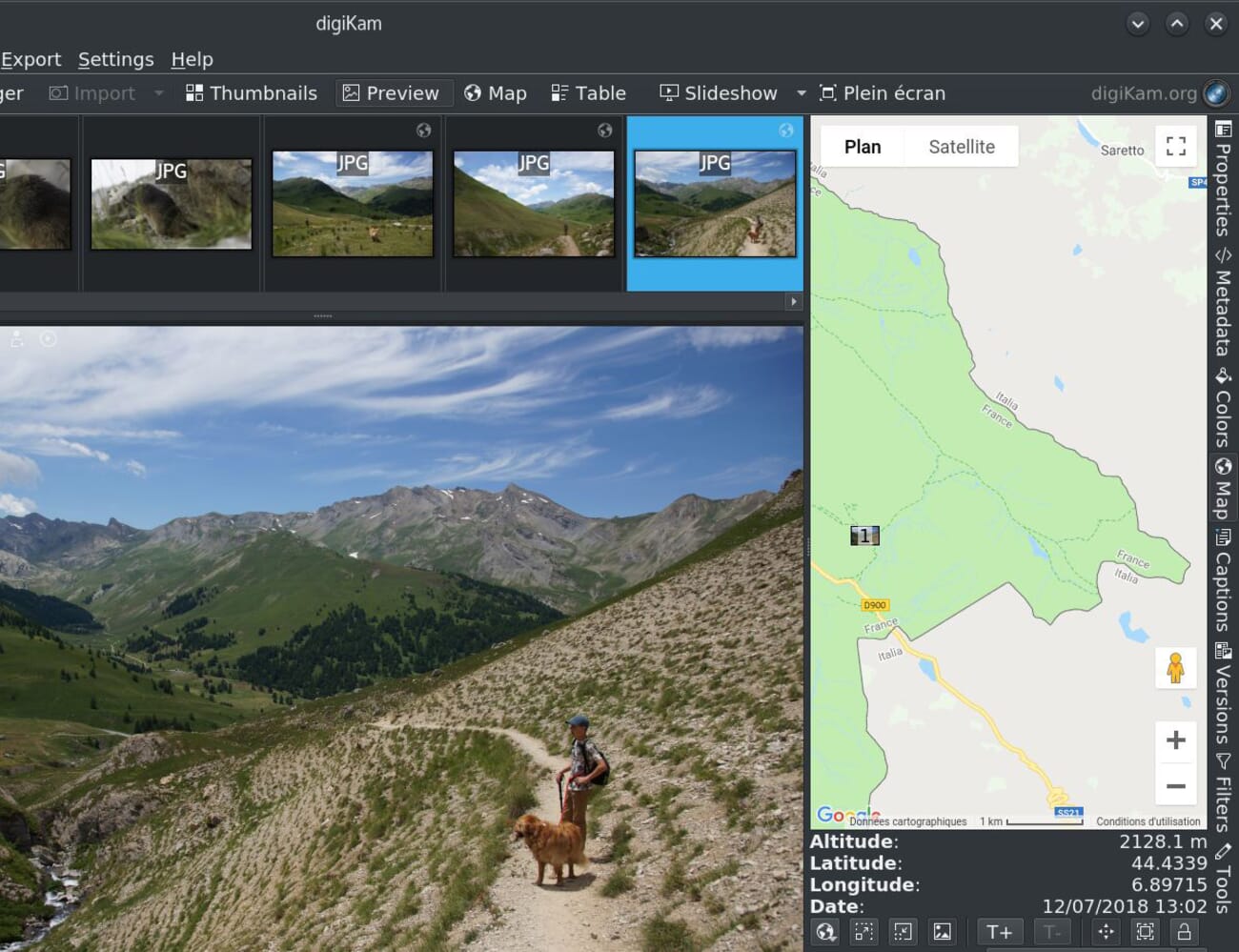
The downside to it is that it can all feel a bit technical at times. Finding information or help with a specific hiccup can be difficult. However, for a free program, it’s certainly very impressive.
Pick the Right Photo Management Software
We’ve only covered the tip of the iceberg of Mac photo management software. Today’s entries just represent some of the most promising programs out there.

Finding the organizer that’s right for you is about recognizing what matters most. Are you looking for something simple and straightforward or incredibly detailed? Does your organizer also need to edit and enhance images? How much are you willing to pay to get your photos in order?
Everyone has their own style of organization. The one thing all of these programs have in common is the capability to make sense of your digital assets. There’s no need to feel like you’re buried under your archives — for anyone with a Mac, photo management software will be a game changer.

Sources and image credits for this guide:
Image Sources
- App interface screenshots (Excire Foto, Apple Photos, Lightroom, Capture One, ACDSee, Luminar Neo and others) — courtesy each vendor – Used to illustrate each pick
- Vertical pin — stylized PhotoWorkout illustration – Created in-house



