


- iOS 26 adds a Camera Remote setting that lets you trigger your iPhone’s camera by pressing an AirPods stem — no Apple Watch, timer scramble, or extra hardware needed.
- It’s off by default. Turn it on in Settings → your AirPods → Camera Control → Camera Remote, then pick ‘Press Once’ or ‘Press and Hold’ as the trigger.
- Works with AirPods Pro 3, AirPods Pro 2, AirPods 4, and AirPods Max 2 (Digital Crown). With the Camera app open, a stem press snaps a photo or starts/stops video.
- Perfect for self-portraits, group shots, and steadier video on a tripod — you frame the shot, step back, and fire without touching the phone.
Getting yourself into the photo has always meant a compromise: sprint against a 10-second timer, prop the phone somewhere precarious, or buy a Bluetooth shutter remote. iOS 26 quietly fixed that. A new Camera Remote setting lets your AirPods fire the iPhone’s shutter with a single press of the stem — so the earbuds already in your pocket become a hands-free remote, no extra gear required.
It’s a small feature with a big payoff for self-portraits, group photos, and tripod video. Here’s exactly how to turn it on and use it.
What You Need
- An iPhone running iOS 26 or later.
- Compatible AirPods: AirPods Pro 3, AirPods Pro 2, AirPods 4, or AirPods Max 2. (Older AirPods don’t support it.)
- That’s it — no app to install and no separate remote to buy.
How to Set Up AirPods Camera Remote
Camera Remote is turned off out of the box, so you’ll enable it once in Settings:
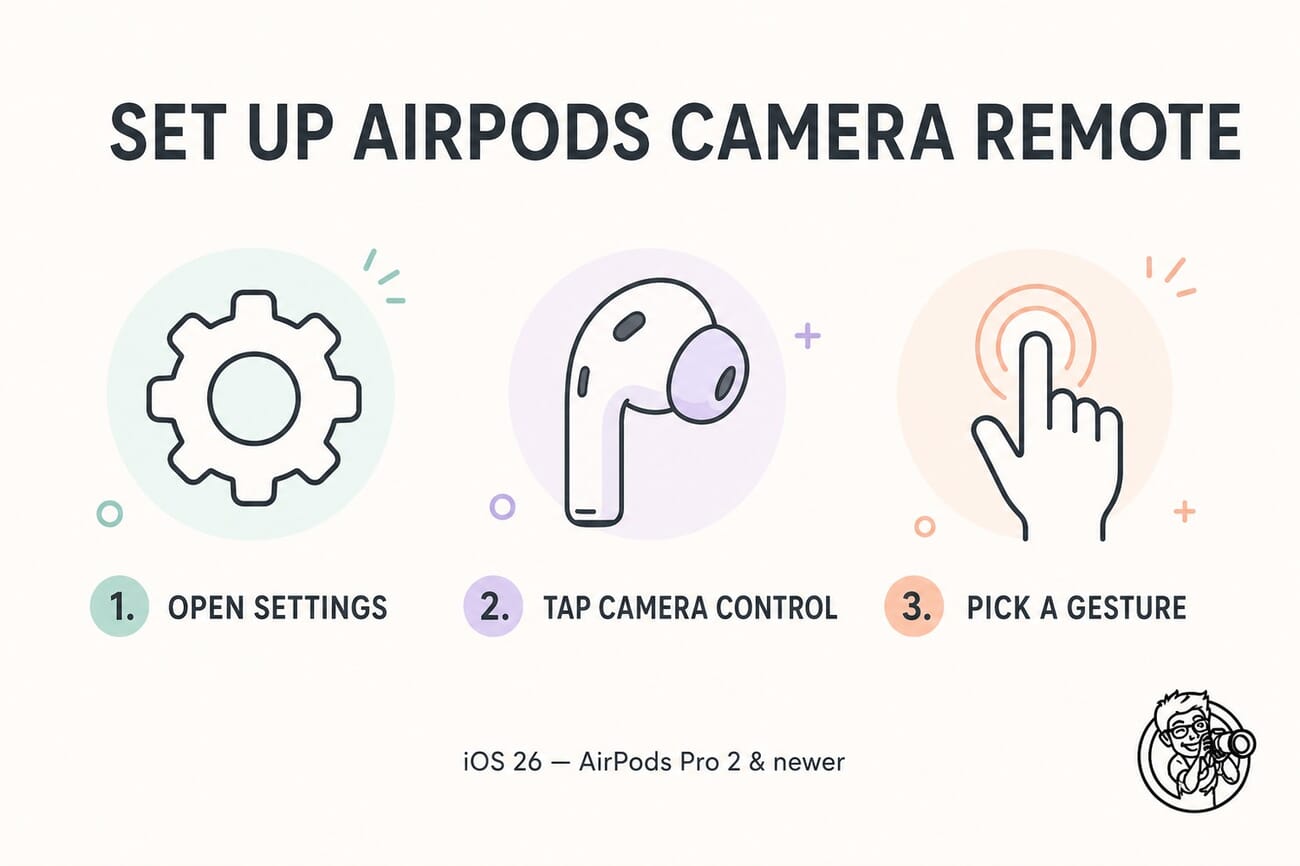
- Put your AirPods in (or have them connected), then open the Settings app on your iPhone.
- Tap your AirPods at the top of the Settings list (or find them under Bluetooth).
- Scroll to the Camera Control section and tap Camera Remote.
- Choose your trigger: Press Once or Press and Hold. That’s it — the remote is now armed.
From now on, whenever the Camera app is open, pressing your AirPods stem (or the Digital Crown on AirPods Max) will take the shot.
How to Use It to Take a Shot
- Set up your iPhone — on a tripod, a ledge, or a stand — and open the Camera app.
- Frame your composition and step into position. For self-portraits, leave a little extra room so you can adjust.
- Press your AirPods stem to capture a photo. In Video mode, the same press starts and stops recording.
Because you’re not touching the phone, there’s no camera shake at the moment of capture — which also makes it a quiet way to grab steadier handheld video.
Press Once vs. Press and Hold: Which to Choose
The two options exist because the stem press normally does other things, and Camera Remote temporarily borrows that gesture only while the Camera app is open. Apple’s own note spells out the trade-off:
- Press Once — fastest and most natural for shooting, but your media-control gesture (play/pause) is unavailable while the camera is open.
- Press and Hold — keeps single-press media controls free, but your noise-control/Siri gesture is the one that’s borrowed instead.
If you mostly want a reliable shutter, Press Once is the simplest. If you often pause music or switch noise modes mid-shoot, Press and Hold keeps those handy. You can switch anytime in the same menu.
Tips for Self-Portraits, Groups, and Video
- Stabilize first. A small tripod or phone clamp turns this from a party trick into a genuinely useful setup — see our beginner tripod picks.
- Combine with the timer for group shots: trigger with your AirPods, then the 3-second timer gives everyone a beat to settle.
- Use the volume buttons too. The AirPods press works alongside the iPhone’s existing volume-button shutter — handy when someone else is near the phone.
- Mind your framing on newer phones. The wider sensors on bodies like the iPhone 17e give you cropping room if your self-portrait composition is slightly off.
AirPods vs. Apple Watch vs. the Timer
Apple now gives you three ways to fire the shutter remotely. AirPods are best when they’re already in your ears and the phone is a few feet away. The Apple Watch Camera Remote app adds a live preview on your wrist, which is better for precise framing from a distance. The classic self-timer still wins when you have neither — or want a hands-totally-free countdown. The AirPods option simply removes the most common excuse: needing extra kit you don’t have on you.
Frequently Asked Questions
Which AirPods support the Camera Remote?
AirPods Pro 3, AirPods Pro 2, AirPods 4, and AirPods Max 2. Earlier AirPods models don’t offer the feature, even on iOS 26.
Does it work in third-party camera apps?
It’s built for Apple’s Camera app and works with supported camera apps that adopt the system shutter. The native Camera app is the reliable choice.
Will pressing the stem still control my music?
Only while the Camera app is open does the press become a shutter. Close the camera and your normal media and Siri gestures return. The Press Once vs Press and Hold choice decides which gesture is borrowed in the meantime.
The Bottom Line
AirPods Camera Remote is the kind of feature you’ll forget existed until the moment you need it — a group shot with no one to hold the phone, a solo travel portrait, a locked-off video. Flip it on once in Settings, and the remote you needed is already in your ears. For anyone who shoots with an iPhone, it’s a 30-second setup worth doing today.
Featured image and infographic: PhotoWorkout editorial illustration.
Feature details and supported-device information from Apple and primary coverage.
Coverage & Documentation
- 9to5Mac – AirPods got new iPhone camera feature in iOS 26 – Setup steps + supported models
- Apple Support – Use AirPods with camera apps – Official documentation



